Stay Posted
Write a post once. It goes to every Discord channel and Telegram chat you choose, right away or at a time you set.
One post, every place
An announcement that belongs in five channels and a Telegram chat is six copies, six pastes and six chances to miss one. Here it is written once, checked once, and sent to all of them with one press.
It is for anyone who posts the same thing in more than one place: a public channel and a members one, a Discord server and its Telegram chat, or several servers at once.
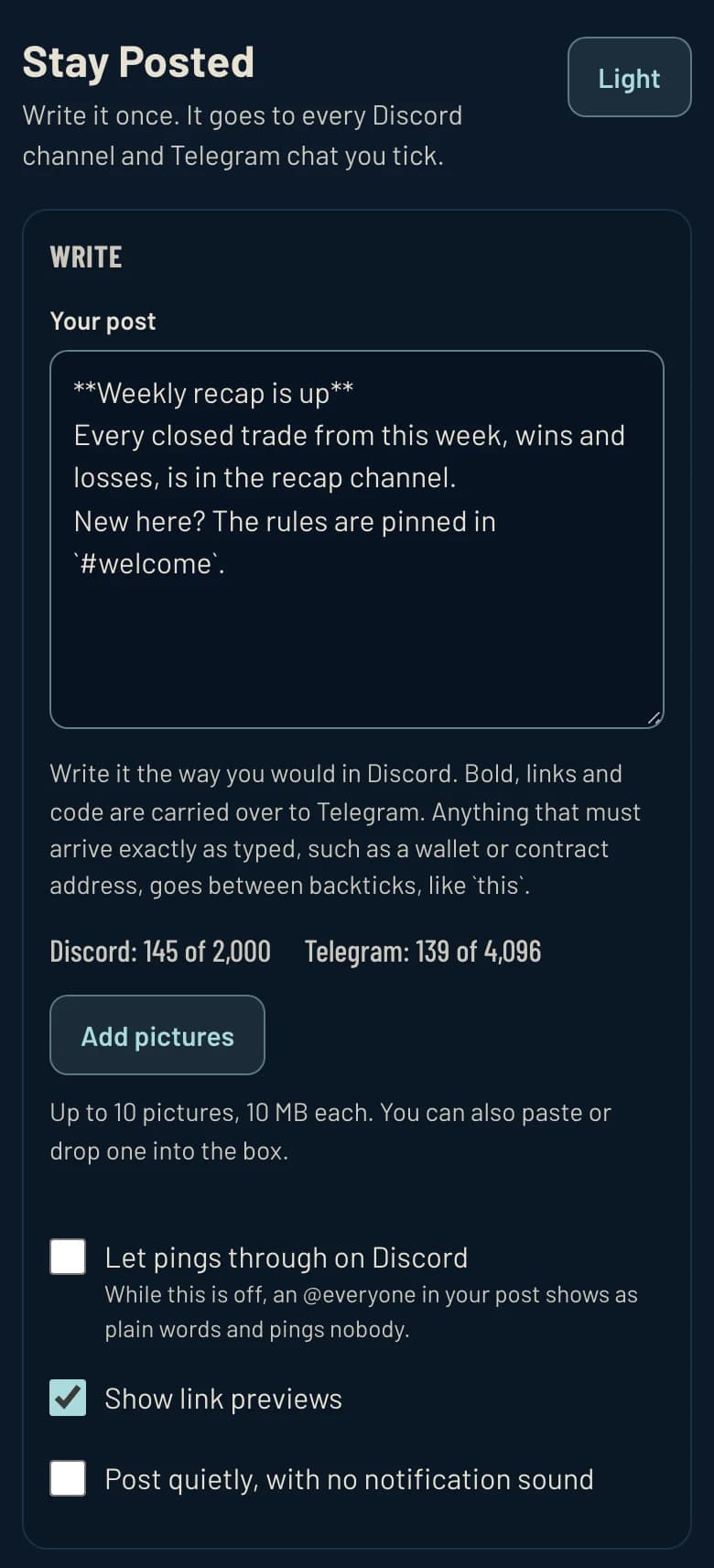
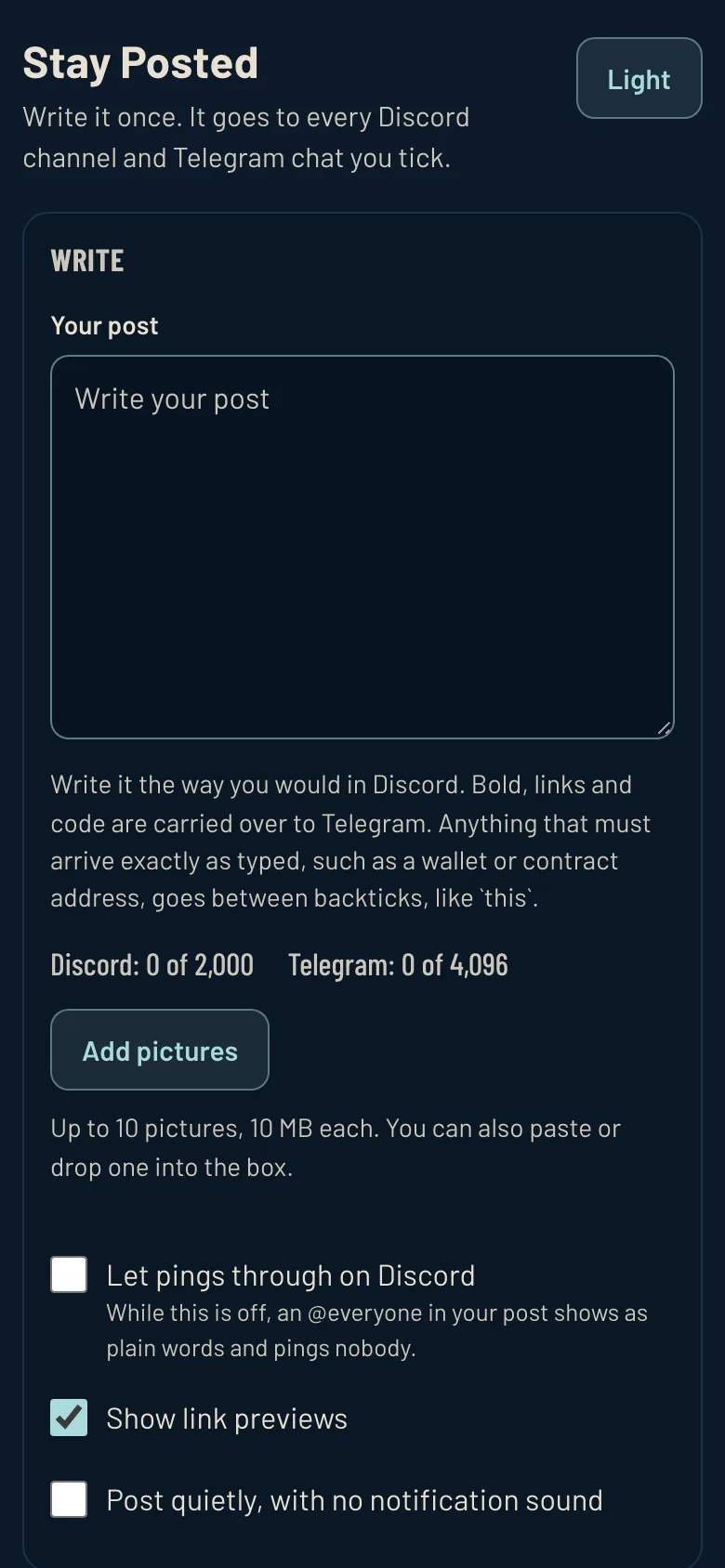
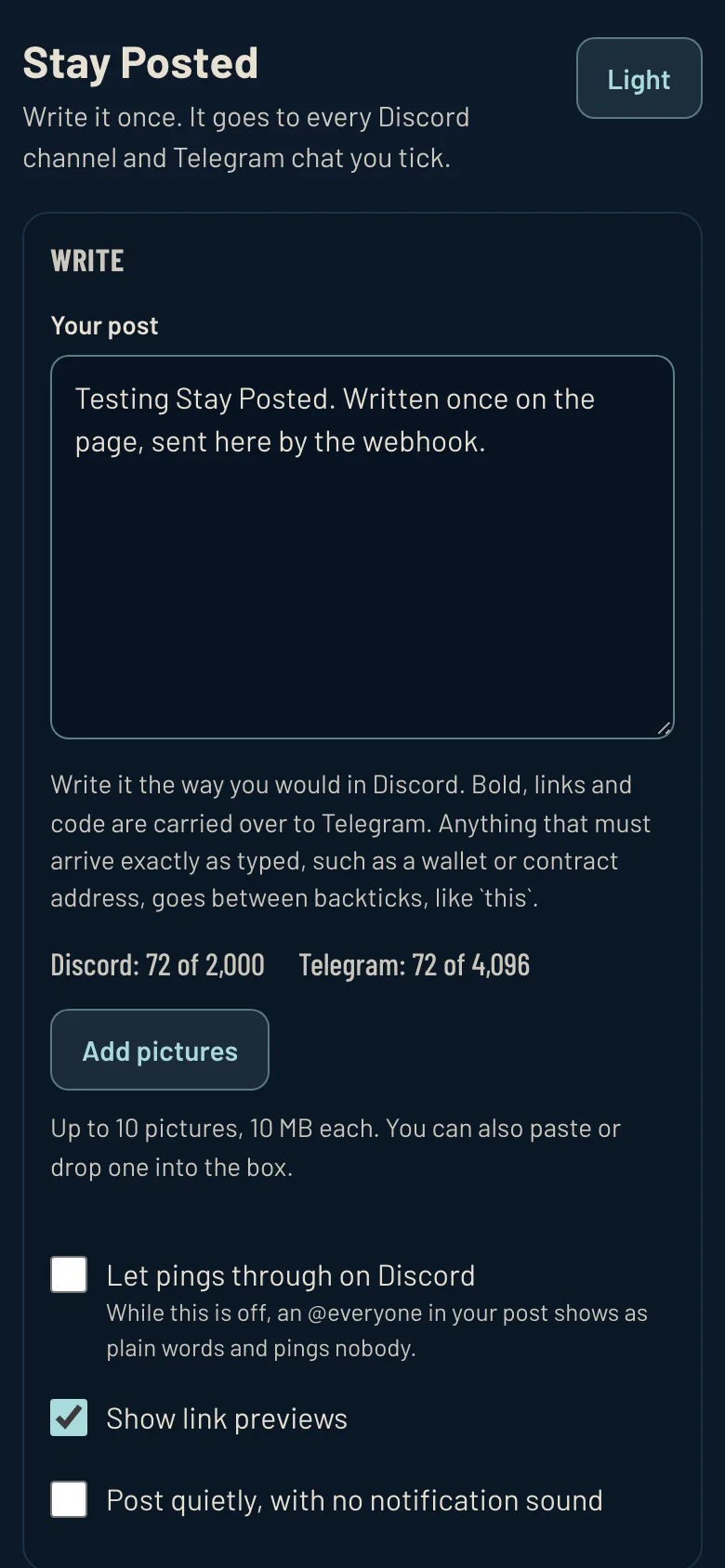
Write the post once, with pictures if you like. It counts the room left on Discord and on Telegram as you type. An example post. 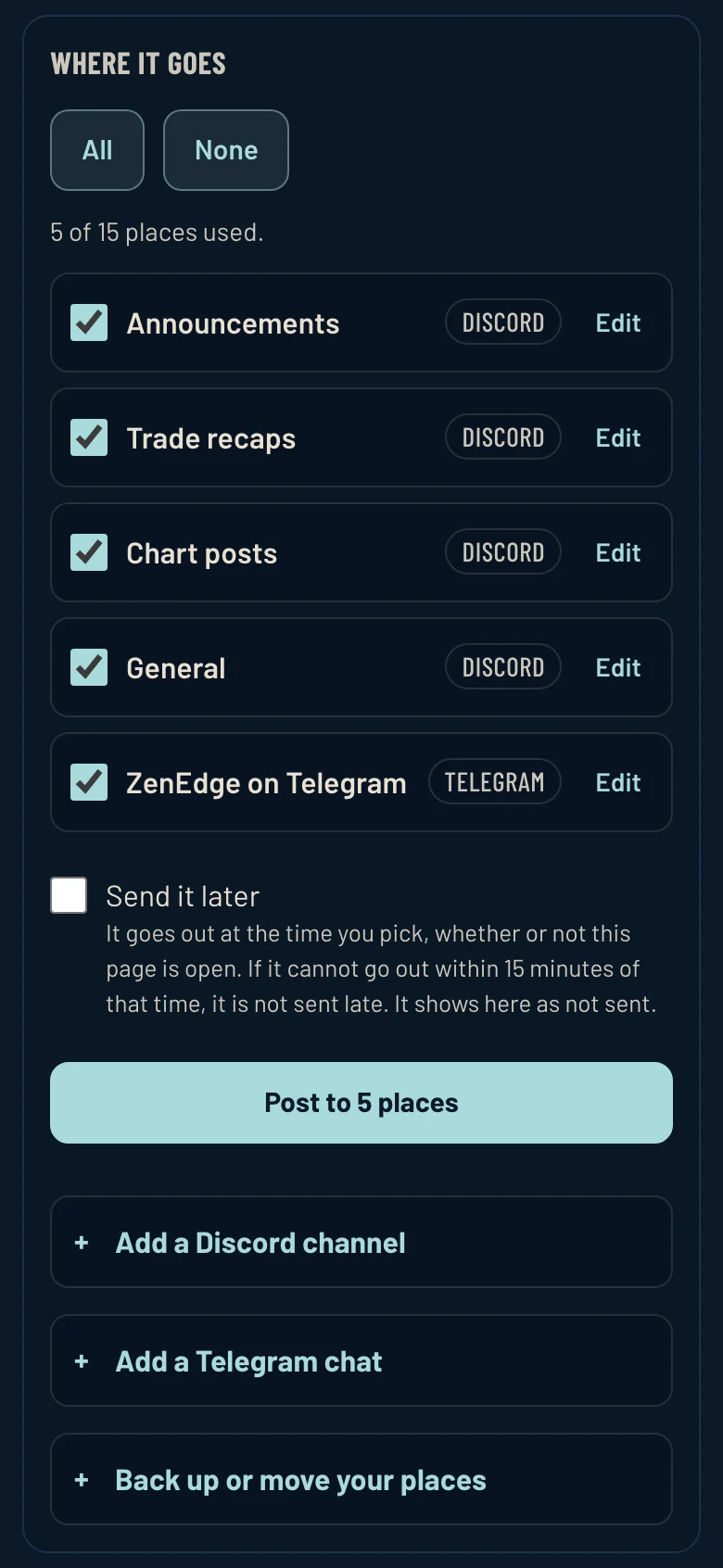
Tick where it goes, Discord channels and Telegram chats in one list, and one press posts to all of them. The places are examples. 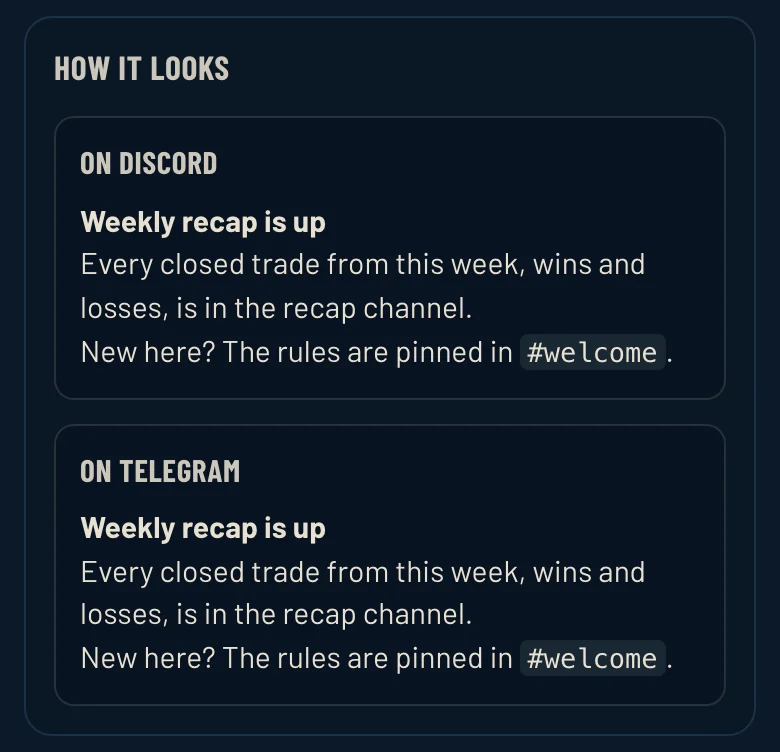
See how it lands on Discord and on Telegram before it goes. 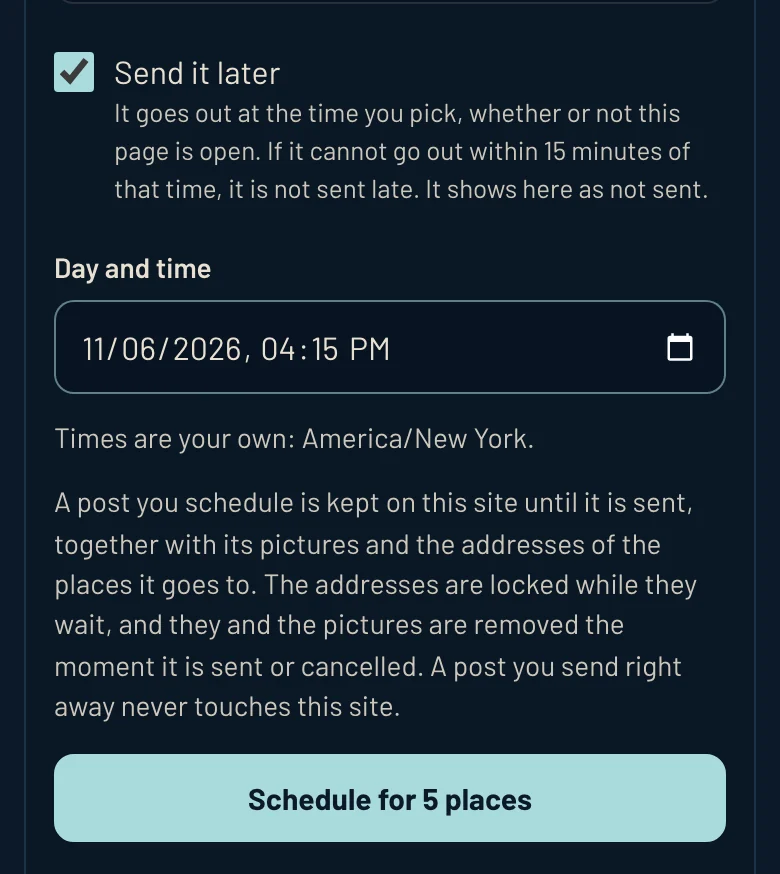
Or pick a day and time. It goes out then, whether or not the page is open.
One list, any mix
Discord channels and Telegram chats sit in one list. Tick any of them, or all of them with one press.
Pictures
Up to 10 a post, 10 MB each. Paste or drop them straight into the box.
See it before it goes
It shows the post as Discord and as Telegram will show it, and how much room is left on each.
Exact text stays exact
Bold, links and code carry over to Telegram. A wallet or contract address between backticks arrives exactly as typed.
Long posts split for you
A post longer than Discord or Telegram takes goes out as several, in order.
Send it later
Pick a day and time up to 180 days out. It goes out whether or not the page is open, and never more than 15 minutes late.
Change everywhere
Fix a post after it is out, and the new words go into every place it went.
Delete everywhere
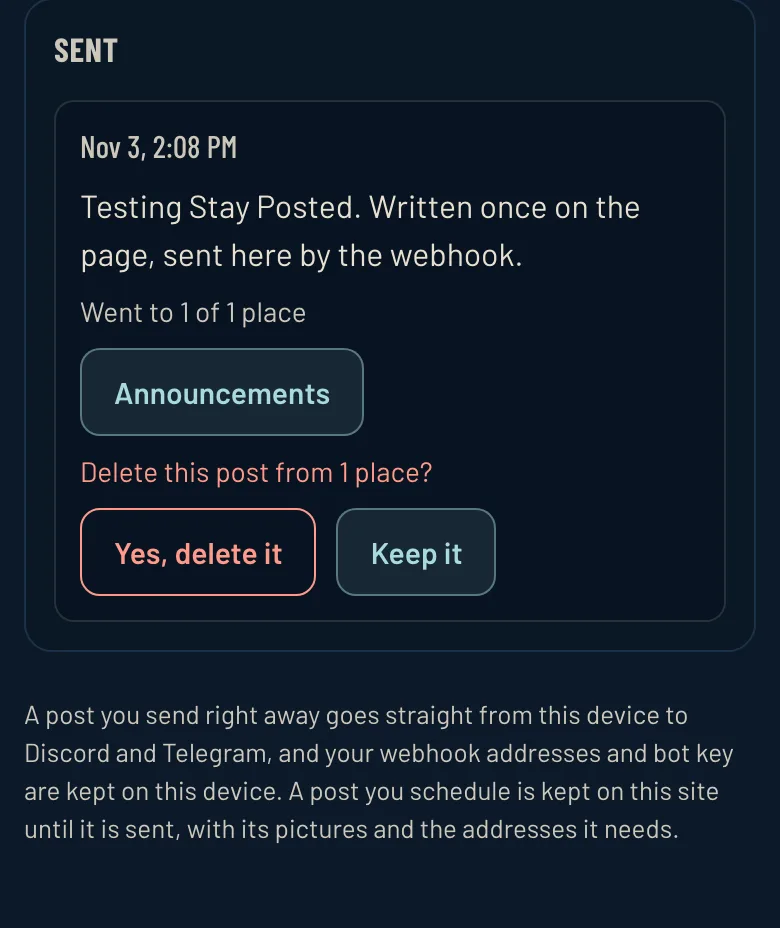
Take a post down from every place at once. It asks once before it does.
No surprise pings
An @everyone shows as plain words and pings nobody until you let pings through. A post can also go out with no notification sound.
Only where you say
- It posts only through a webhook you made in your own channel, or a Telegram bot you added to your chat. It never signs in as you.
- A post you send right away goes straight from your device to Discord and Telegram, and never touches this site.
- Your webhook addresses and bot key stay on your device. Back them up to a file to move them to another.
- A post set for later is kept on this site only until it goes out. Then its pictures and addresses are removed.
- Your own private link, with no account and no password. If it is ever passed on, write to us and it is replaced with a new one.
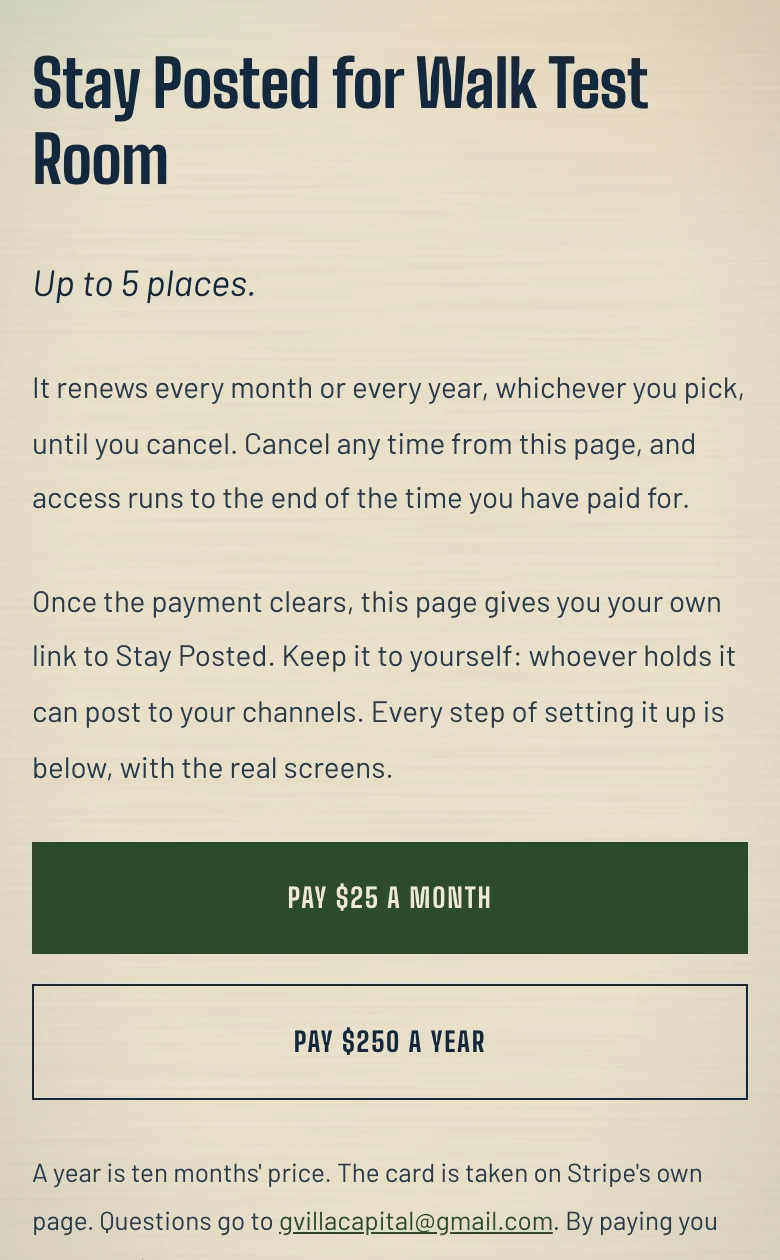
- Monthly or yearly, until you cancel. Cancel any time from your payment page, and access runs to the end of the time paid.
A place is one Discord channel or one Telegram chat. Past 100 places, write for a price.
See every step, from paying to your first post
Step 1. Pay for your places
Stripe handles the payment.
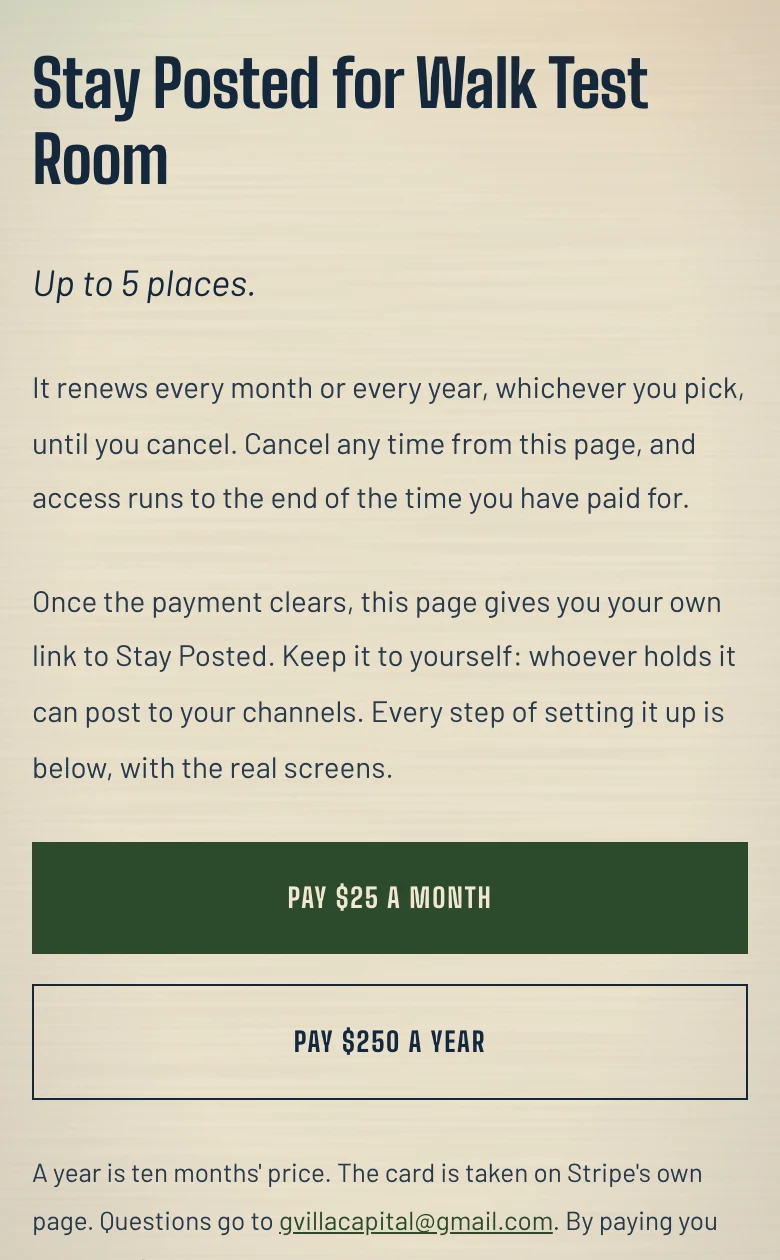
1aThe link you were sent opens this page. Press the PAY button for a month, or the one for a year. 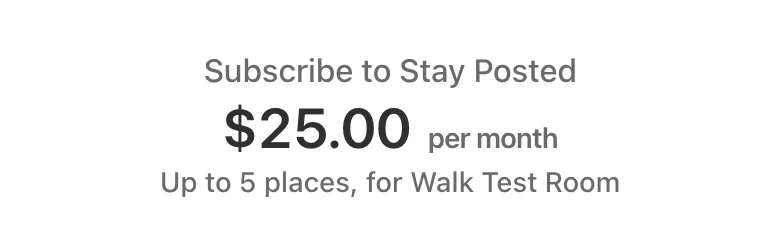
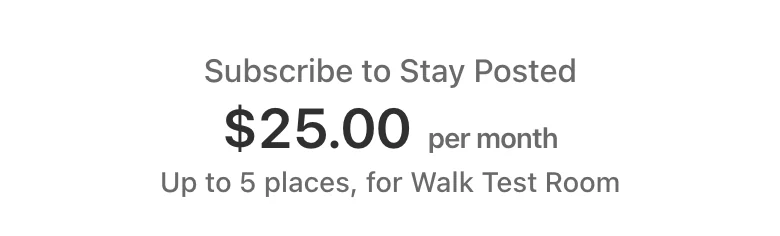
1bStripe's checkout opens. Type your email. Pay. Step 2. Your own link opens
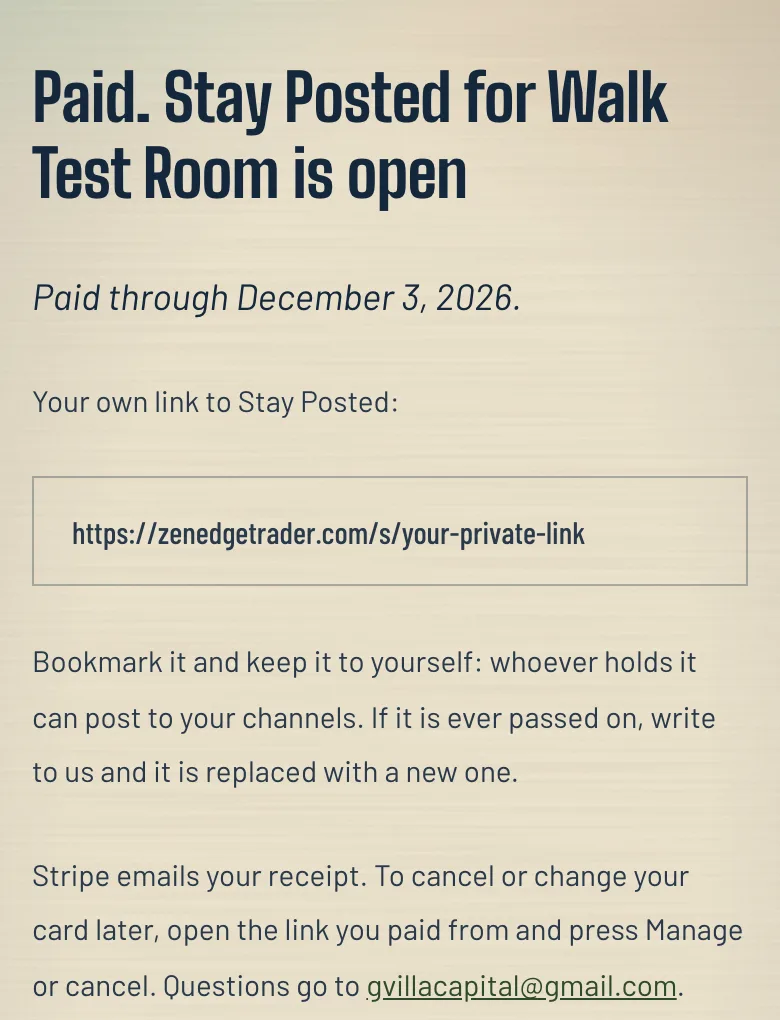
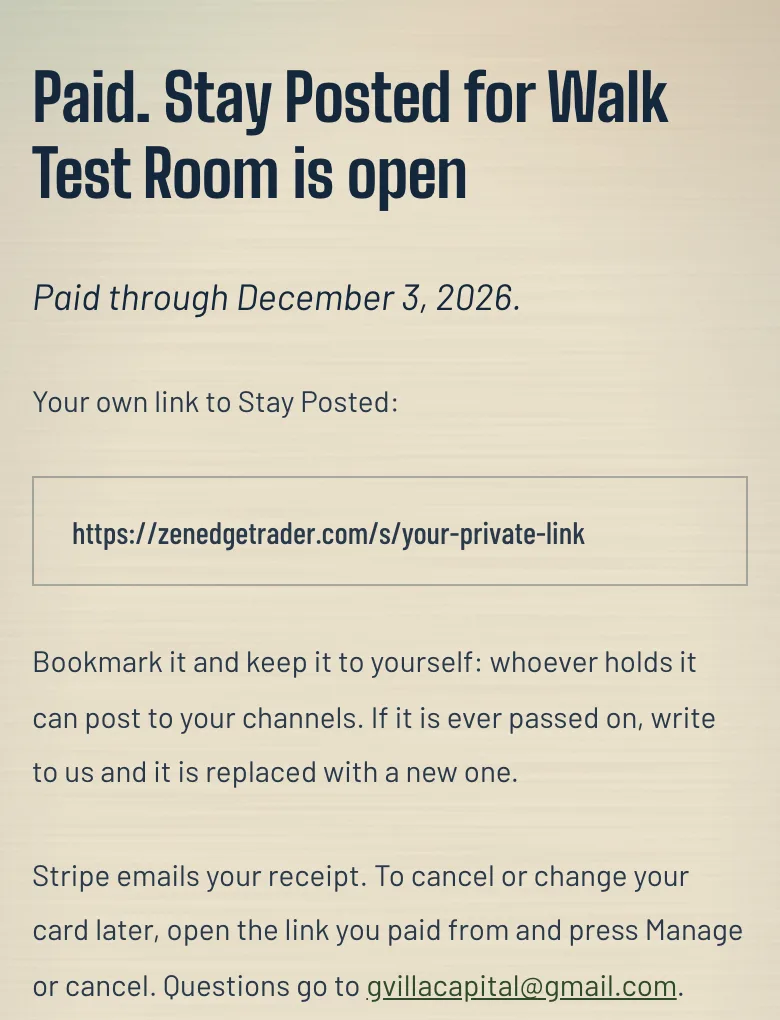
2aBack on this page, your own link to Stay Posted shows. Bookmark it. Keep it to yourself: whoever holds it can post to your channels. 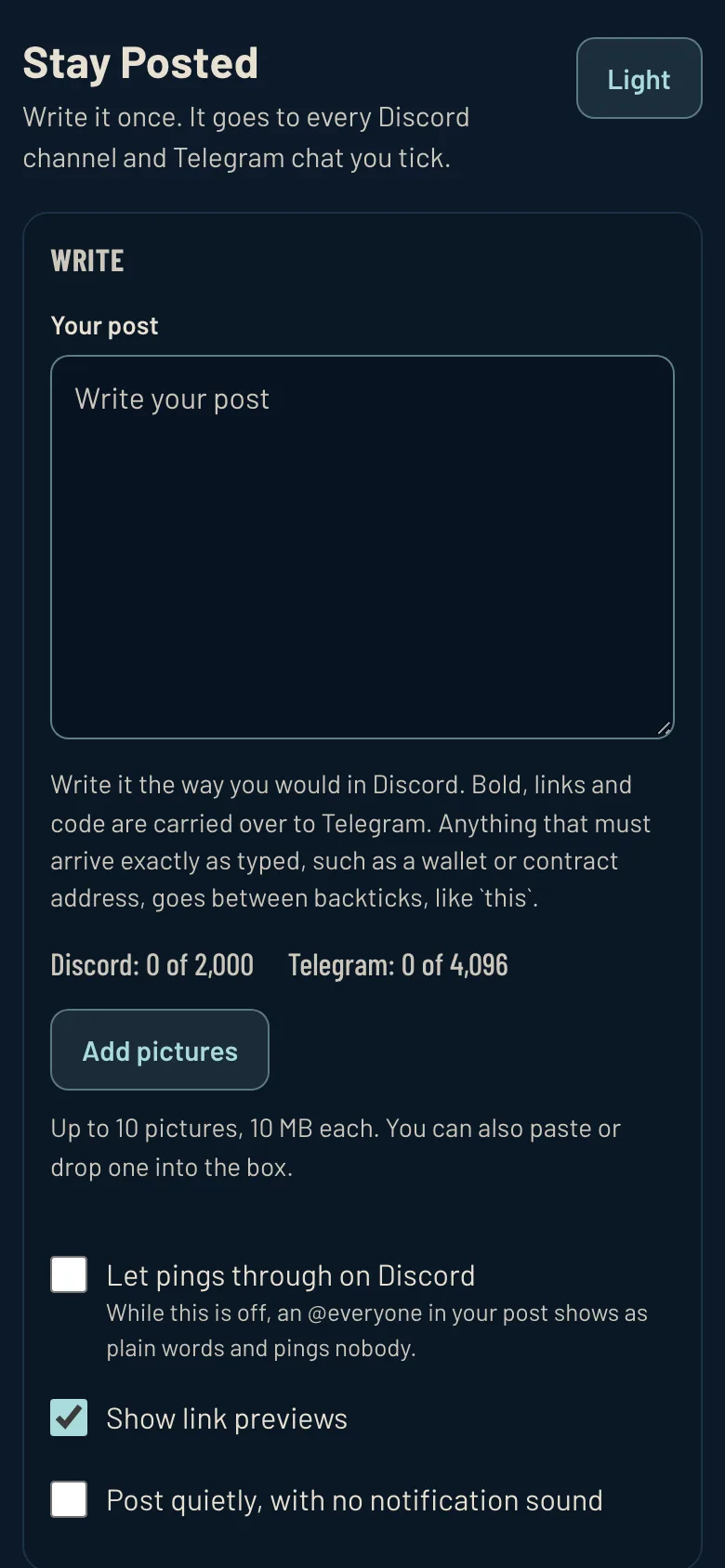
2bIt opens on the box where you write. Step 3. Make a webhook in each channel
You need the Manage Webhooks permission in that server. If you do not have it, ask the server's owner to make the webhook and send you the address.
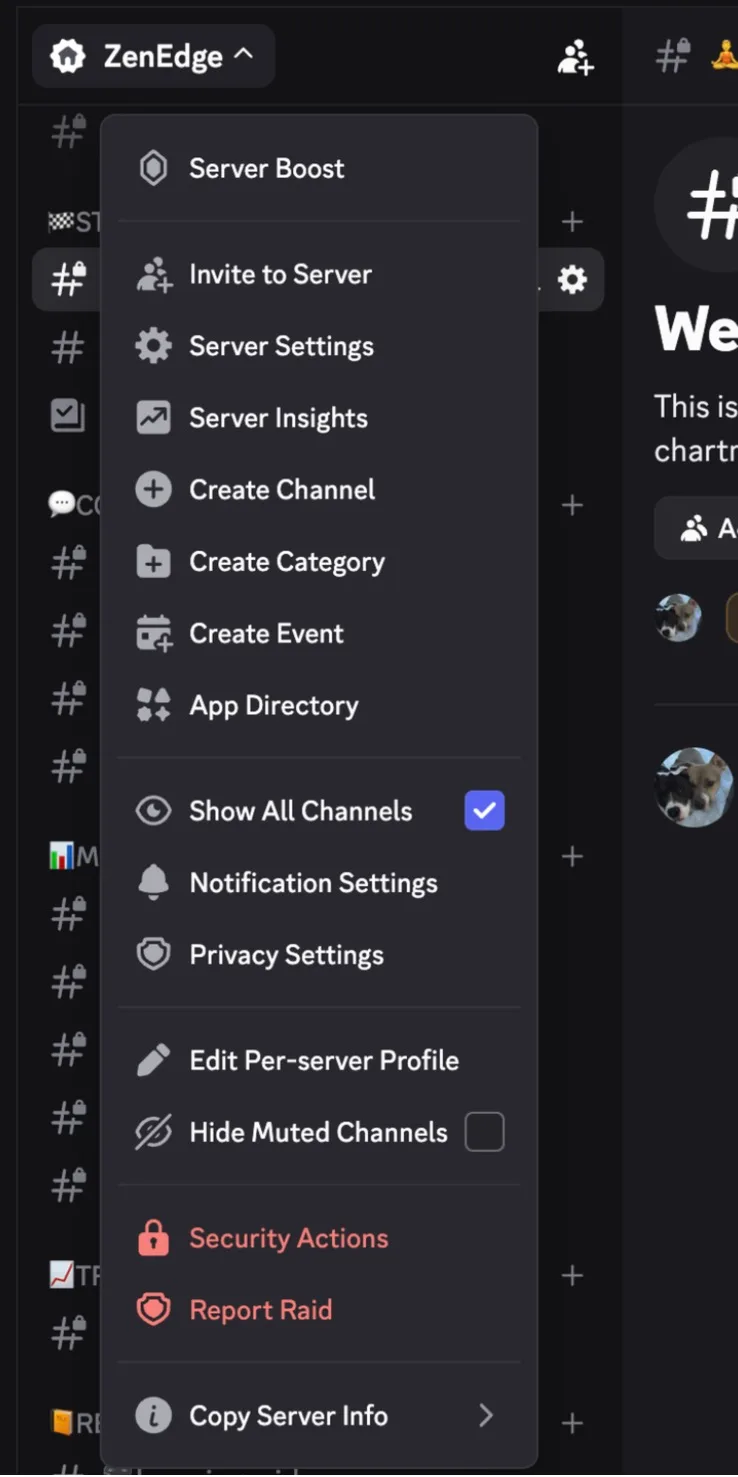
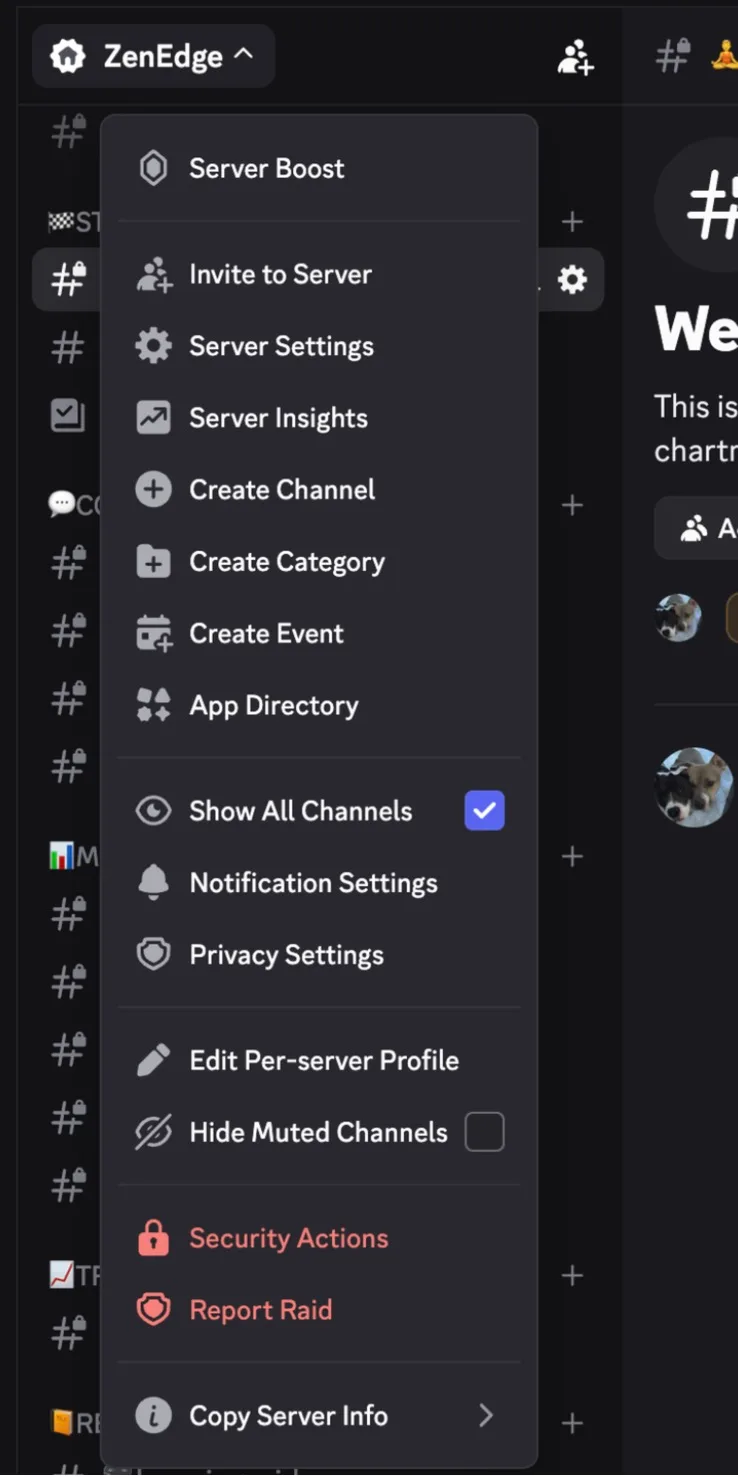
3aIn Discord, press your server's name at the top left. Choose Server Settings. 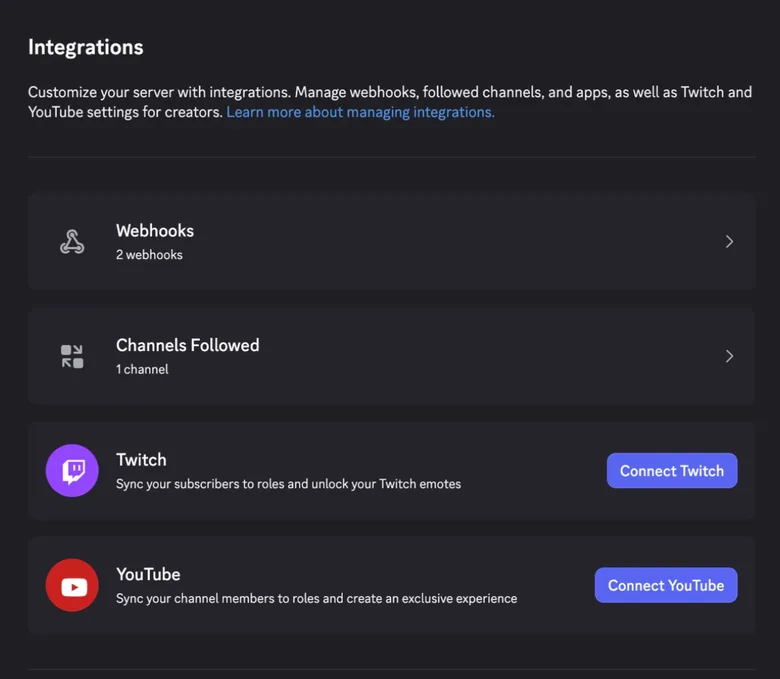
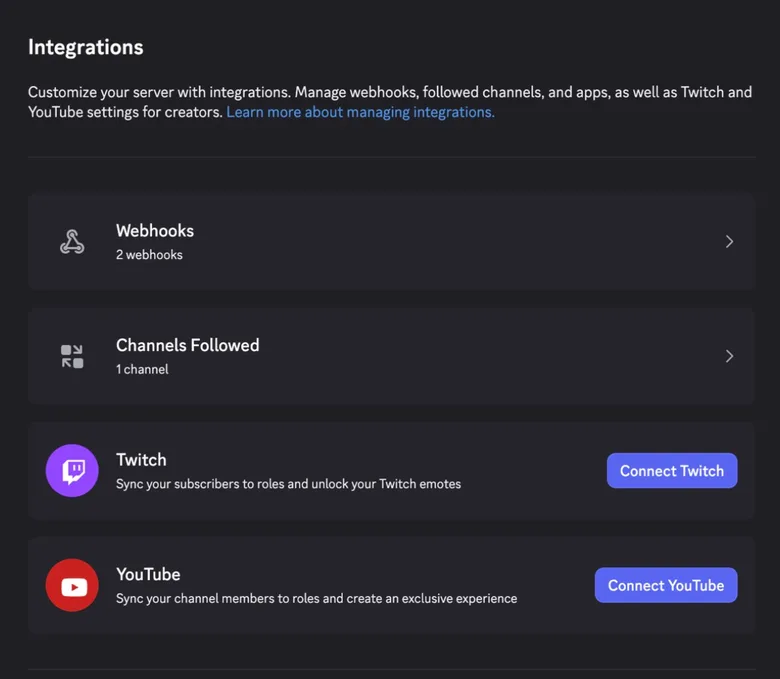
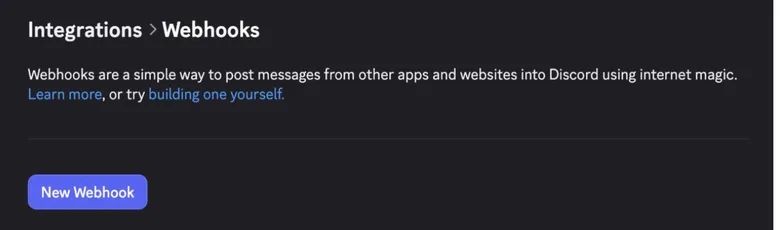
3bChoose Integrations. Choose Webhooks. 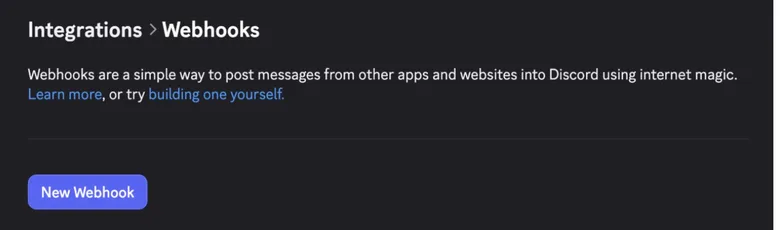
3cPress New Webhook. If the server has none yet, the button says Create Webhook. 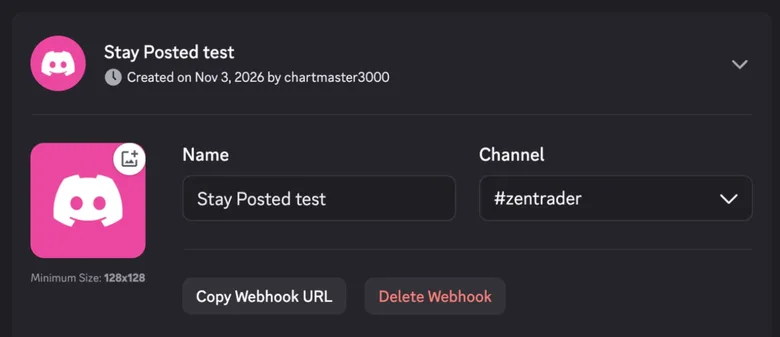
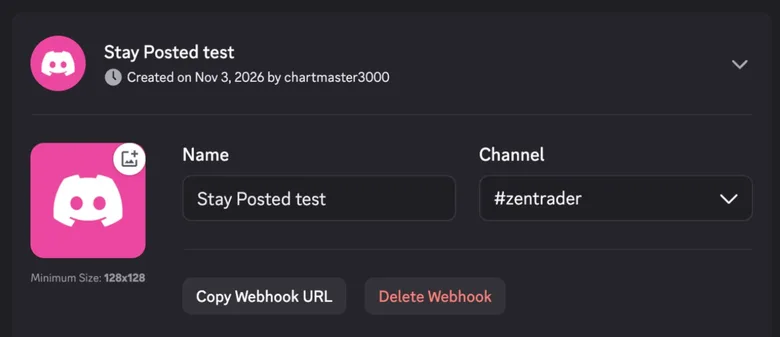
3dOpen the new webhook. Pick the channel under Channel. Type a name under Name. Press Copy Webhook URL. Step 4. Paste it into Stay Posted
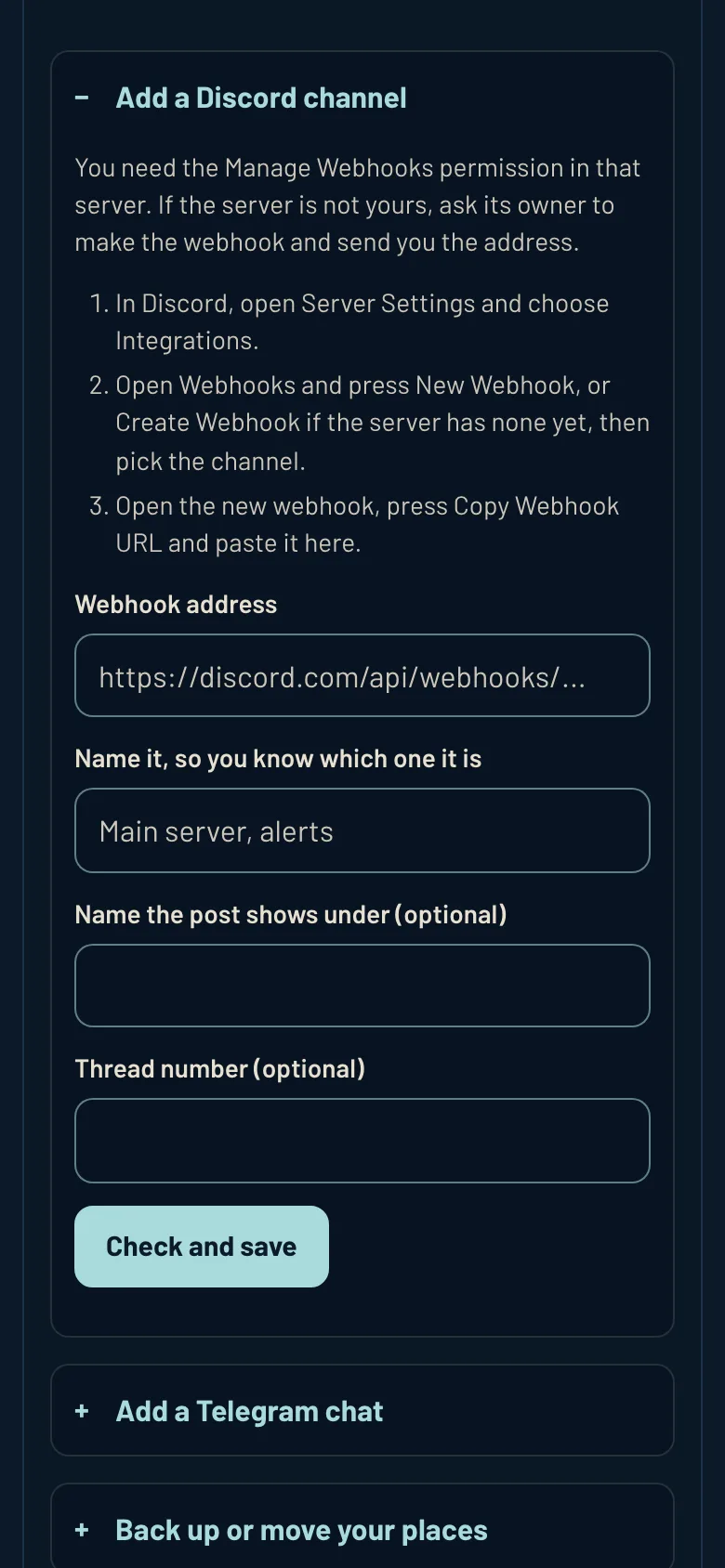
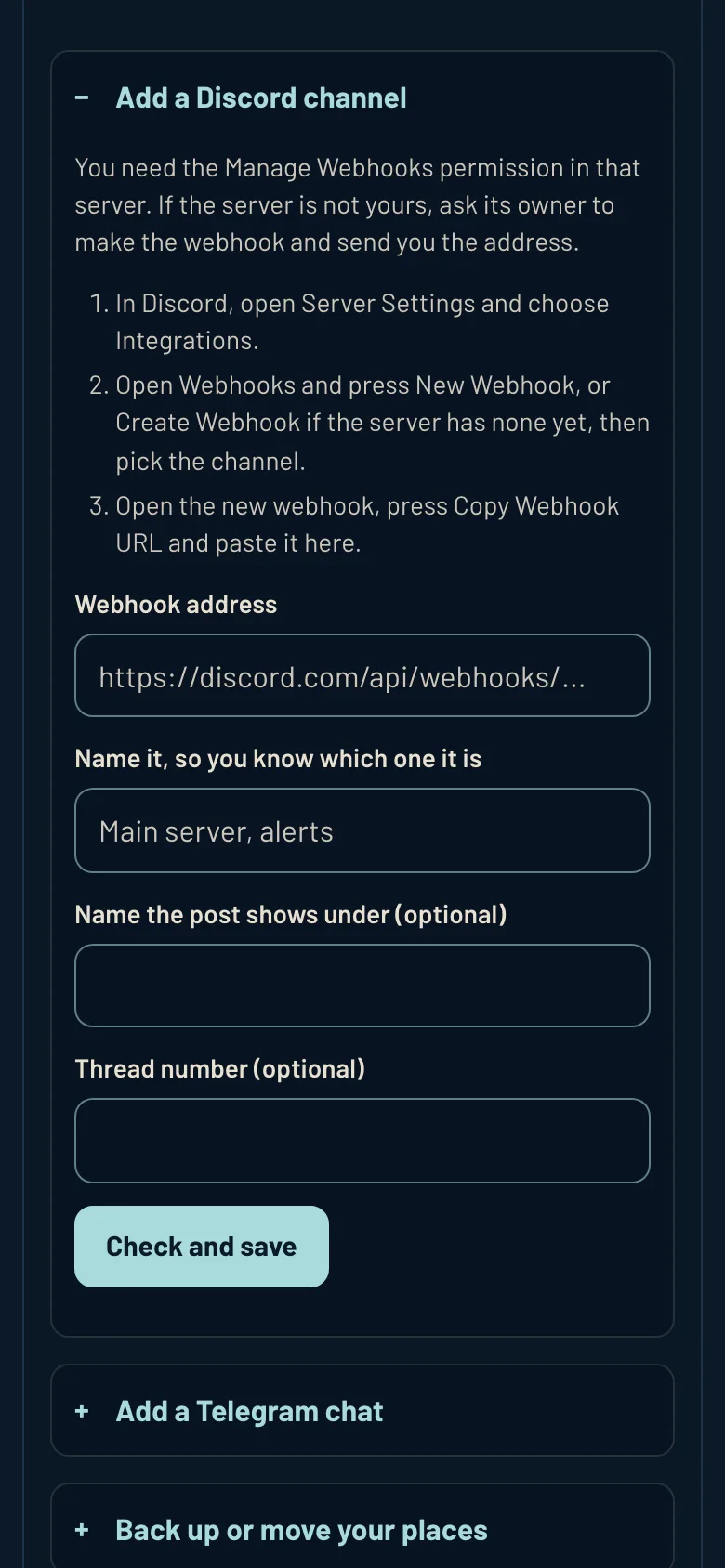
4aOpen Add a Discord channel. Paste the address under Webhook address. Name it, so you know which one it is. Press Check and save. A wrong address is refused with a note: copy it again from Discord. Do the same for each channel. 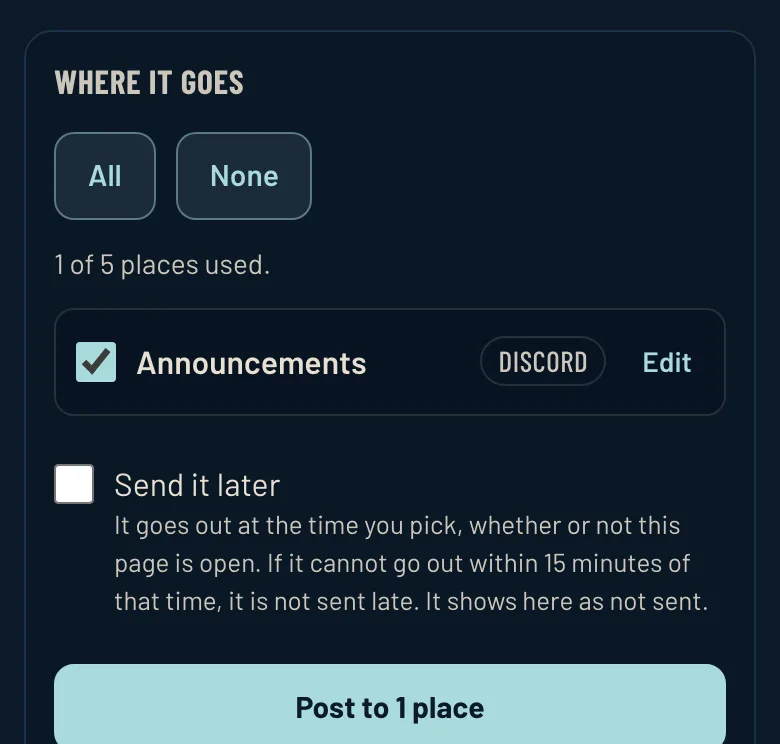
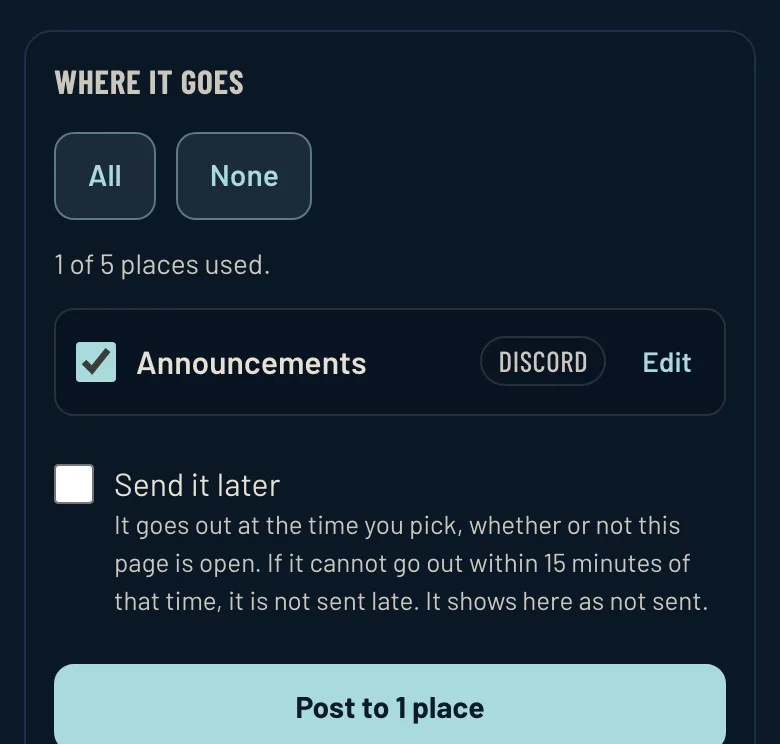
4bYour places are listed under WHERE IT GOES. Tick where this post goes. They are kept on this device only: to use another, open Back up or move your places. Step 5. Telegram too, if you post there
Stay Posted posts to Telegram through a bot of your own. Skip this step if you only post on Discord.
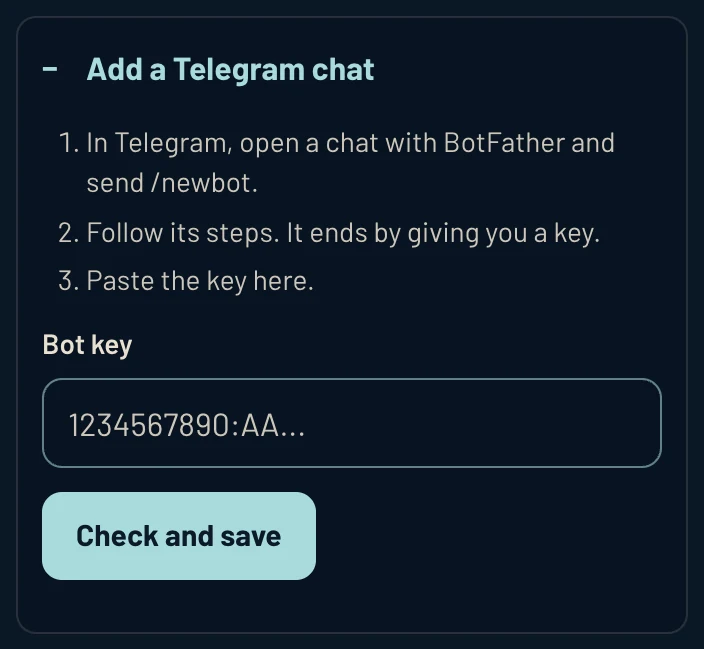
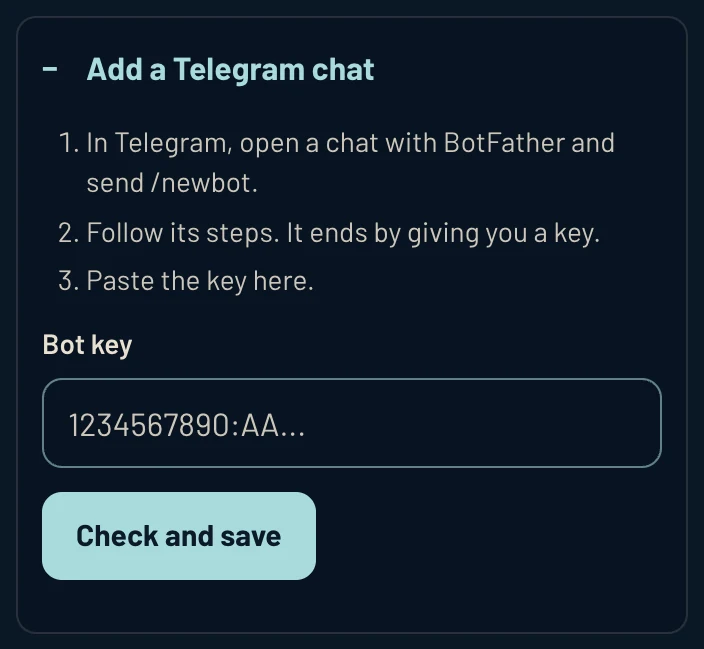
5aIn Stay Posted, open Add a Telegram chat. It asks for a Bot key. Telegram gives you one in the next step. 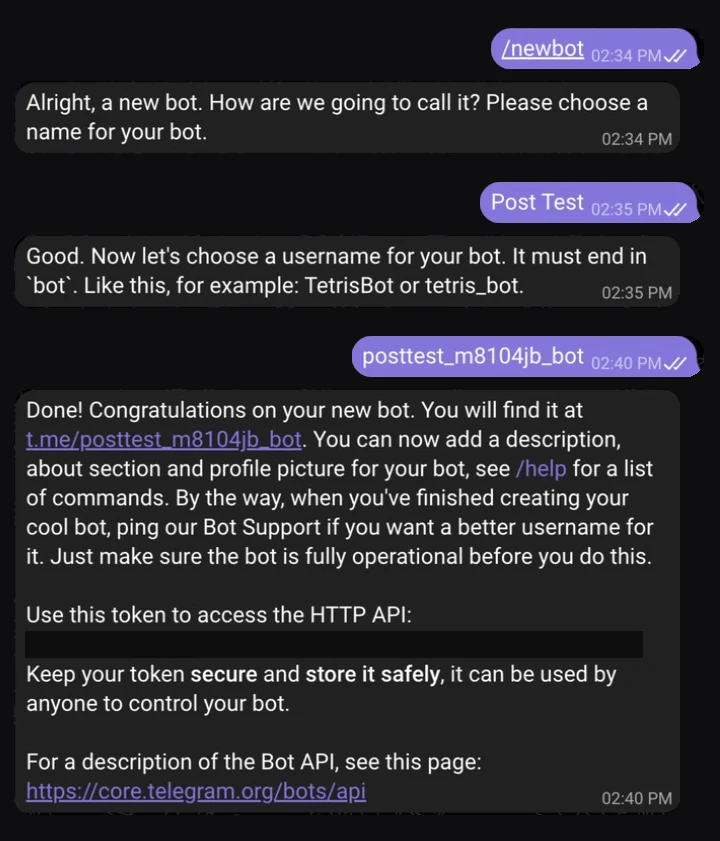
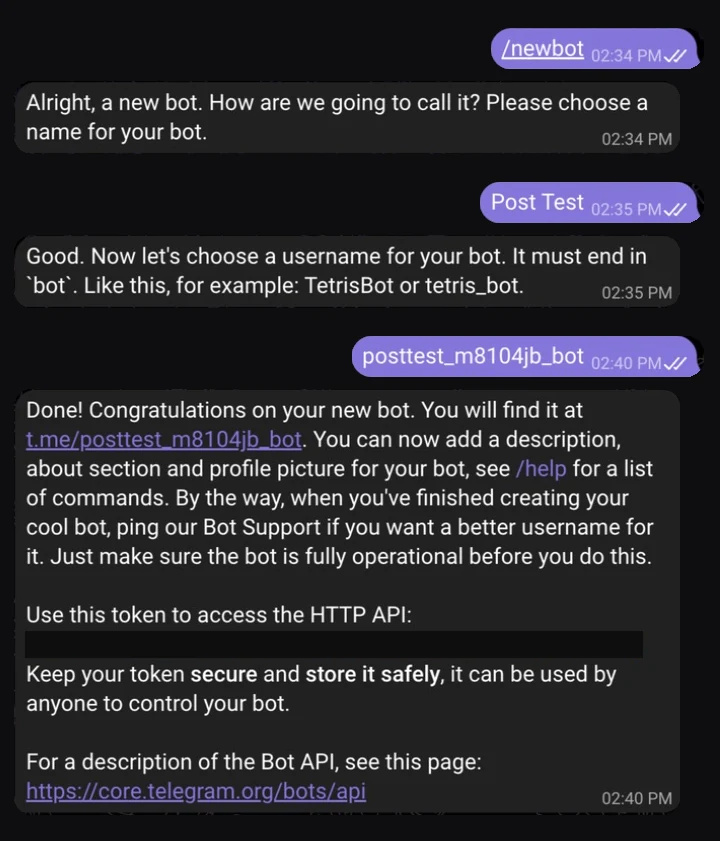
5bIn Telegram, open a chat with BotFather. Send /newbot. Send a name for your bot. Send a username that ends in bot. The last message holds your key, blacked out here. Copy it. Paste it under Bot key. Press Check and save. A key in the wrong shape is refused, with a note saying what a key looks like. 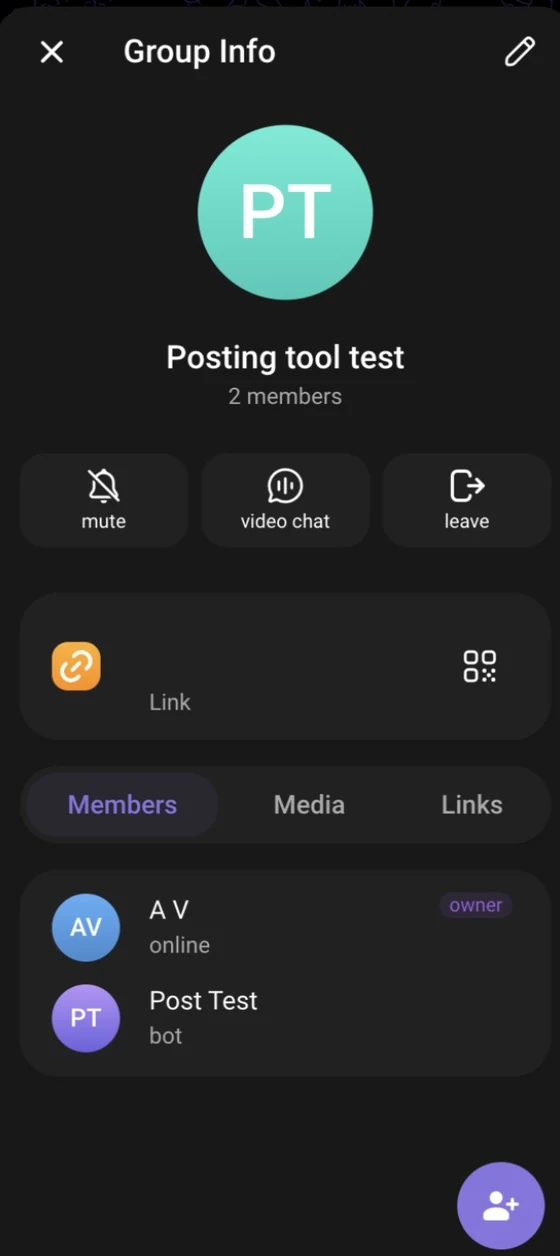
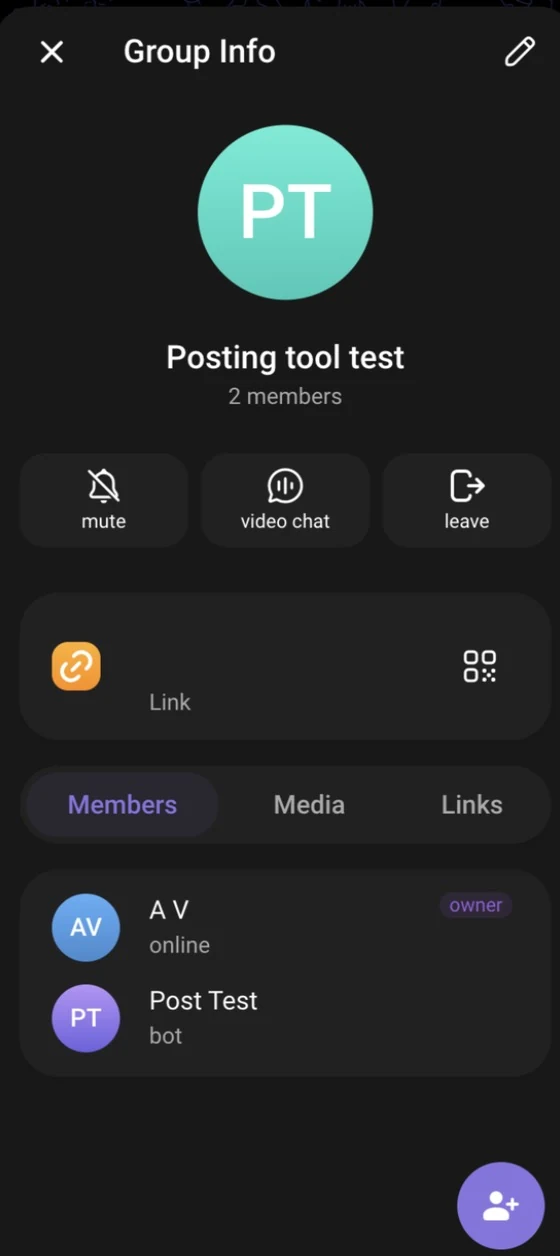
5cOpen your group's Group Info. Press the round button at the bottom right, a person with a plus. 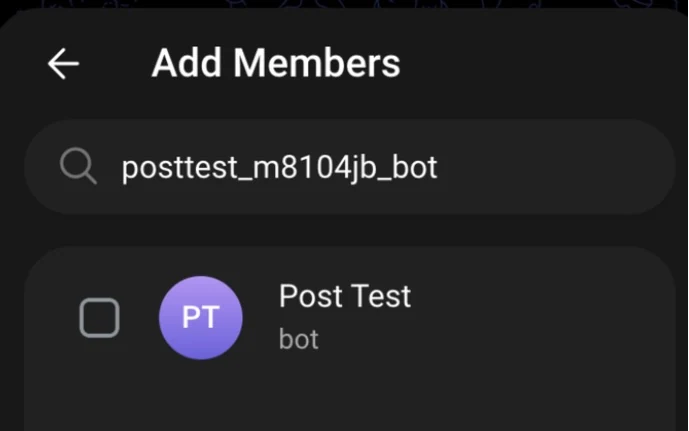
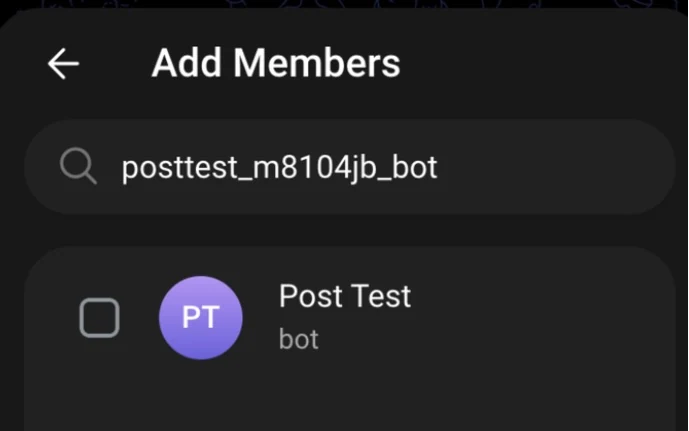
5dSearch your bot's username. Tick it. Confirm. 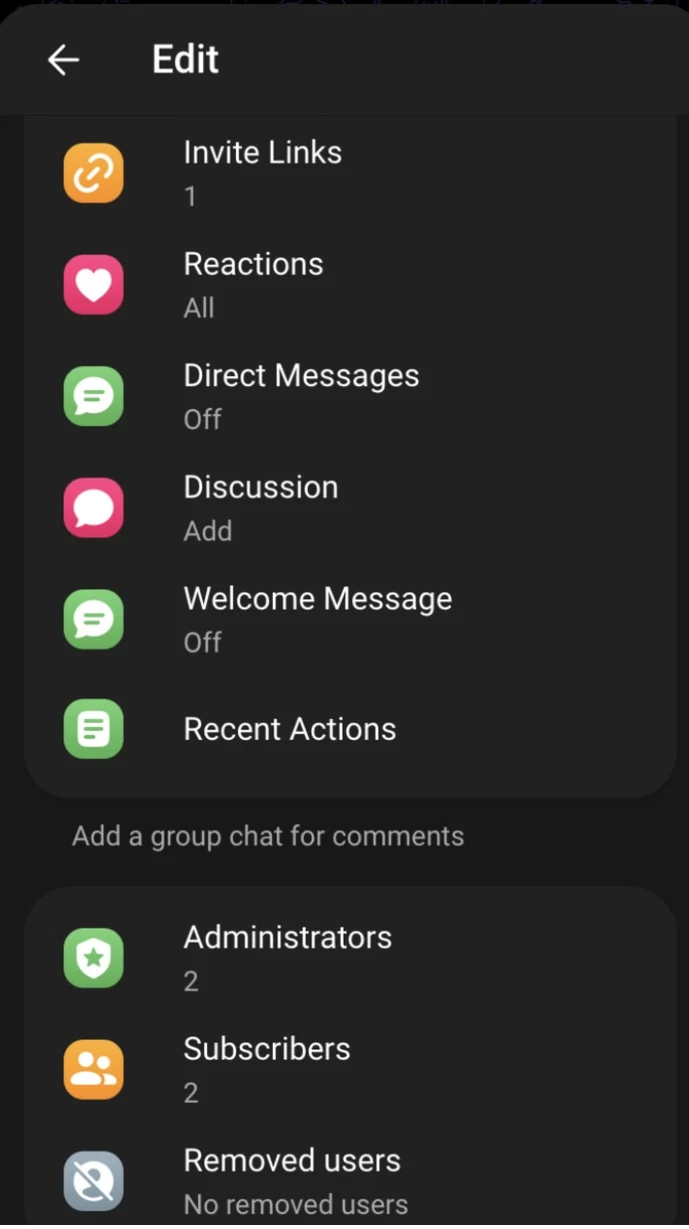
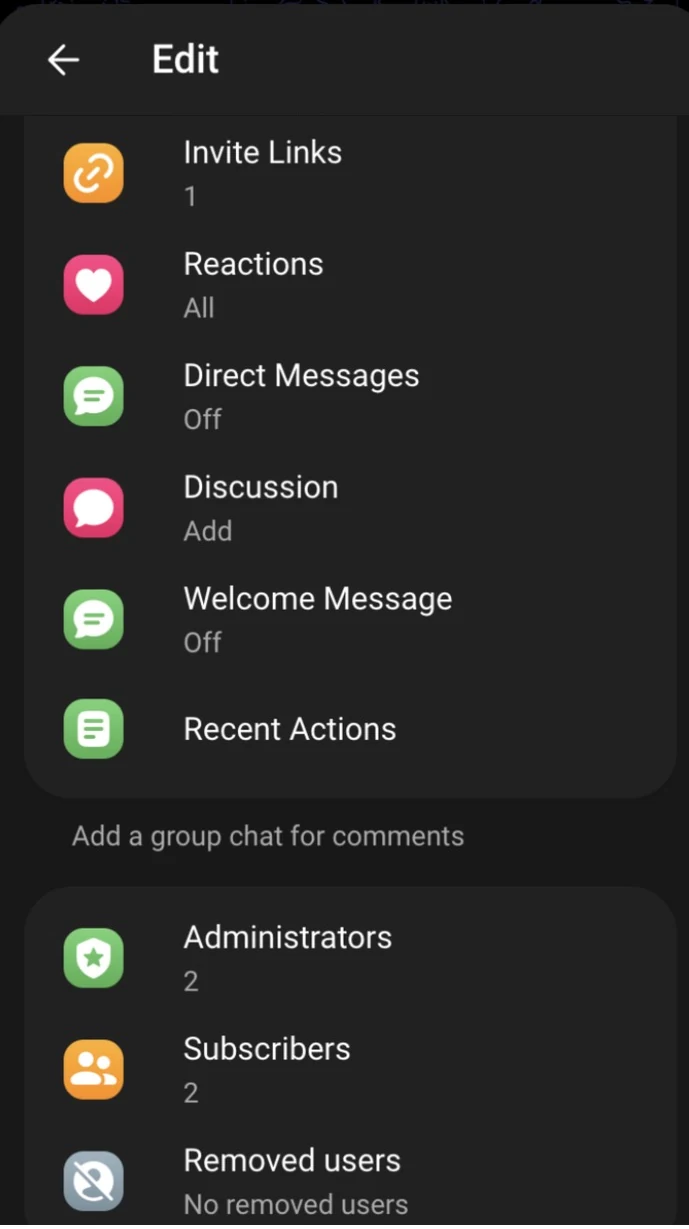
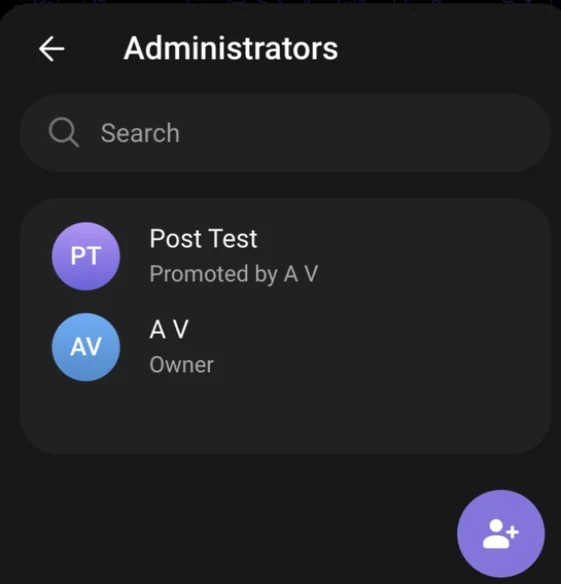
5eFor a channel instead, open its info. Press the pencil. Press Administrators. 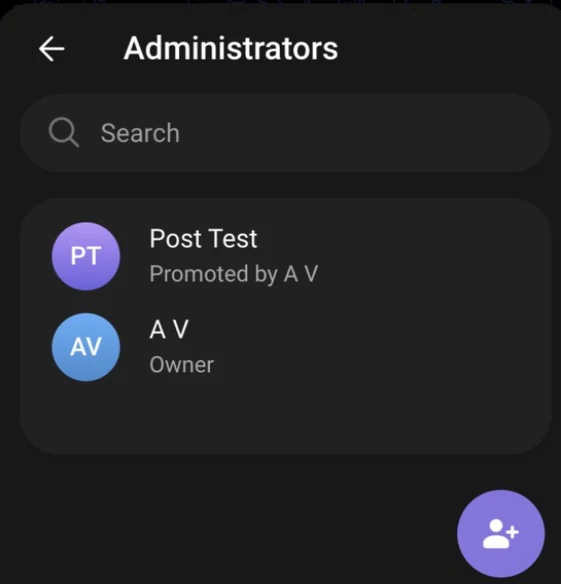
5fPress the round button at the bottom right. Search your bot's username. Pick it. 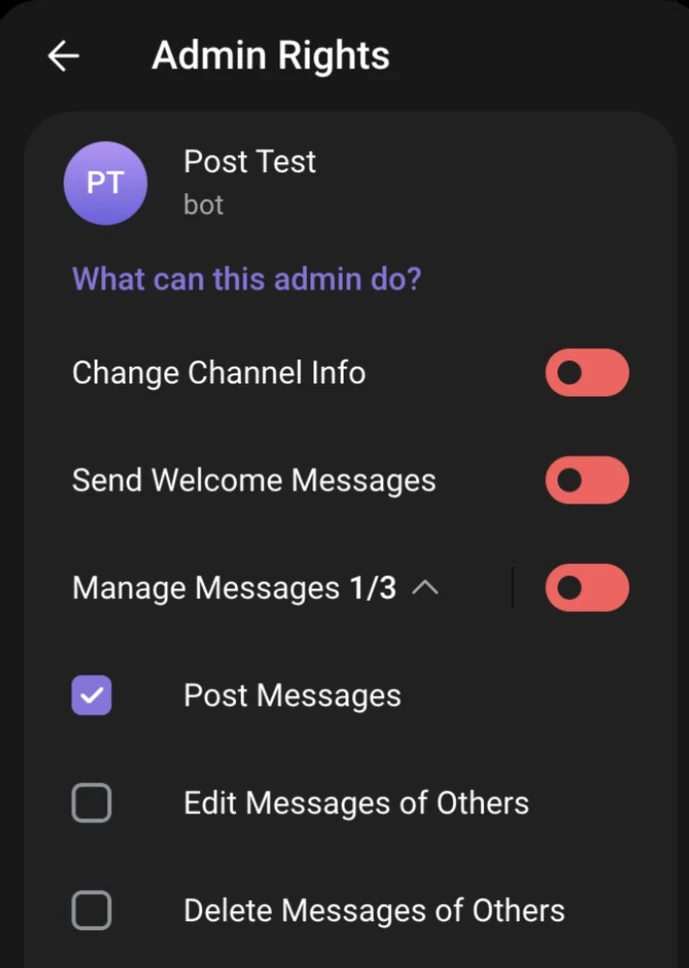
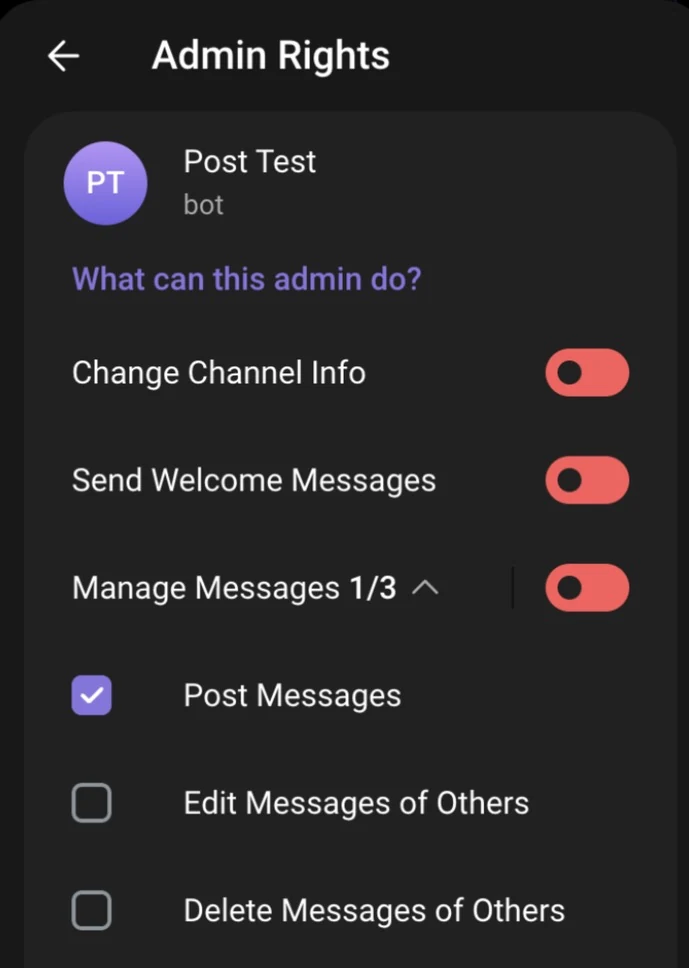
5gUnder Manage Messages, leave Post Messages ticked. Then save. 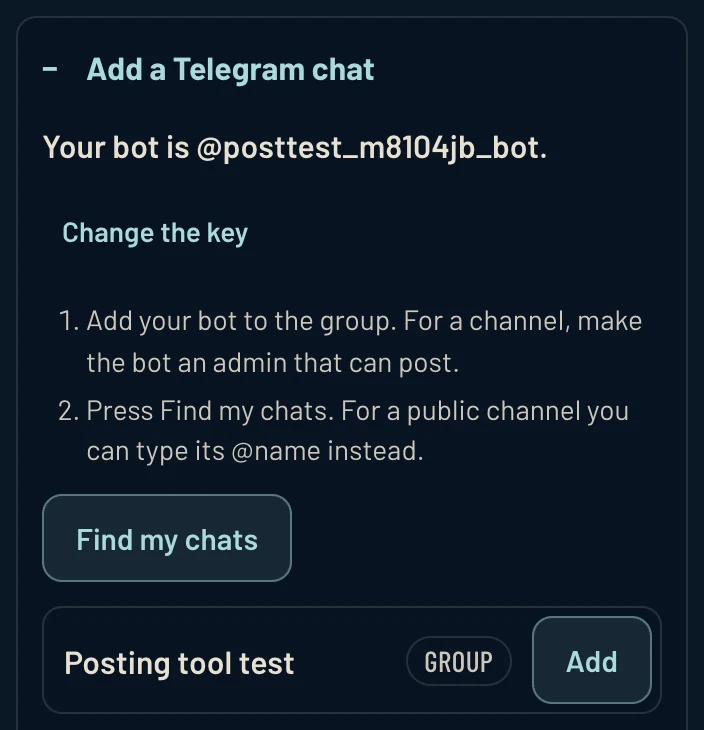
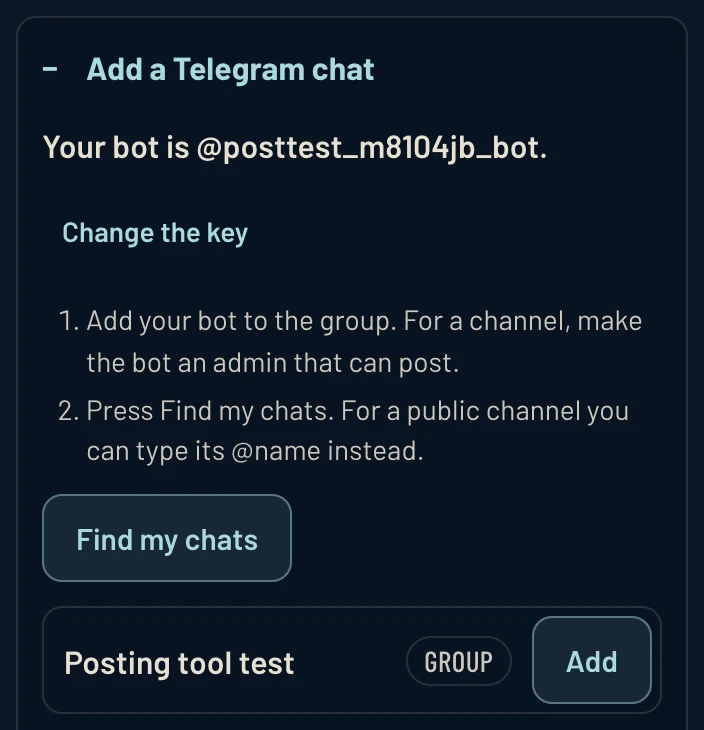
5hBack in Stay Posted, press Find my chats. Press Add beside your group. Nothing found? For a group, remove the bot and add it again. For a channel, post any message in it. Then press Find my chats again. Step 6. Write it once, send it everywhere
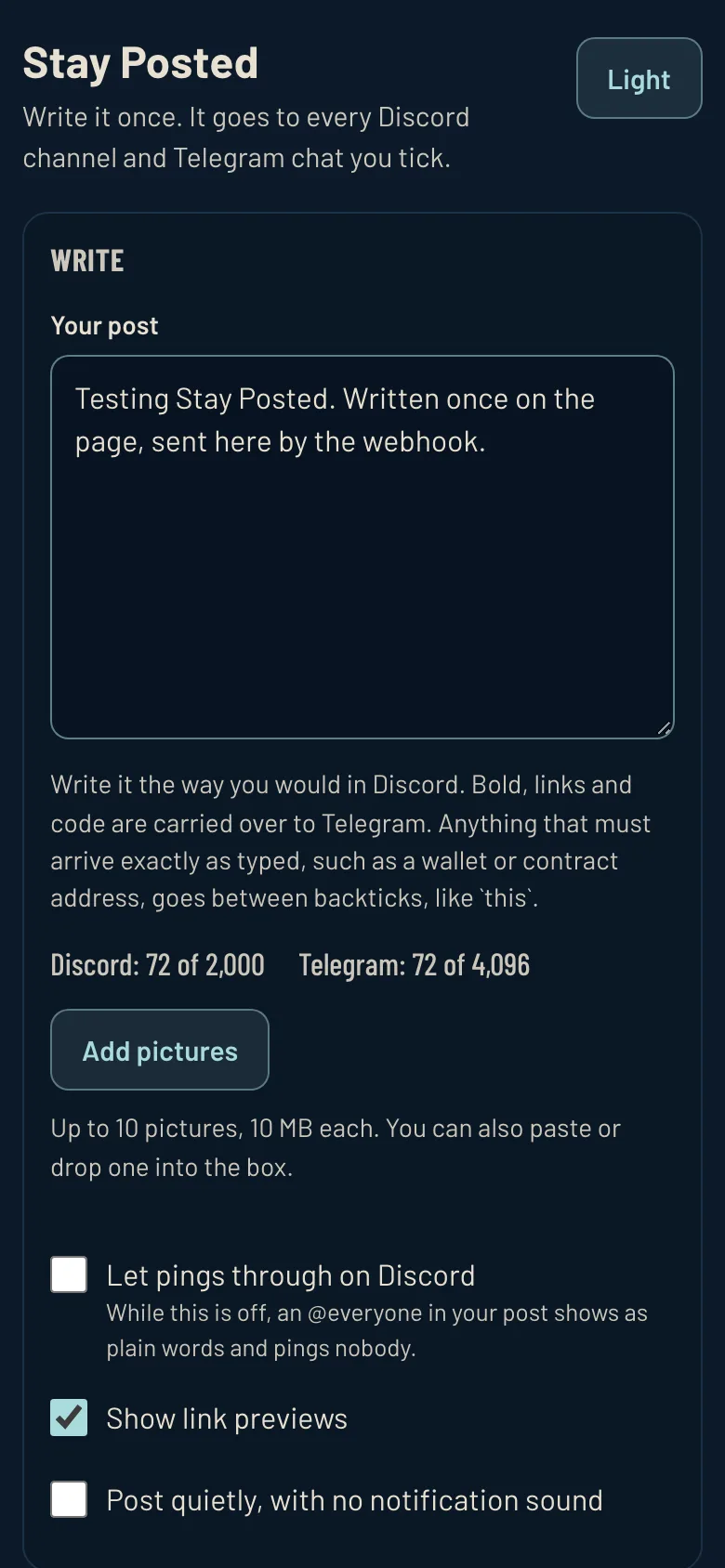
6aWrite the post once, in the box. Below it, you see how it will look on Discord and on Telegram. 
6bPress Post to 1 place. The number is how many places you ticked. It lands in each one, under the webhook's name. Step 7. Cancel or change your card, any time
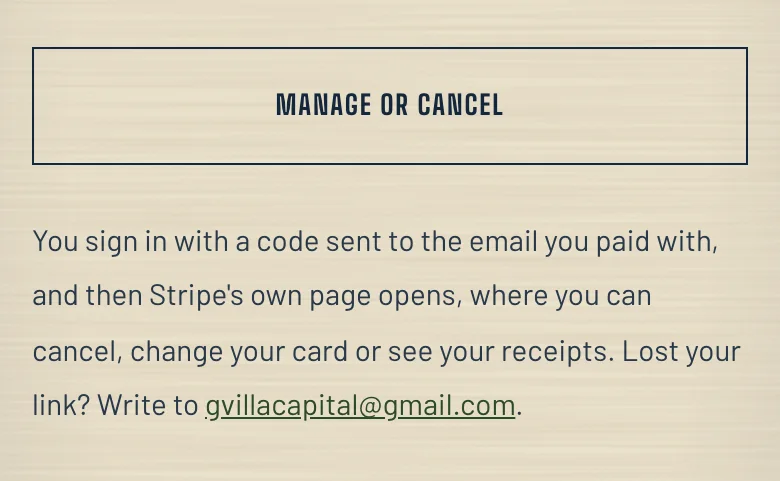
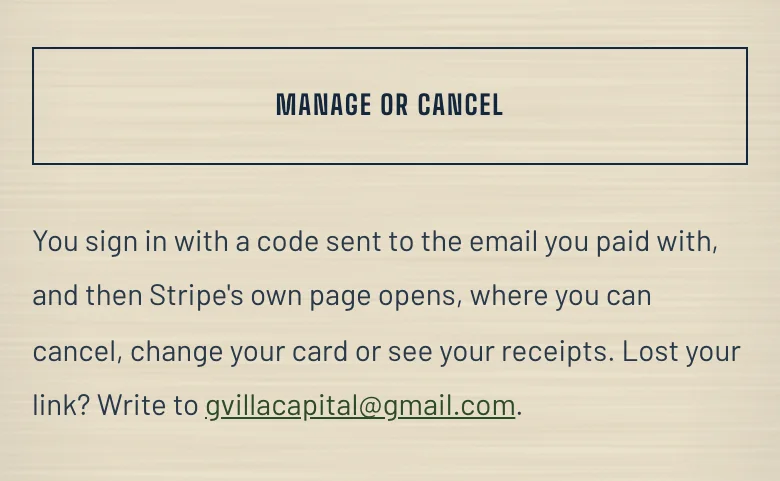
7aOpen the link you paid from. Press MANAGE OR CANCEL. Type the code sent to the email you paid with. Stripe's own page opens. Change or delete it later, everywhere
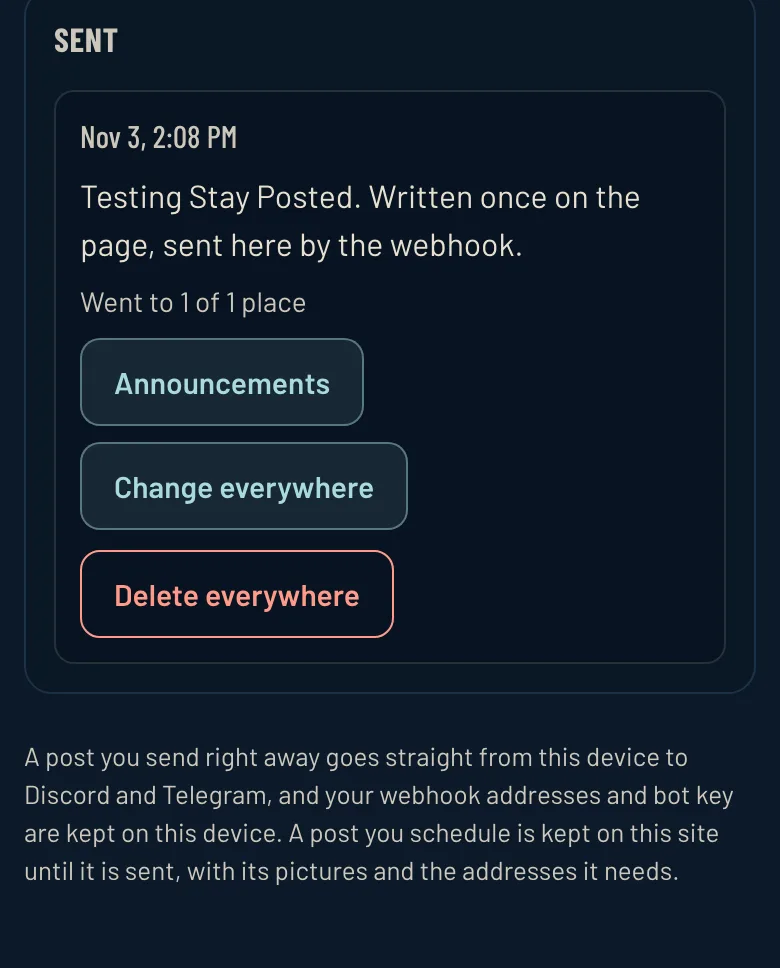
Every post you send is listed under Sent. Change everywhere edits it in every place at once, and Delete everywhere removes it from all of them. Send it later posts at a time you pick, even with the page closed.
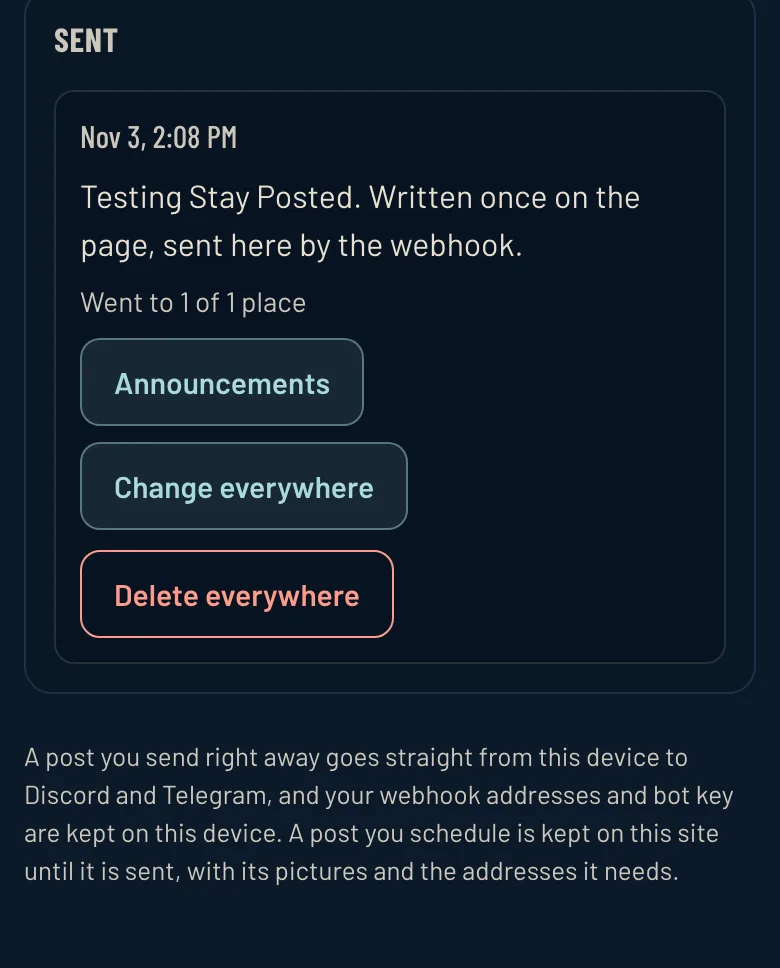
aEach post, where it went, and Change everywhere and Delete everywhere. 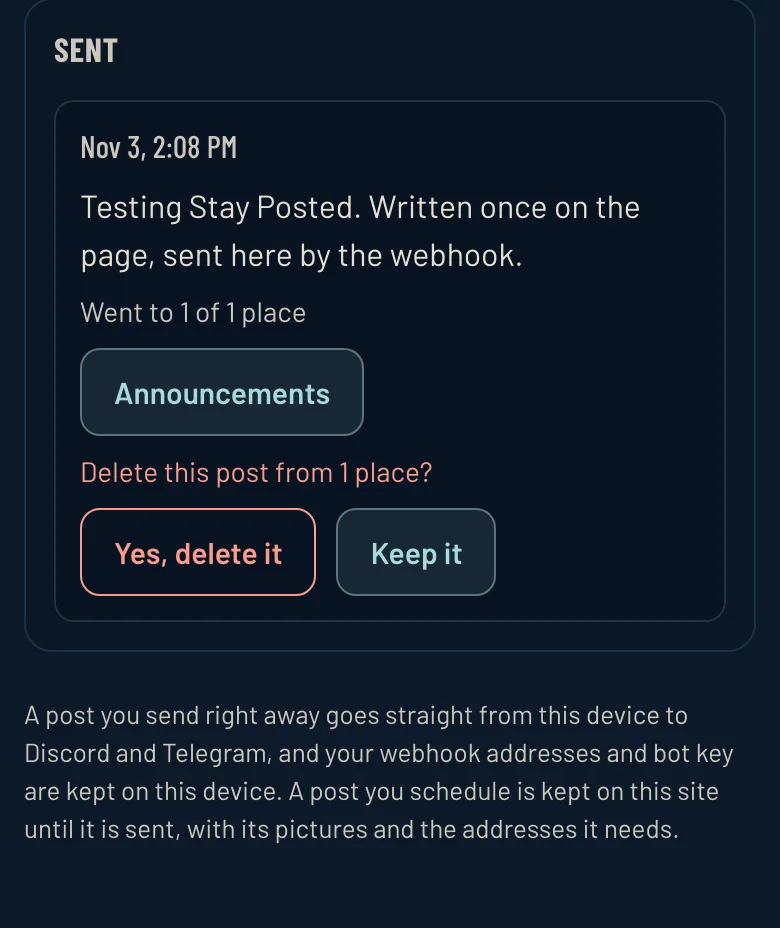
bDelete everywhere asks once. Press Yes, delete it, or Keep it.

Get your own link
Write to gvillacapital@gmail.com with how many places you post to. You get a card payment link for your size, and your own link to Stay Posted the moment it clears. Paying means you agree to the terms.
Send an email