ZenEdge Audit
Most traders have never read their own trading back to themselves. This is that document, written by someone who went through every answer you gave.
The intake is the job
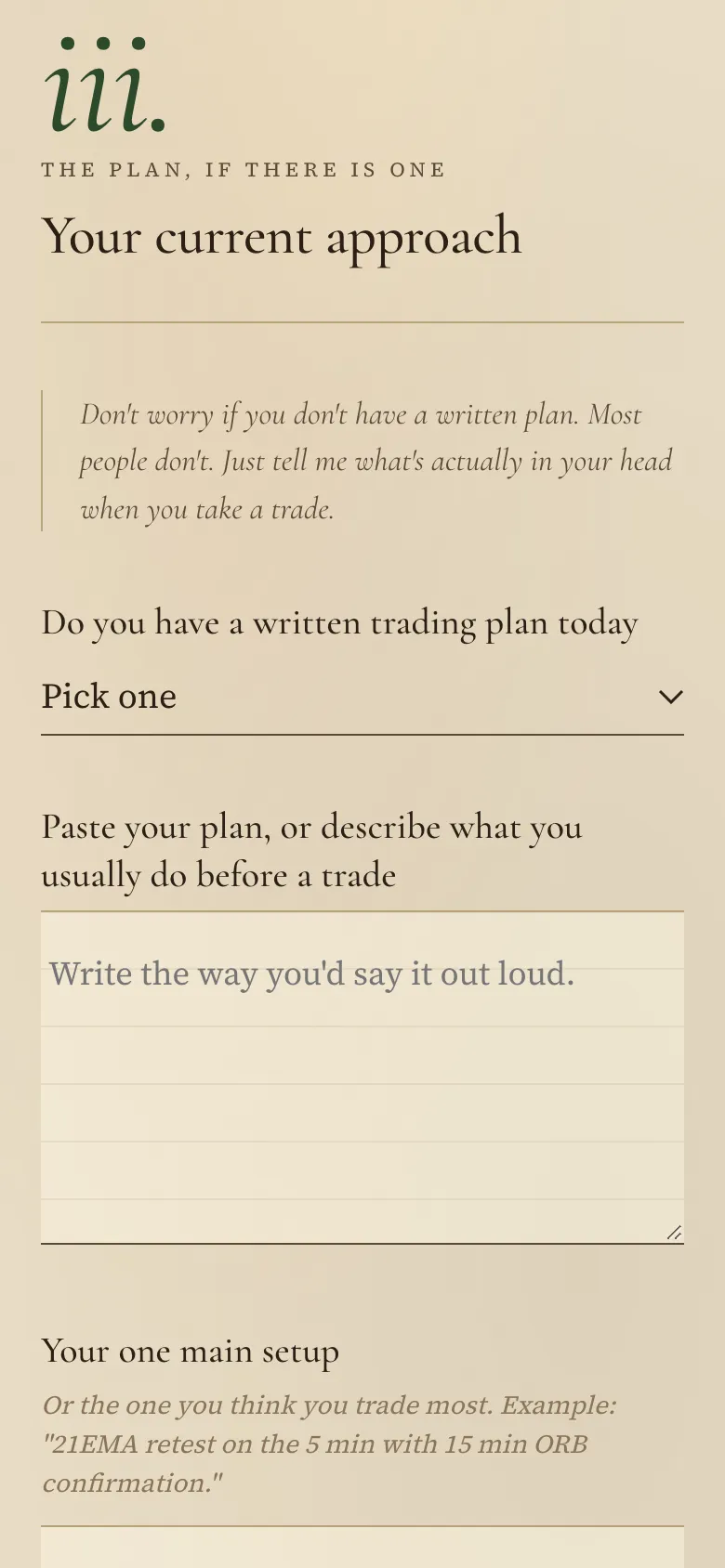
Eight sections, thirty one questions, answered in your own words rather than in multiple choice. Account size, the setups you keep returning to, the trades that still bother you, the rules you wrote and then broke, where the pain actually sits.
It saves as you go, so you can put it down and come back. Long answers are better than short ones. Every word of it gets read before a single line of your audit gets written.
What gets written
Several thousand words, as long as your answers need, built only from what you told me.
It runs in this order. What you said you wanted, in your own words. What I saw in your intake. Three red flags I caught, quoted from your answers. What your answers ruled out. Your one setup, as you described it. Your max risk, and your stop and exit, written down as you gave them. Seven questions to ask before every entry. A 25 to 30 trade window, so no setup gets judged on five trades. The one change that matters most. What you no longer do. When to come back.
One of its chapters is titled What your answers ruled out. It works only by removal. Given your time, your capital, what you have already survived, and where the pain is, certain approaches are off the table for you, and that chapter says which and why. It never names a trade to take. That line is deliberate and it is what keeps the document structure instead of direction.
The Historical Audit
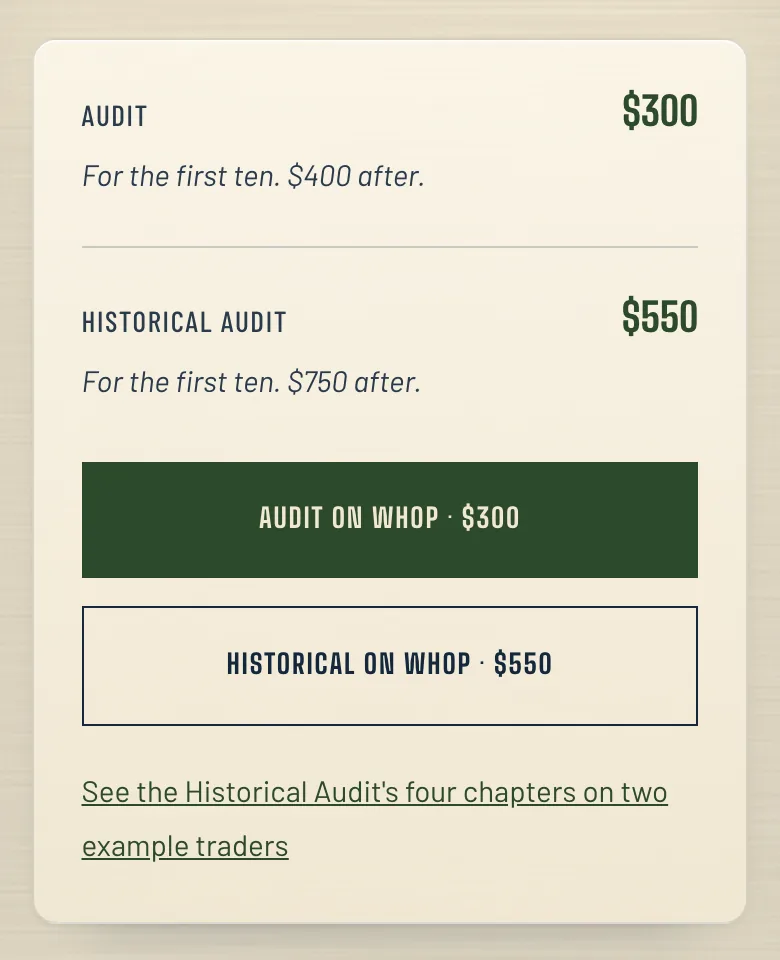
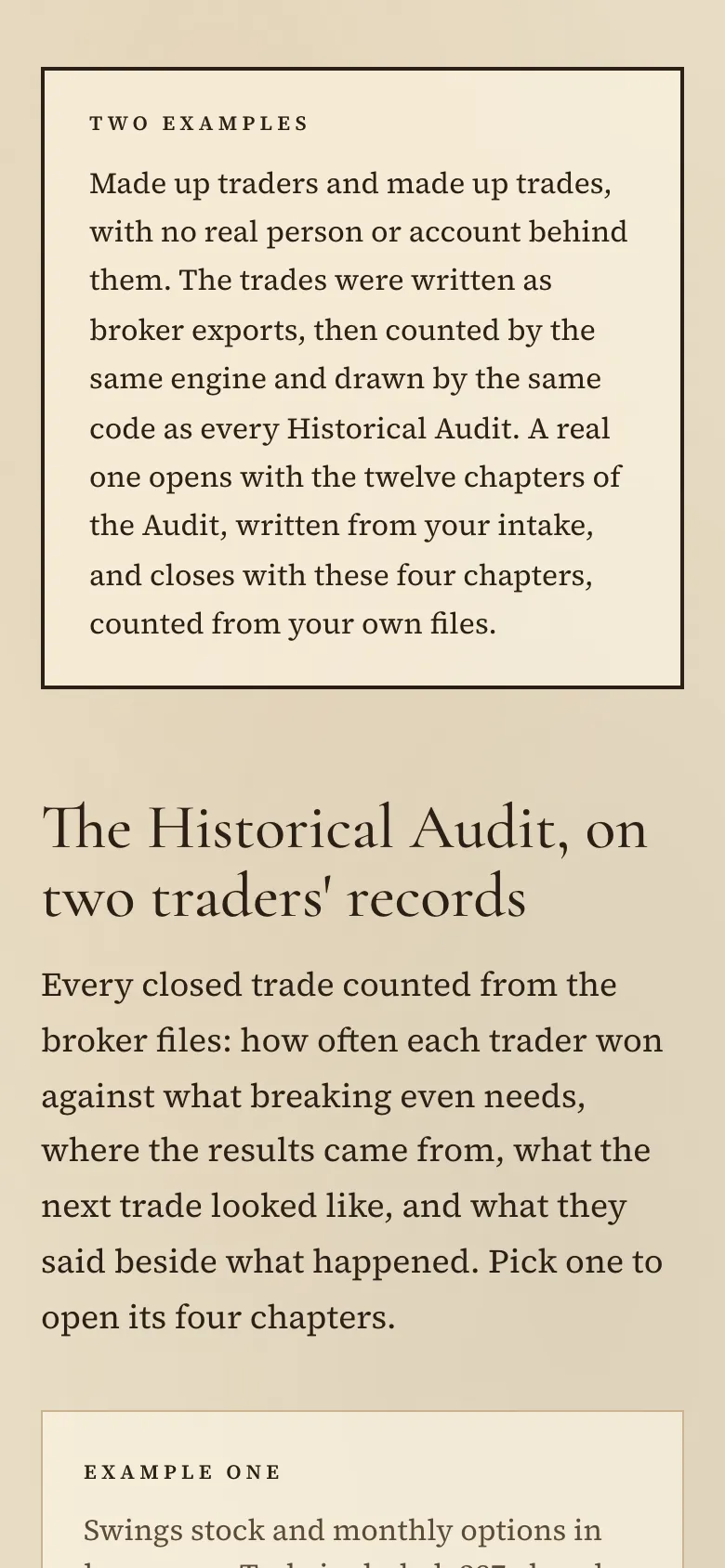
The same audit, plus four chapters counted from your own broker files. You upload your trade history on the intake, and every closed trade gets counted: how often you won against the win rate your average winner and loser need to break even, how long you held each, and how the results split between stock and options, calls and puts, days to expiry, size, hold time and year.
Then the behavior underneath. Each setup you traded twenty times or more, against its own breakeven and without its three best trades. The trades you opened before your first close of the day against the ones after. How you built your positions, and what averaging down cost. The trade after a win against the trade after a loss.
The last of the four sets what you told me in the intake beside what your account actually did. Numbers, not opinions, and any group under twenty trades is marked as too few to judge.
It reads exports from Robinhood, Schwab and thinkorswim, Fidelity, E*TRADE, Webull, moomoo, TradeStation, Interactive Brokers and tastytrade, and for futures Tradovate, NinjaTrader and TopstepX. If your broker is another one, message me before you buy. Your files are deleted from the server the moment I download them, and from my computer once your audit is delivered.
- Step 1Check out
- Step 2Your private intake opens
- Step 3The kickoff message goes out and starts the clock
- Step 4Forty eight hours later your audit is live
- 01Twelve chapter written audit at your own private URL, sixteen with the Historical Audit
- 02Companion interactive plan page at that same URL
- 03Two accent colors and the name of your choosing
- 04One revision included
If several audits are in the queue at once I tell you the real timeline before I start writing yours, rather than quietly running past the clock.
New to trading? The audit works best once you have real trades to anchor it. If you are just starting out, message me first and tell me where you are, so what you pay for fits what you need today.
See every step, from paying to your audit
Step 1. Pick the Audit or the Historical Audit
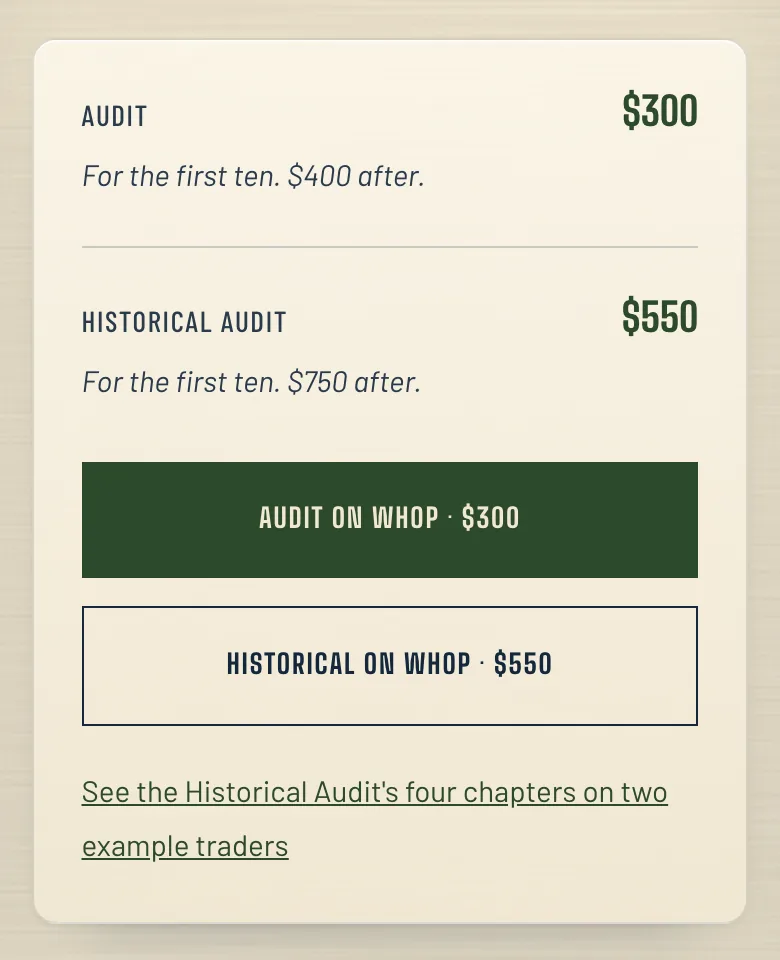
1aPress AUDIT ON WHOP, or HISTORICAL ON WHOP for the Historical Audit. The Historical Audit adds four chapters, counted from your own broker files. Step 2. Check out on Whop
Whop handles the payment.
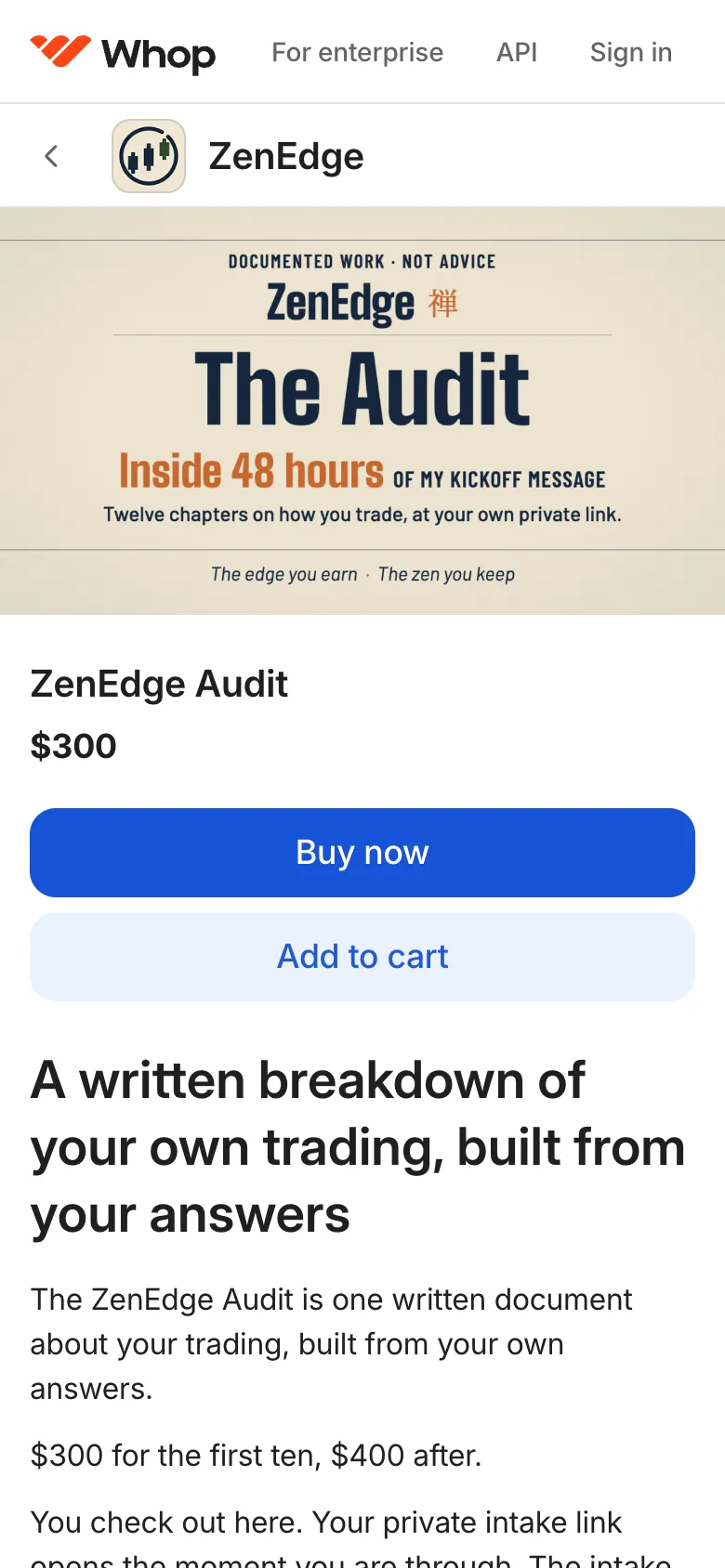
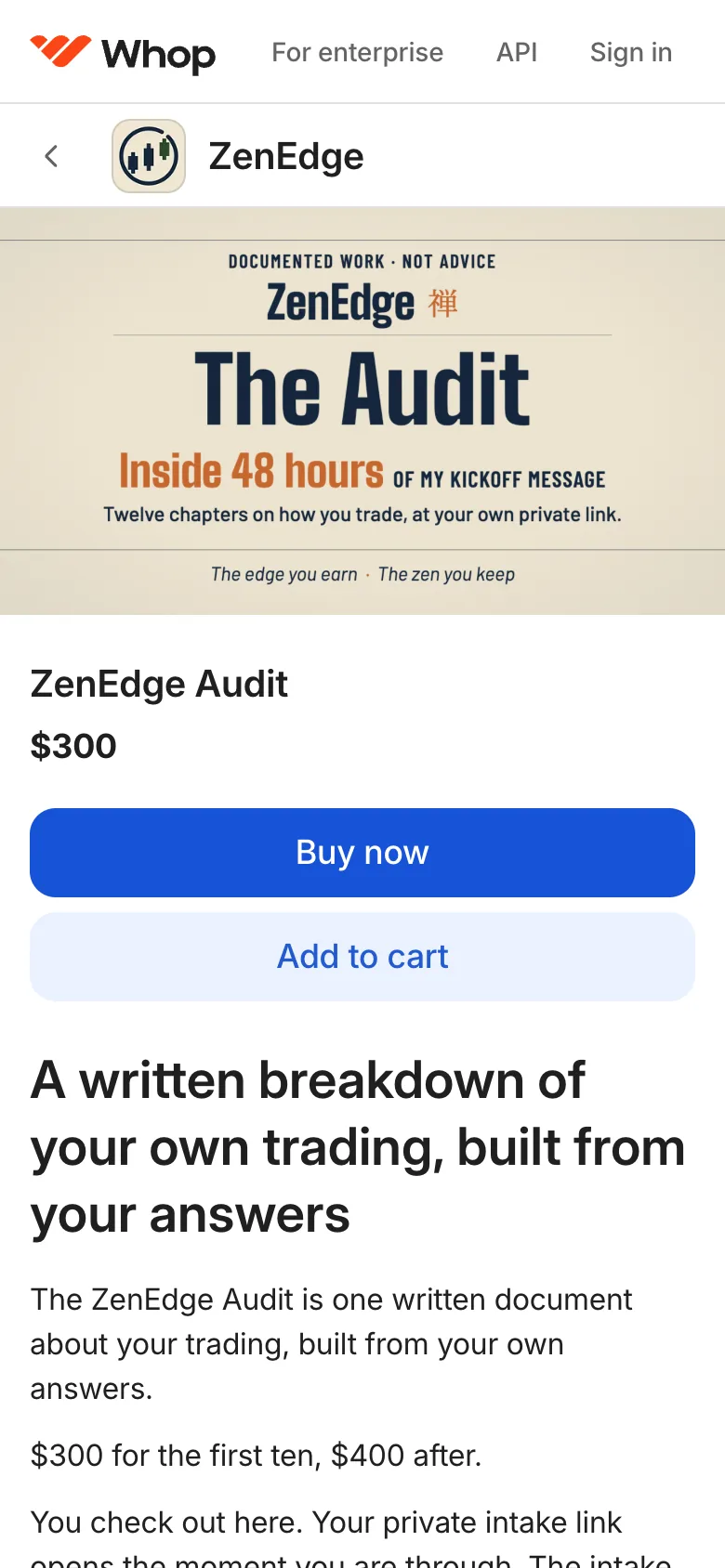
2aWhop's page for it opens. Press Buy now. 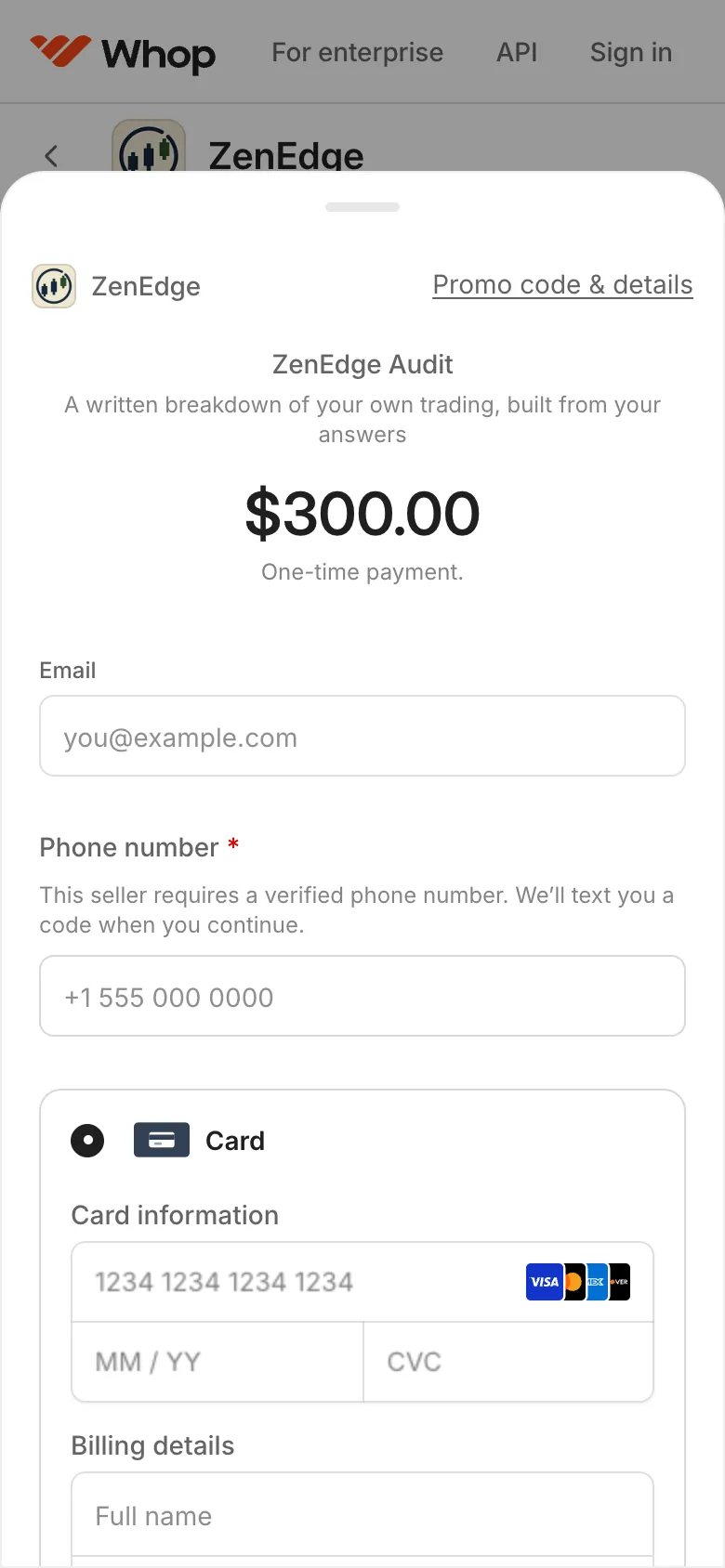
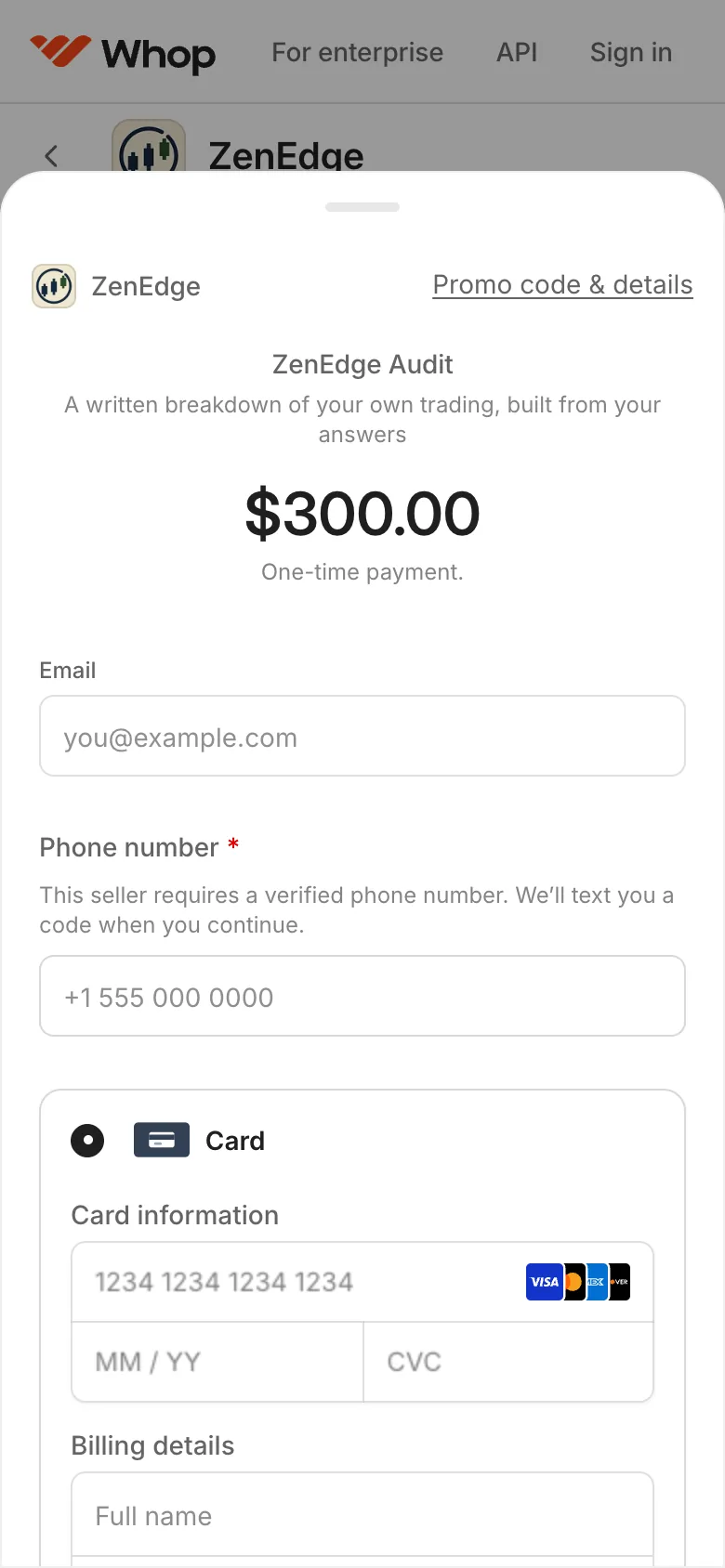
2bType your email. Type your phone number. Whop texts a code to it: type that code when Whop asks. Then pay by card. Step 3. Your private intake opens
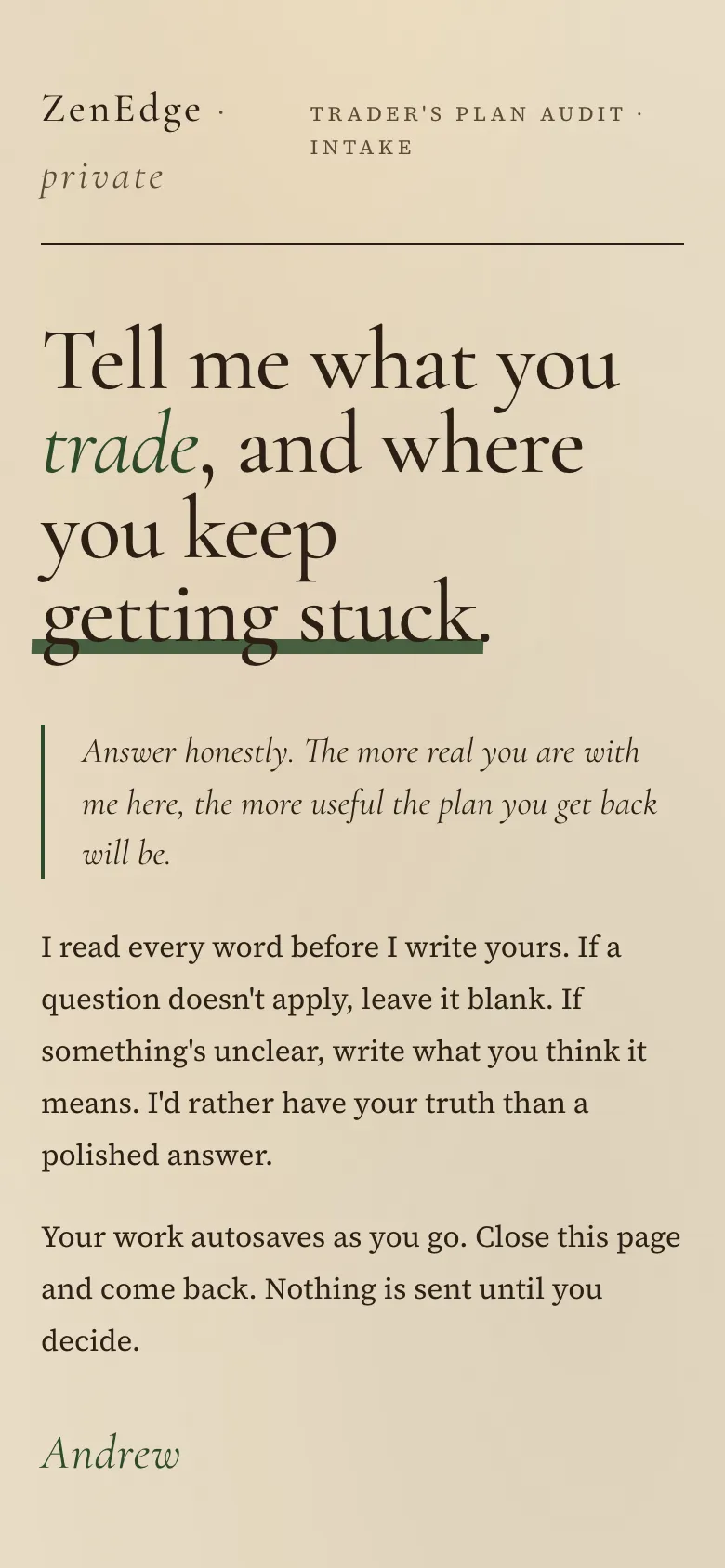
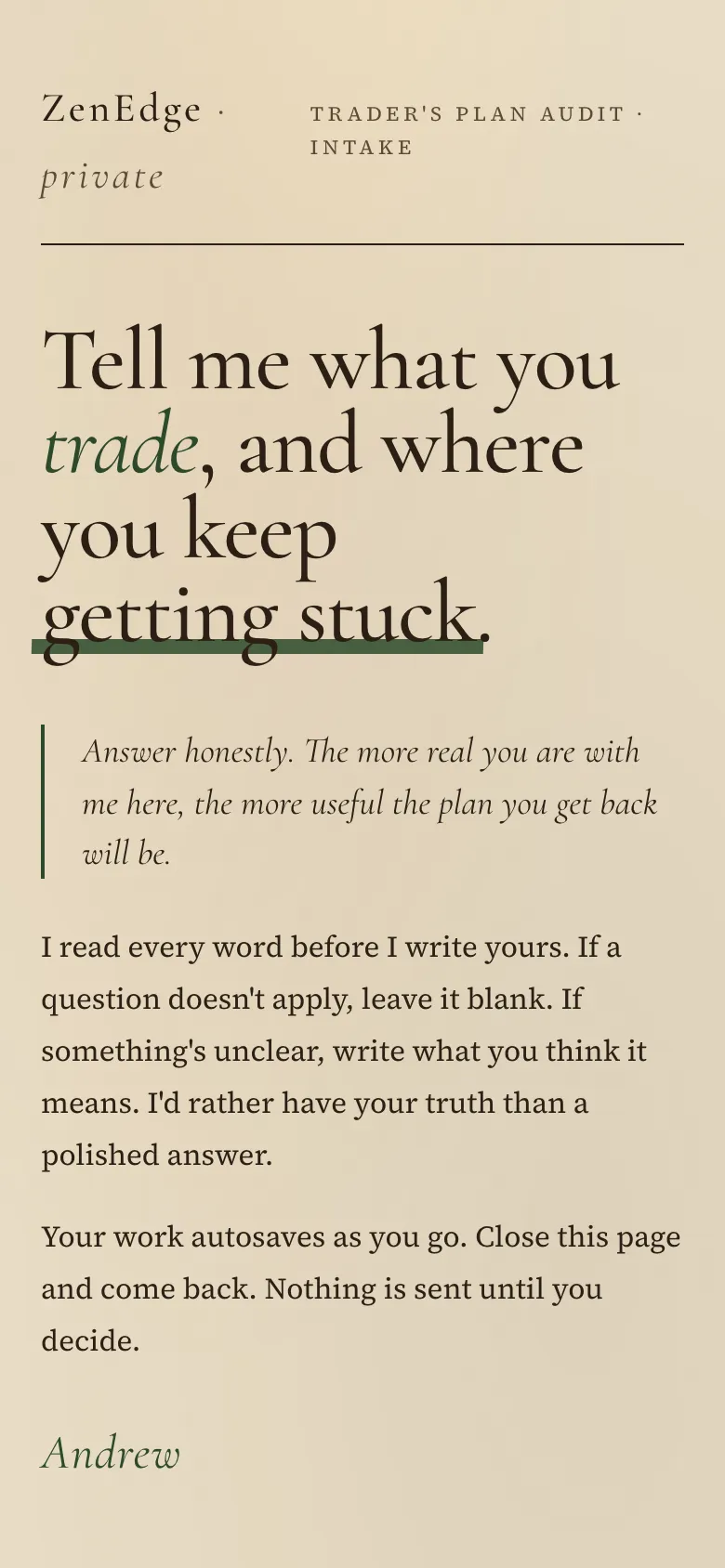
3aYour private intake opens once you have paid. It saves in this browser as you go, so you can close it and come back on the same device. Lost it? Its link is in your Whop receipt email. 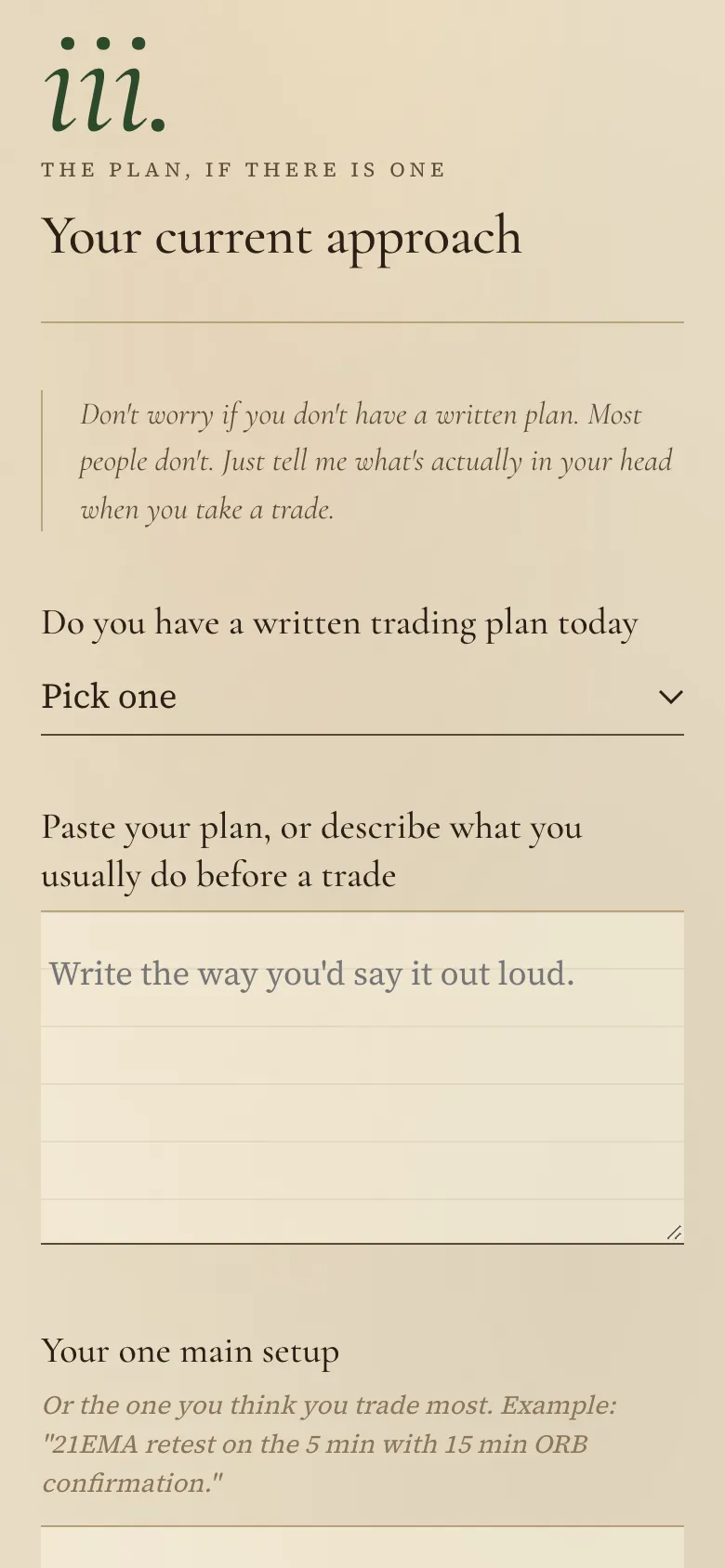
3bAnswer the eight sections in your own words. Leave a question blank if it does not apply. The Historical Audit adds one more section, where you send your broker files. A file that is not a trade export, such as a tax form or your own spreadsheet, is refused, with a note saying what to send instead. 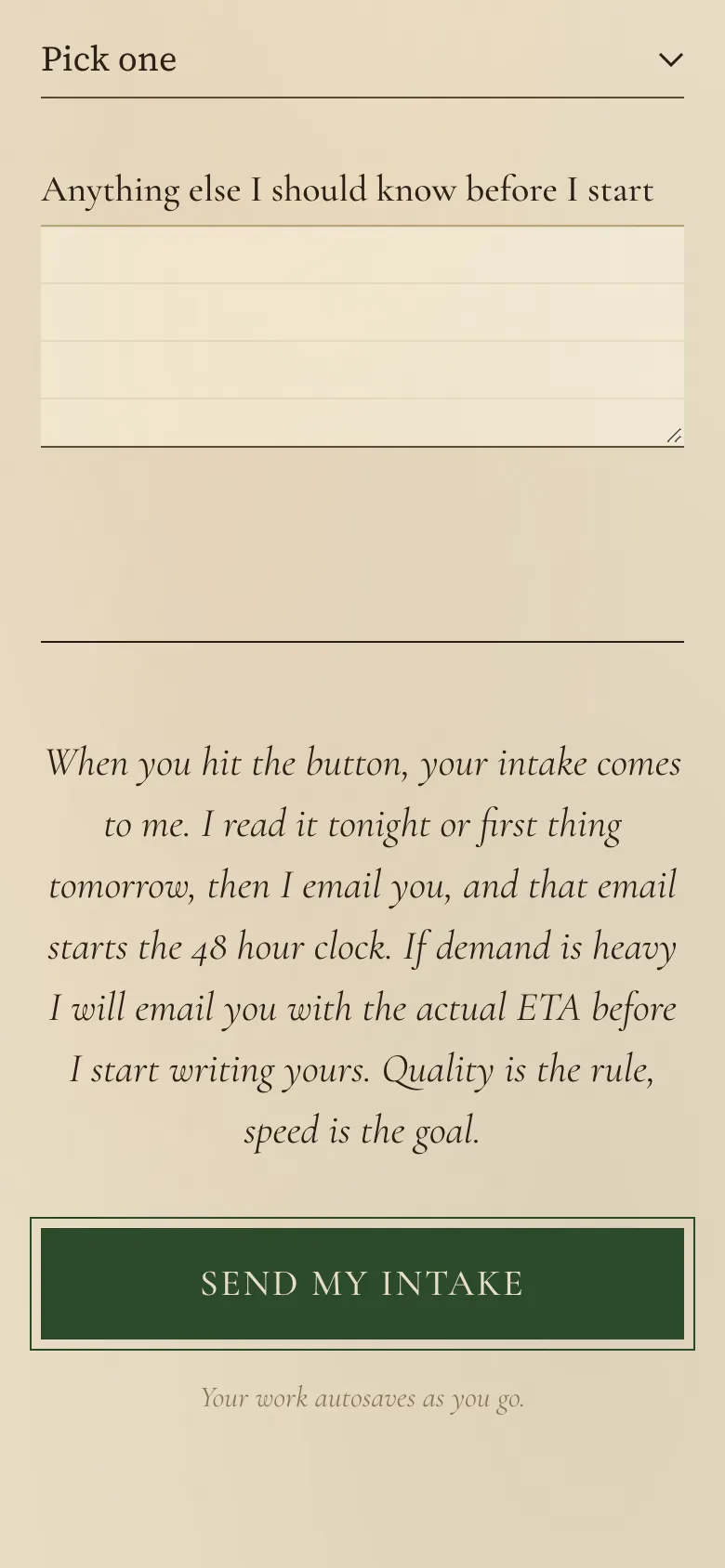
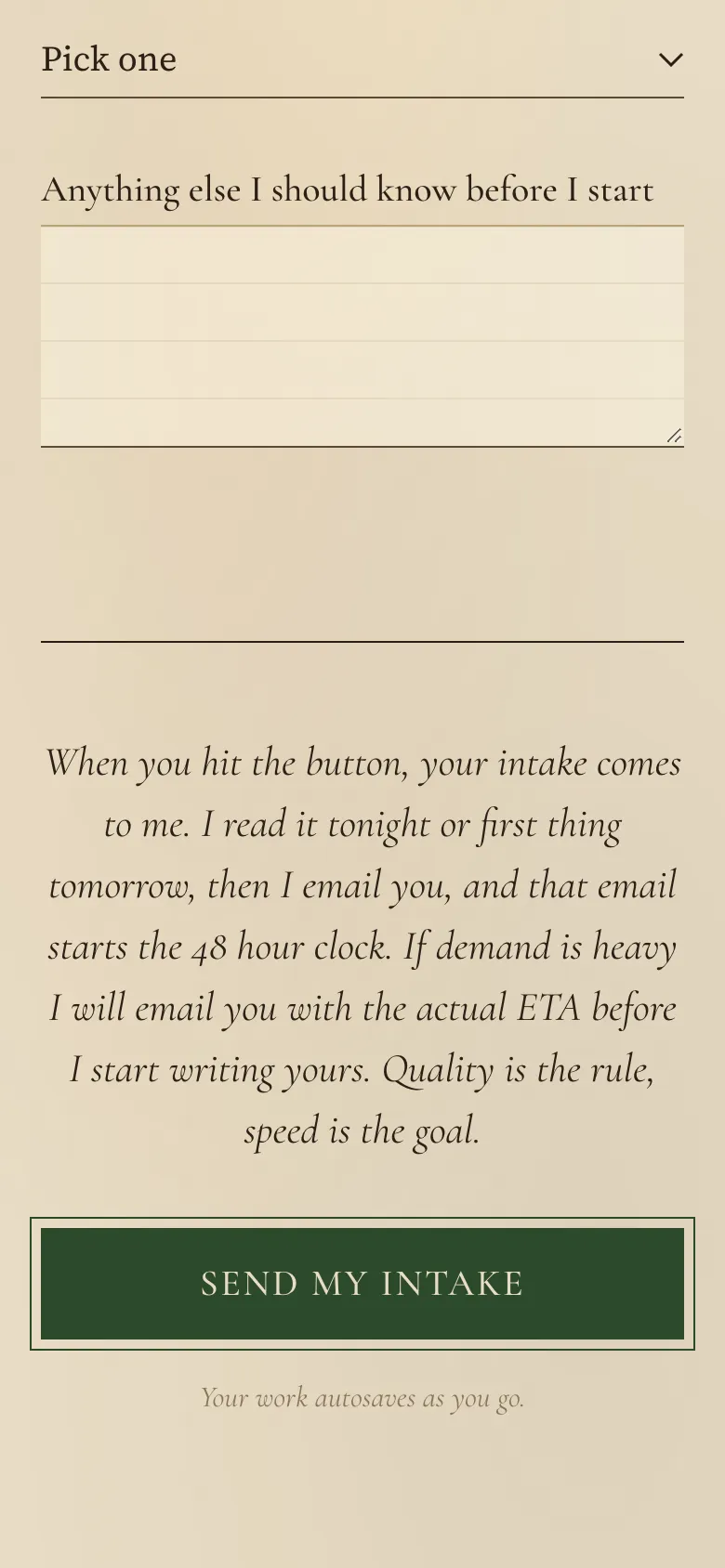
3cPress SEND MY INTAKE when you are done. Nothing is sent before that. If an answer is still needed, the page scrolls to it and says what is missing. 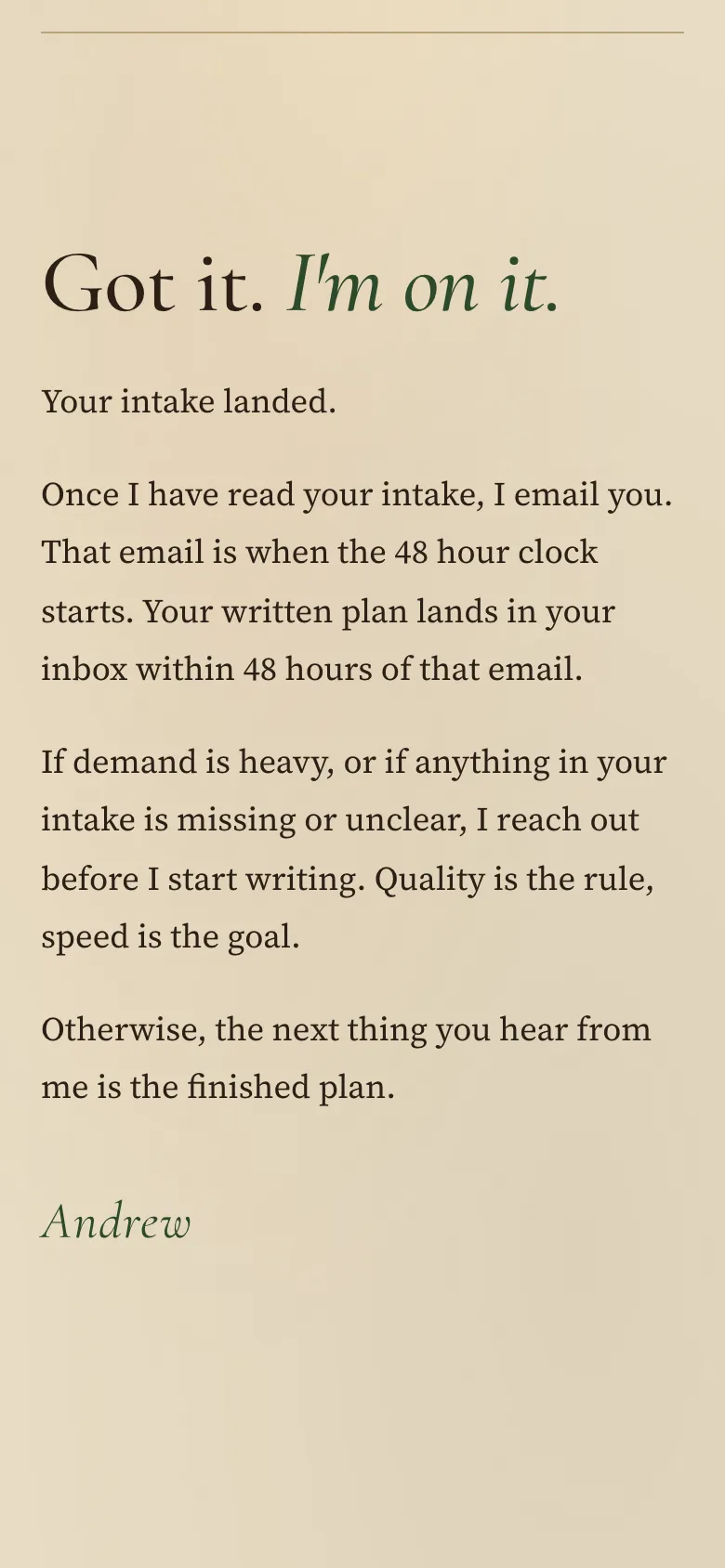
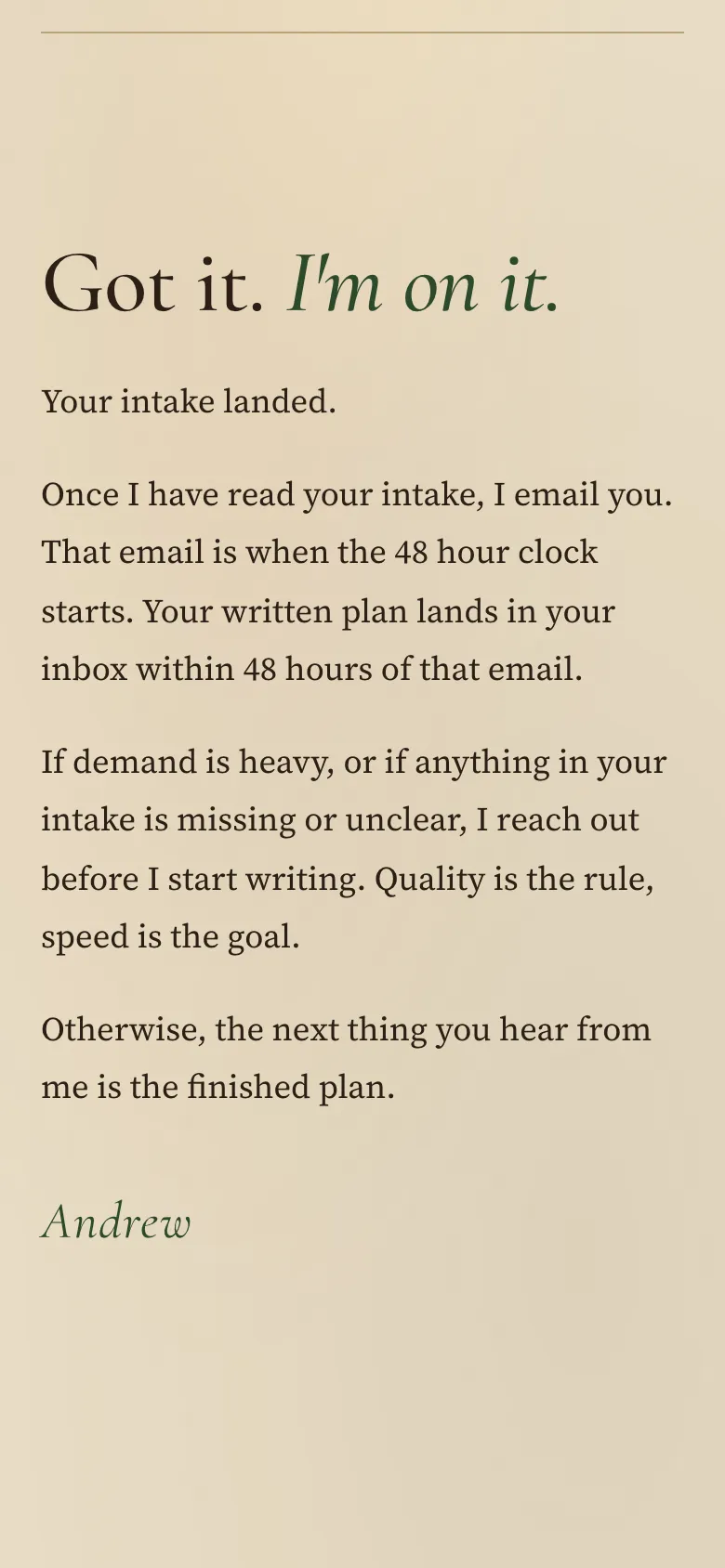
3dYou see Got it. I'm on it. Once I have read your intake, I email you. That email starts the 48 hour clock. Step 4. Historical Audit on Robinhood: make your trade file
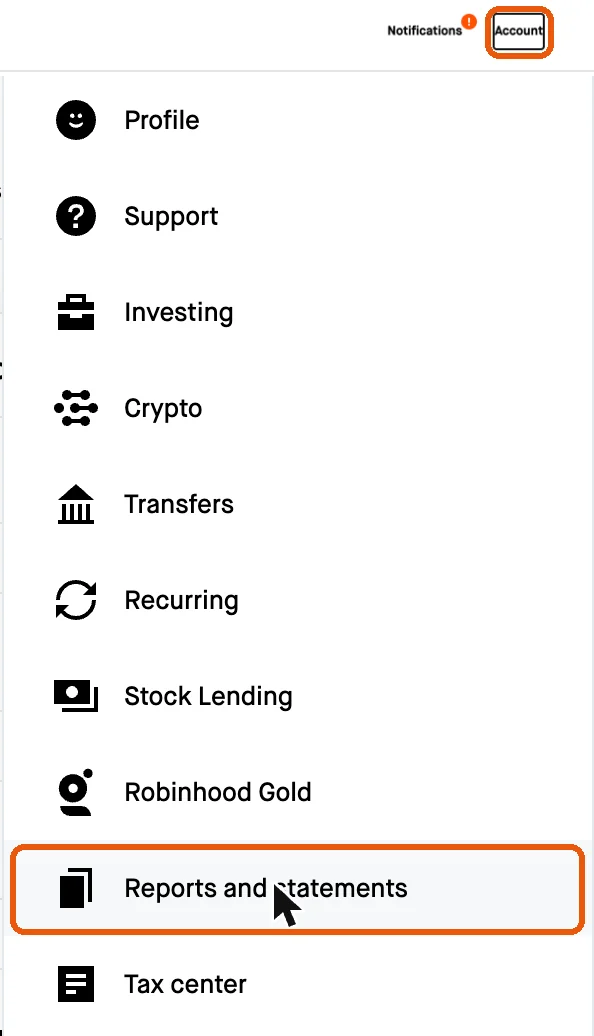
Use robinhood.com on a computer if you can. In the app, press Account. Press Menu, the three bars. Press Reports and statements. Press Reports. Press Generate new report. Then pick the same things as below.
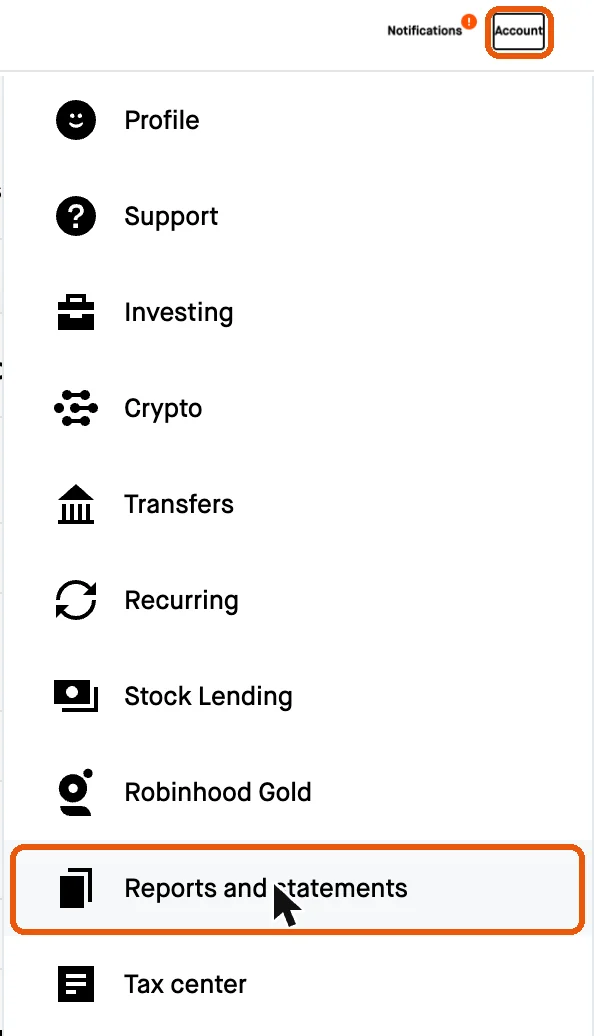
4aPress Account at the top right. Press Reports and statements. 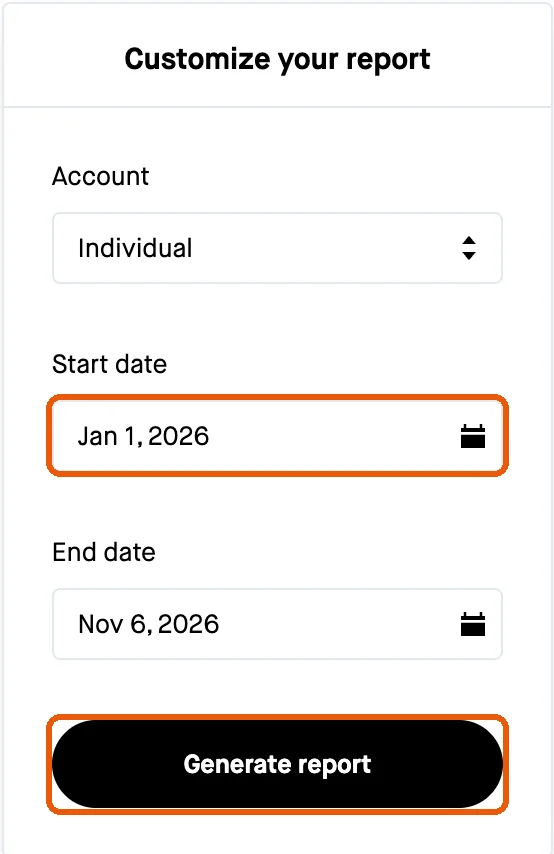
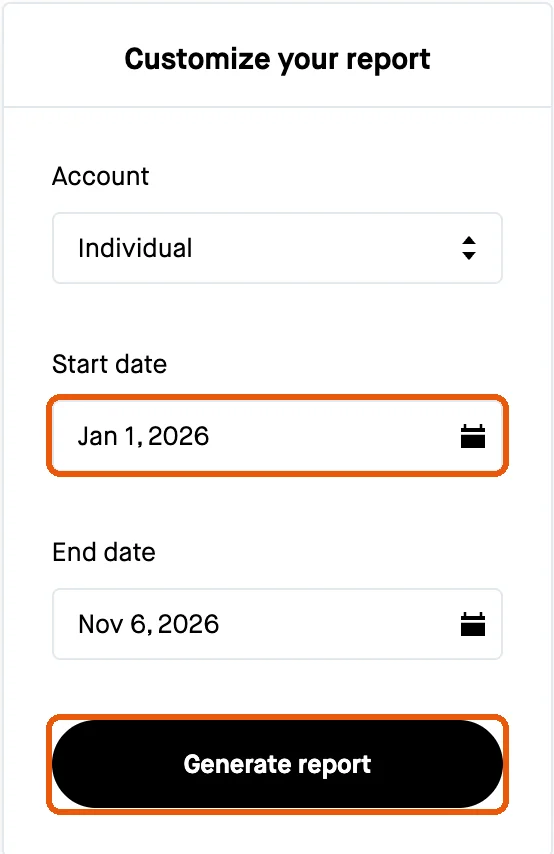
4bUnder Account, pick your account. Press Start date. Press the left arrow back to the month of your first trade. Press the day. Leave End date on today. Press Generate report. Trades before the start date are left out of your audit. 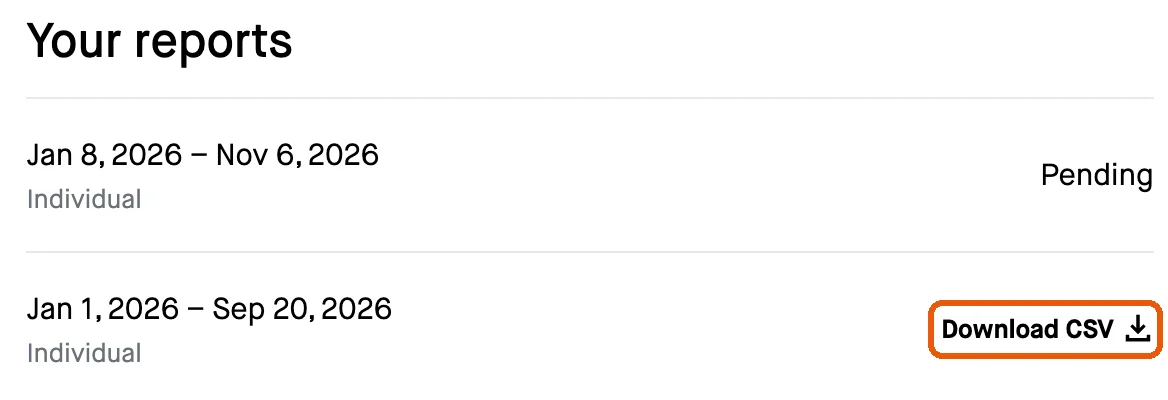
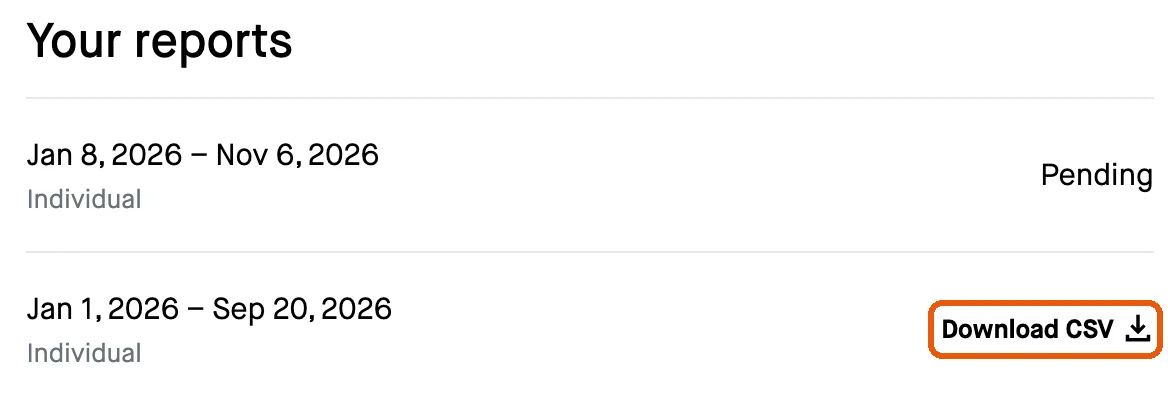
4cA box says it is preparing your report. Press Done. It shows Pending until it is ready. Robinhood says most take 2 hours, some up to 24, and tells you when. Press Download CSV beside it. On your intake, press Choose your files and pick that file. Step 5. Historical Audit on Schwab or thinkorswim: export your trade file
Use schwab.com in a web browser, on a computer if you can.

5aPress Accounts at the top. Press Transaction History in the row under it. 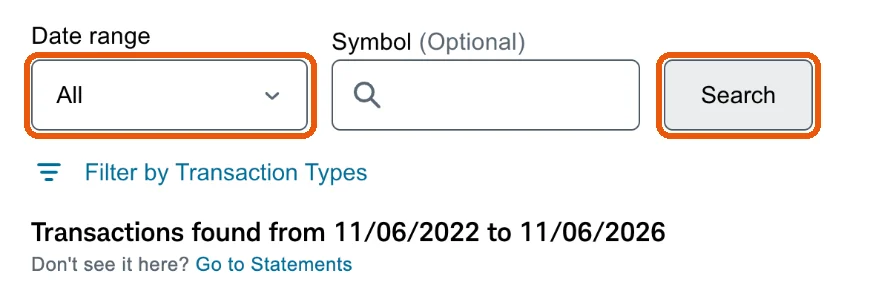
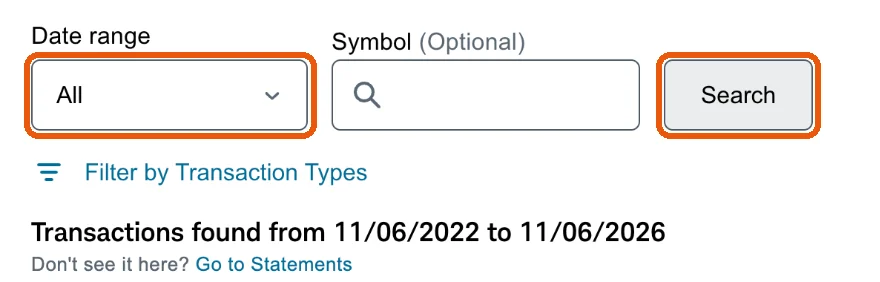
5bSet Date range to All. Press Search. All reaches back 4 years, the furthest Schwab lets you download. 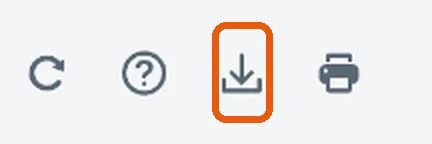
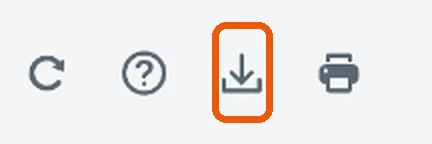
5cPress the Export icon at the top right. It is the arrow into a tray, beside the printer. 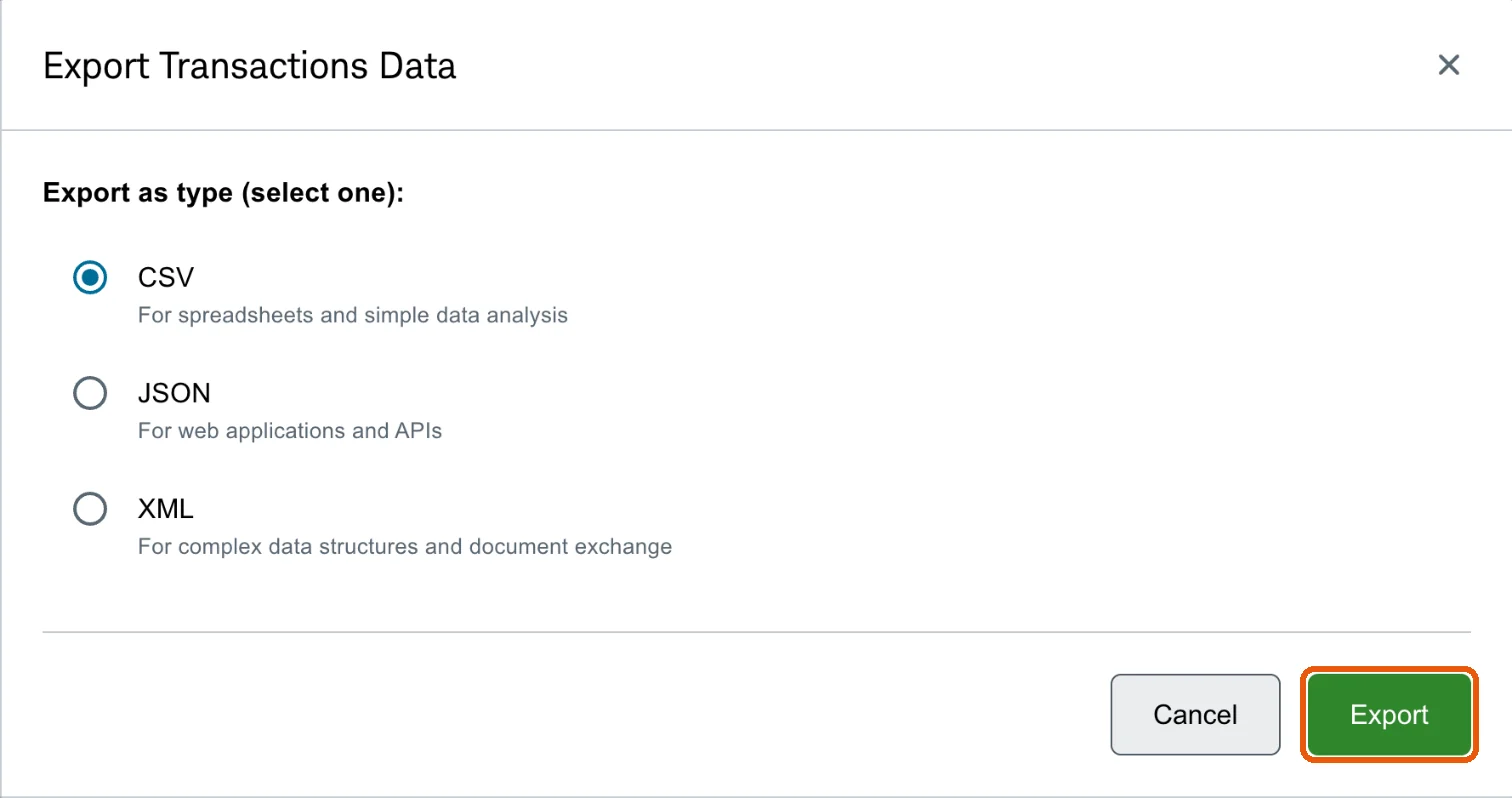
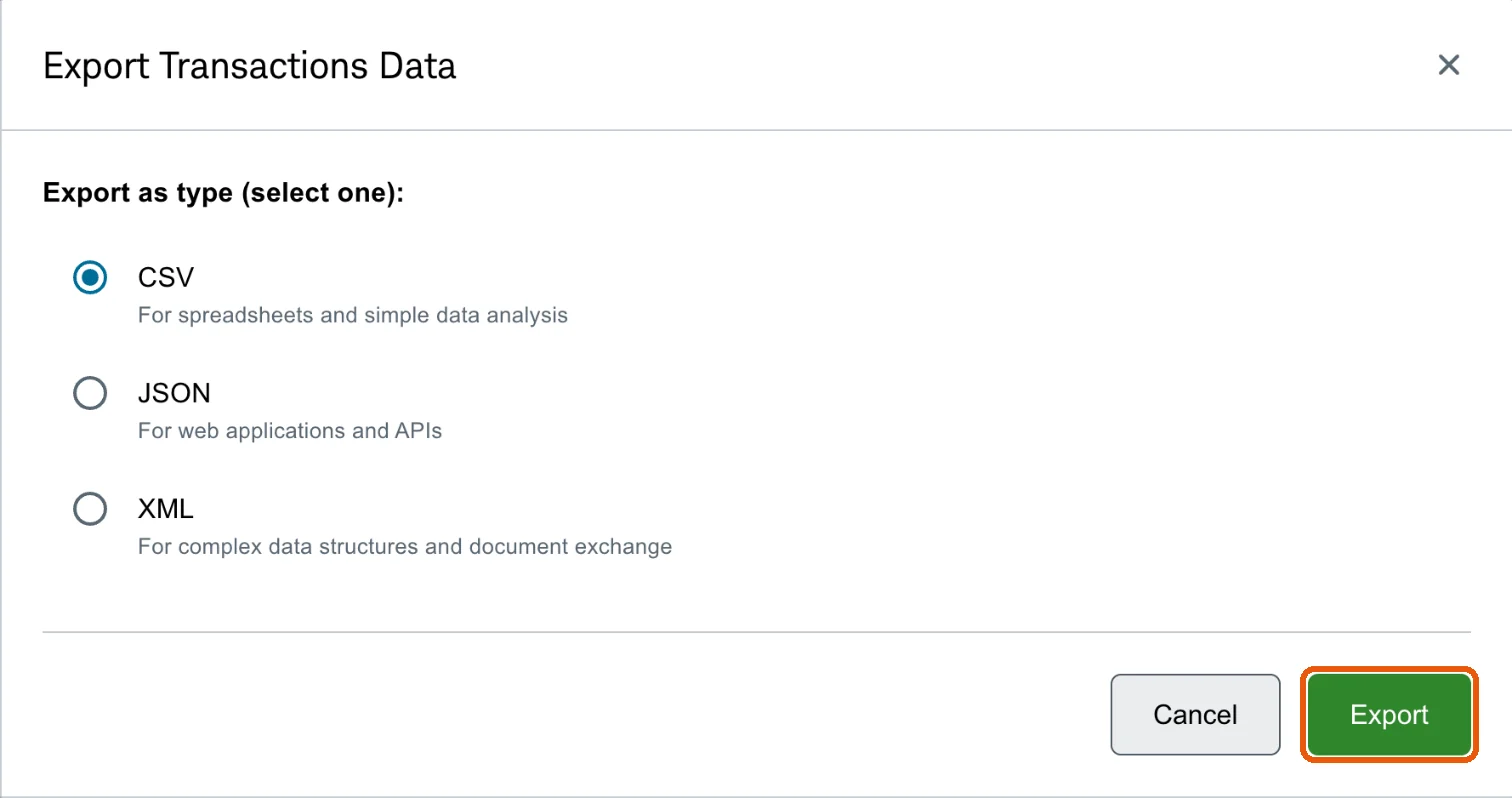
5dLeave CSV picked. Press Export. The file goes to your Downloads folder. On your intake, press Choose your files and pick it. Step 6. Historical Audit on Tradovate, or NinjaTrader on the web: download your trade file
Use trader.tradovate.com on a computer if you can.
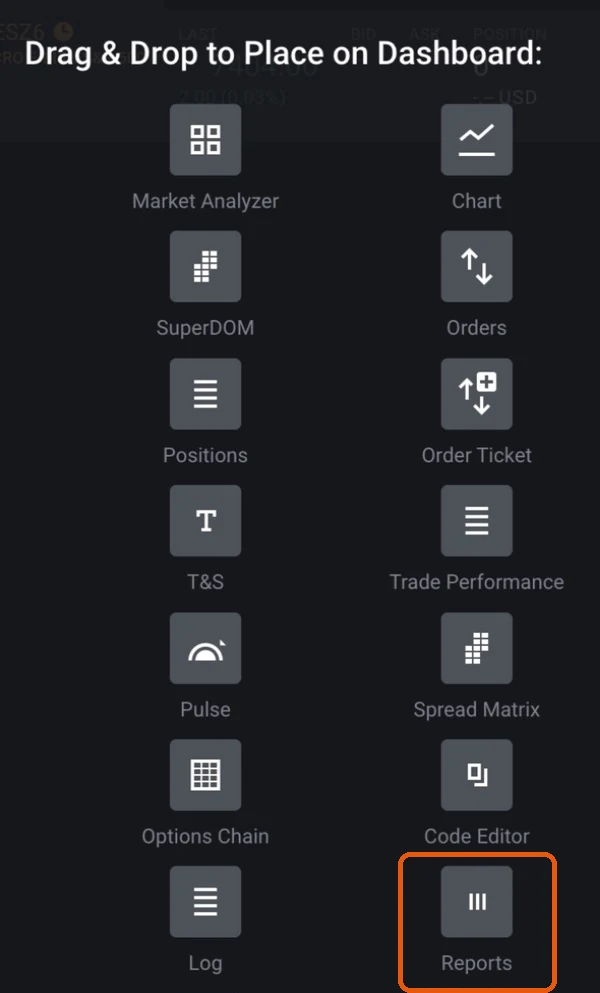
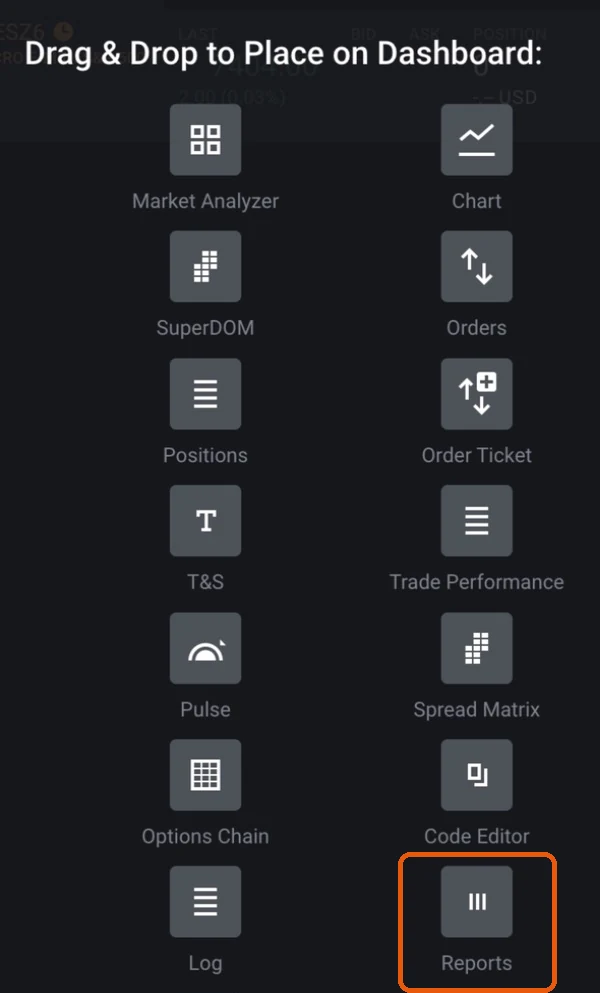
6aPress + at the top left. Drag Reports onto your dashboard. It is the last one, not Trade Performance. 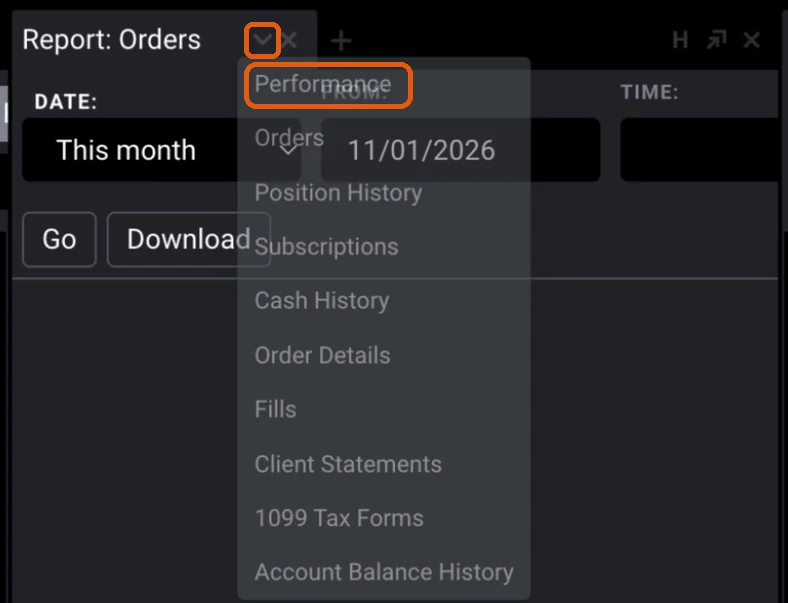
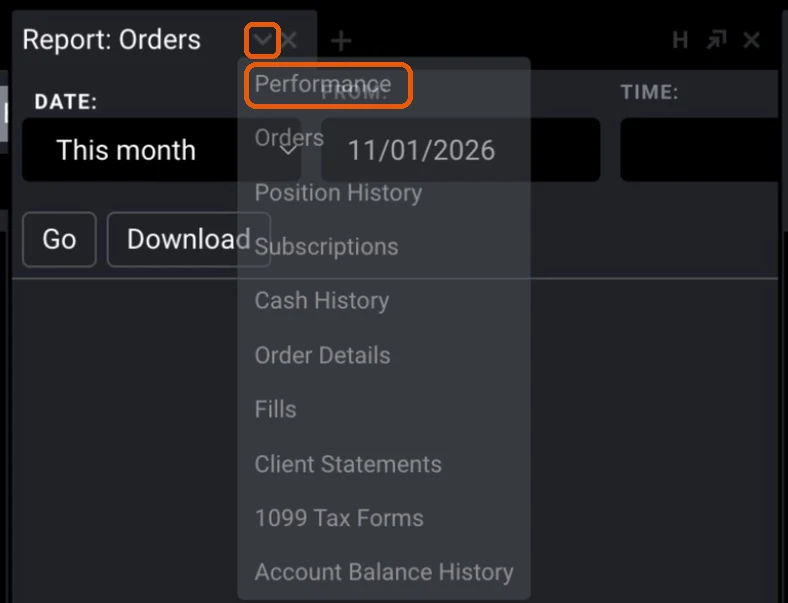
6bOn the new panel's tab, Report: Orders, press the down arrow. Choose Performance. 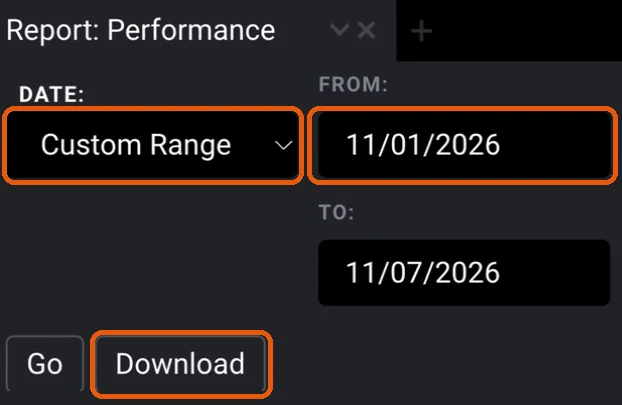
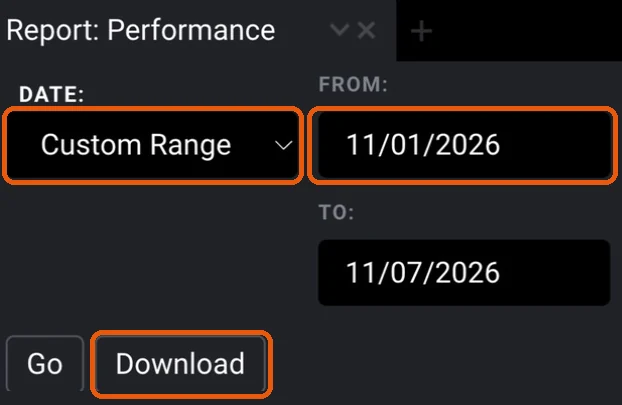
6cSet DATE to Custom Range. Set FROM to the day of your first trade: trades before it are left out. Leave TO on today. Press Go. Press Download. On your intake, press Choose your files and pick that file. Your audit, within 48 hours of that email
Twelve chapters written from your intake, delivered as a private web page you keep. The Historical Audit closes with four more, counted from your own trades.
aThose four chapters, on two made up traders. To open them, press See the Historical Audit's four chapters on two example traders, under the buttons.