Call Sheet
Every analyst ranked, with their full record, built from your server's own trades, on one link your members open.
Who should I follow?
In a room with several analysts, every member wants to know whose calls fit them. The answer is already in your server, spread across weeks of recaps and alerts.
Call Sheet ranks your analysts and lays out each record, wins and losses alike, and names the top trader of the week and of the month by net gain, so a member can see it in one look and pick who to follow.
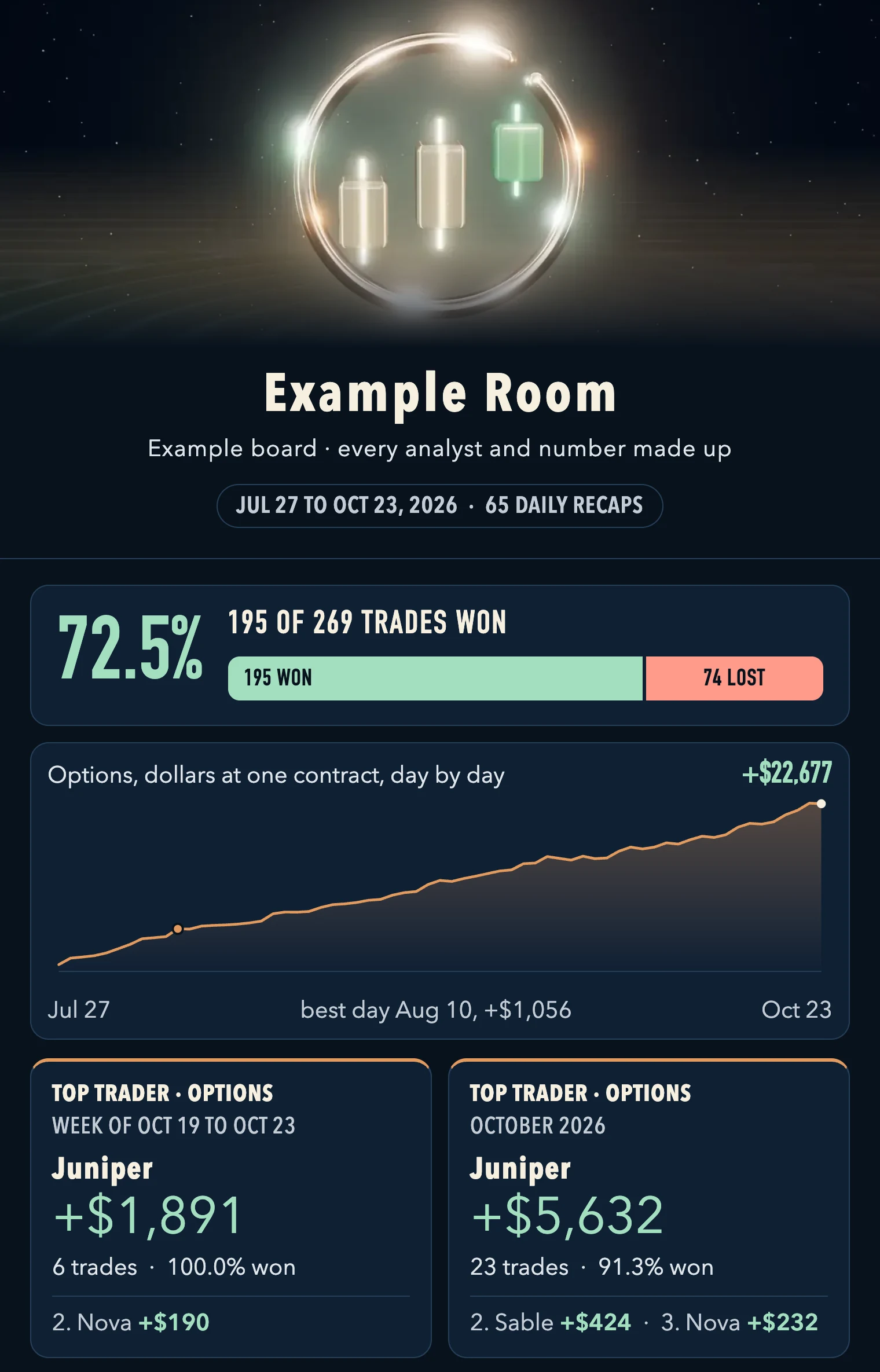
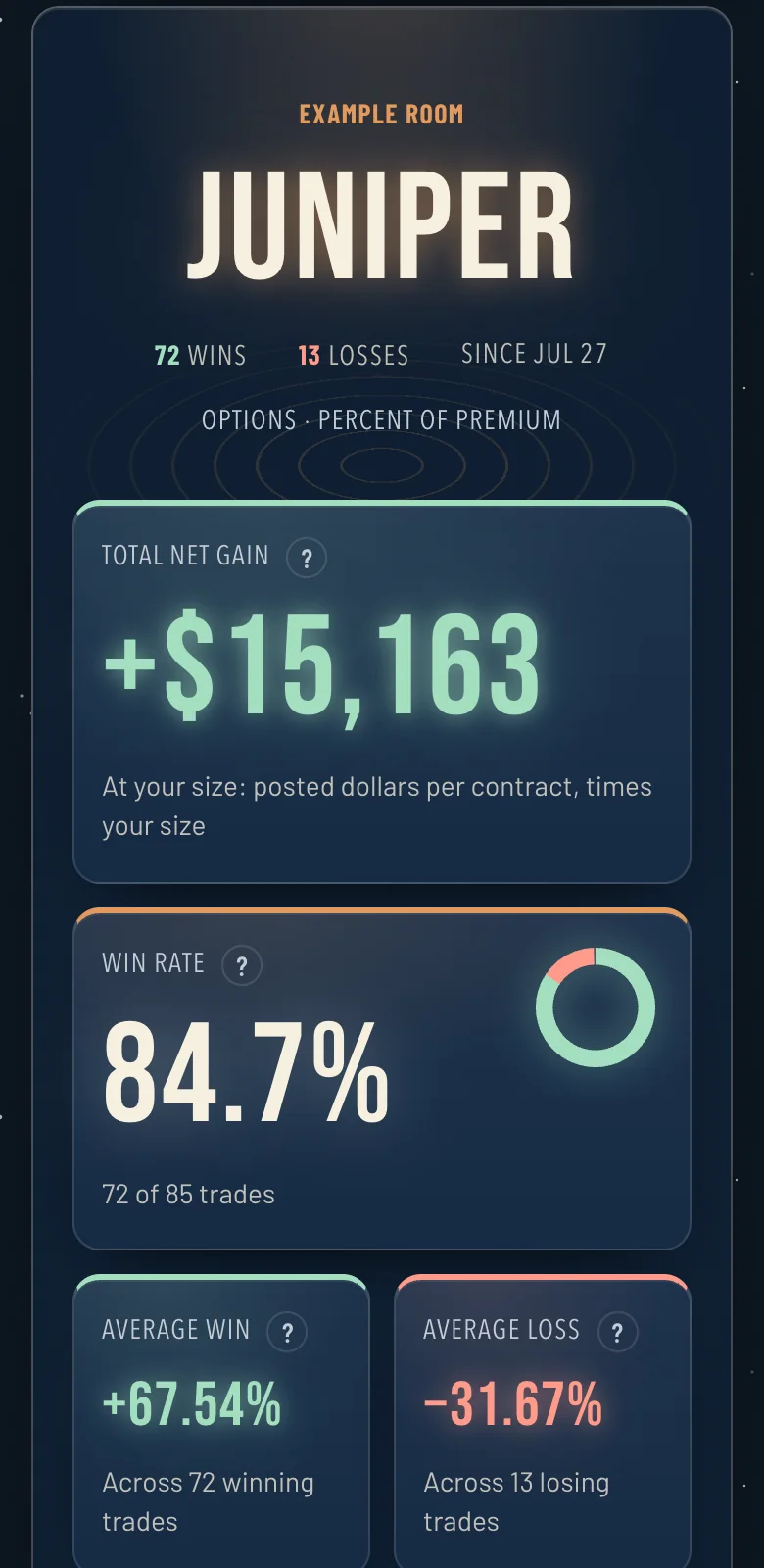
The whole room in one look: how many trades won, the running total, and the top trader of the week and the month. Example board, numbers made up. 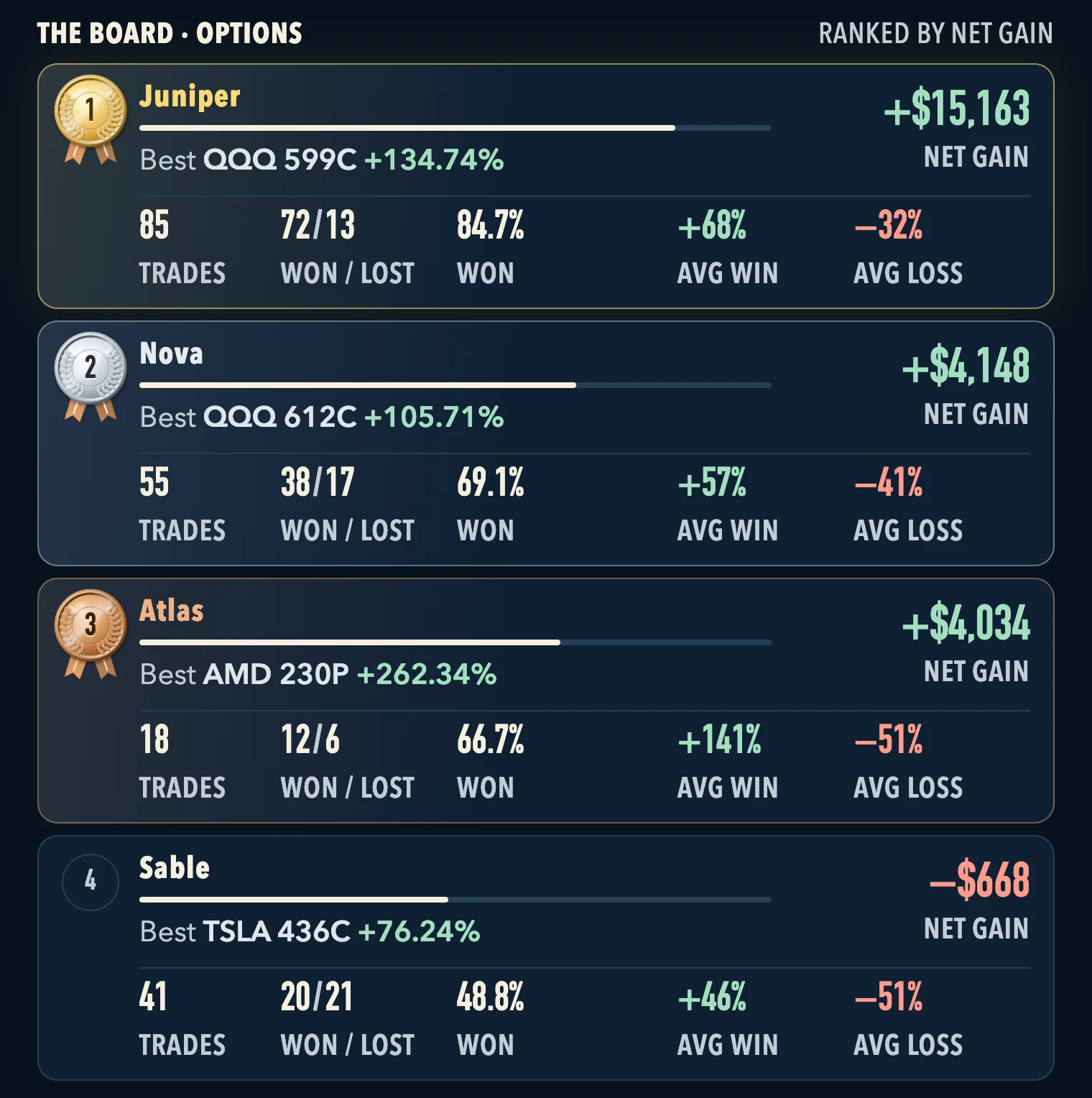
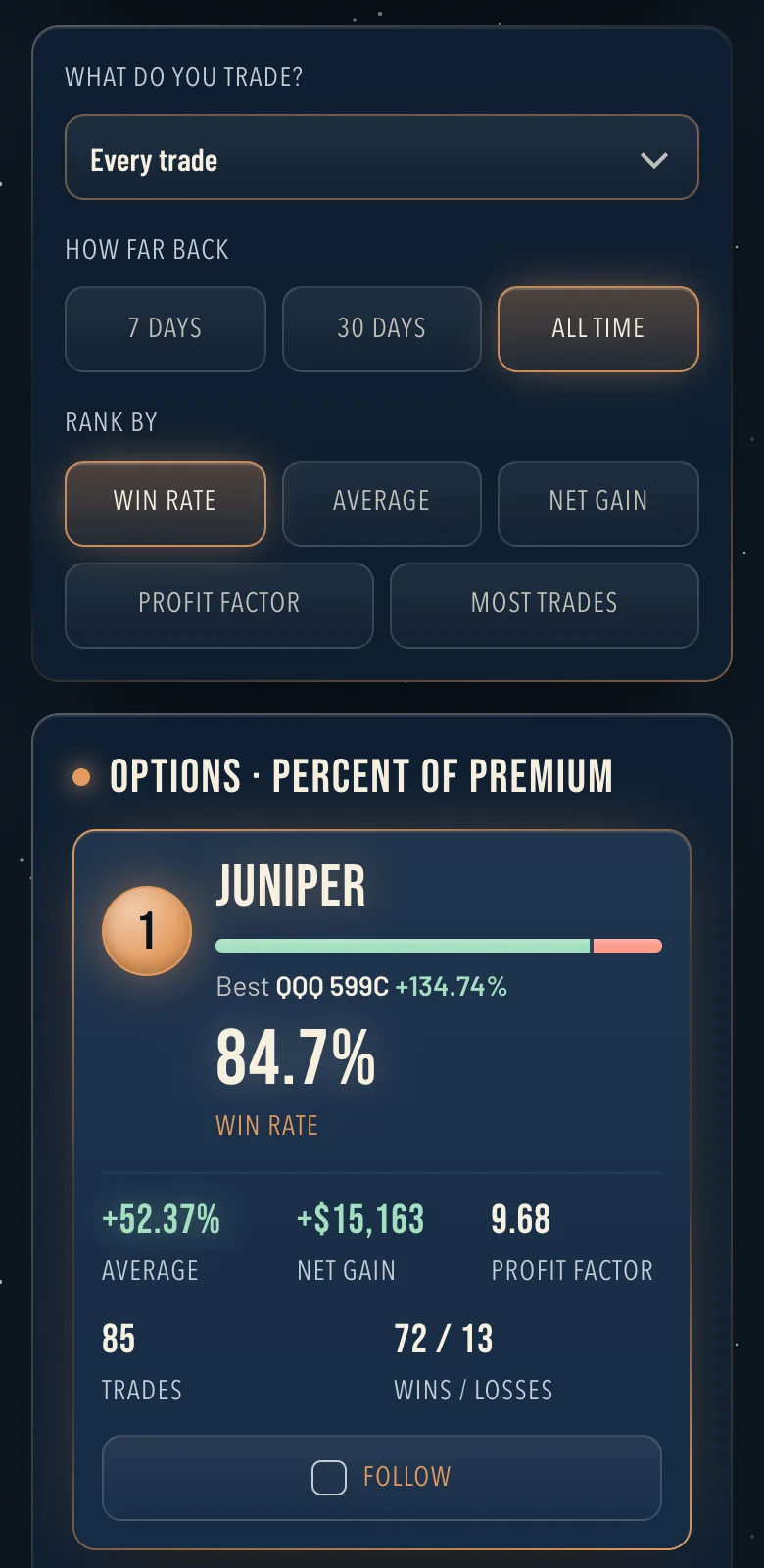
Every analyst ranked, with the net gain, the average win and the average loss, losses kept in. Example board, numbers made up. 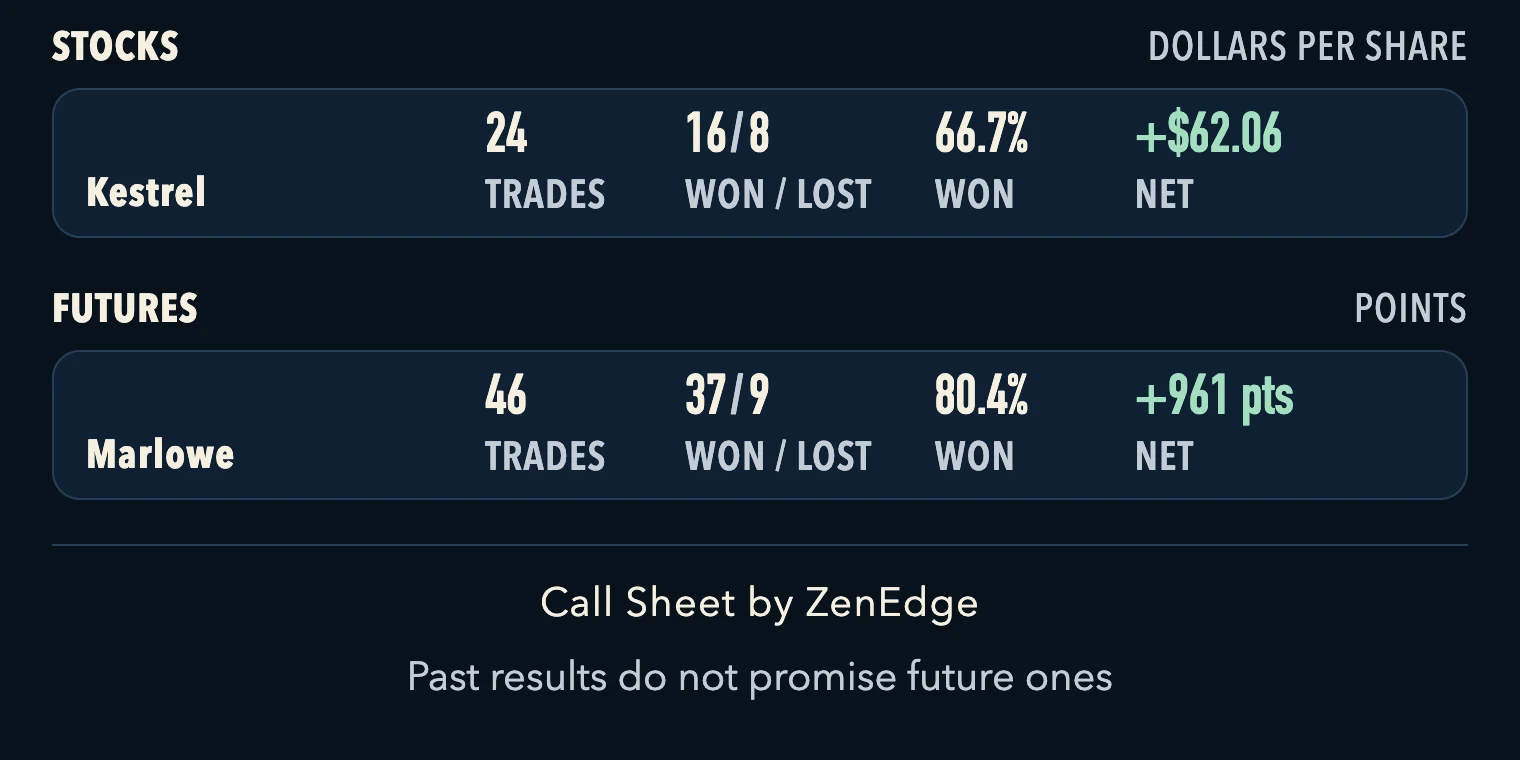
Stocks and futures kept apart, futures in points, never added to the options. Example board, numbers made up.
In your channel
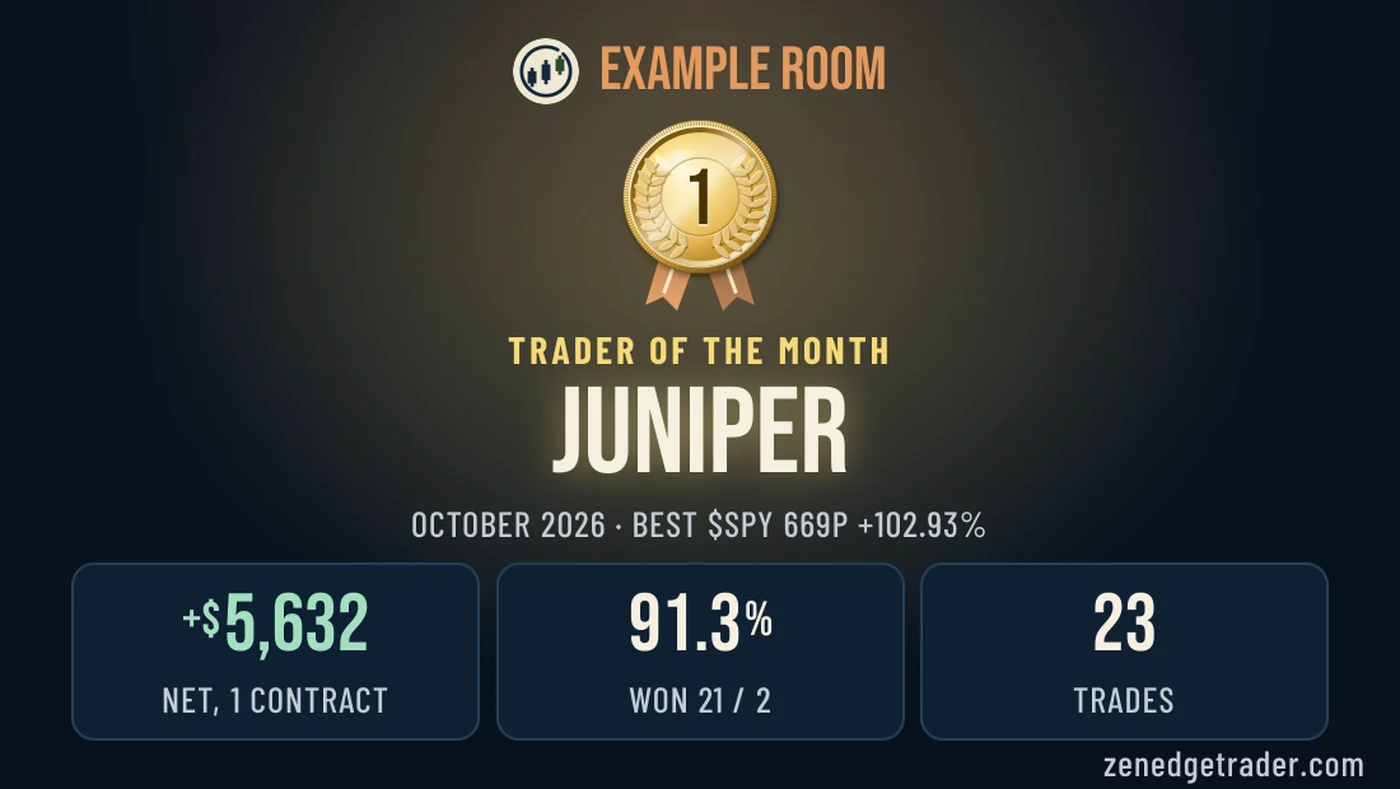
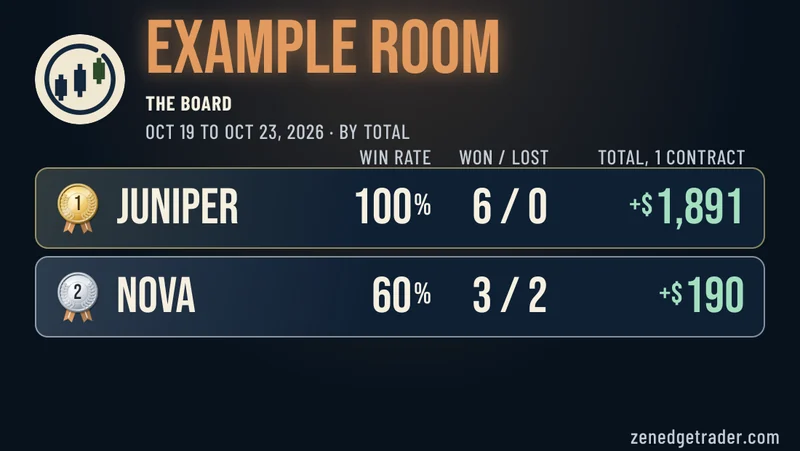
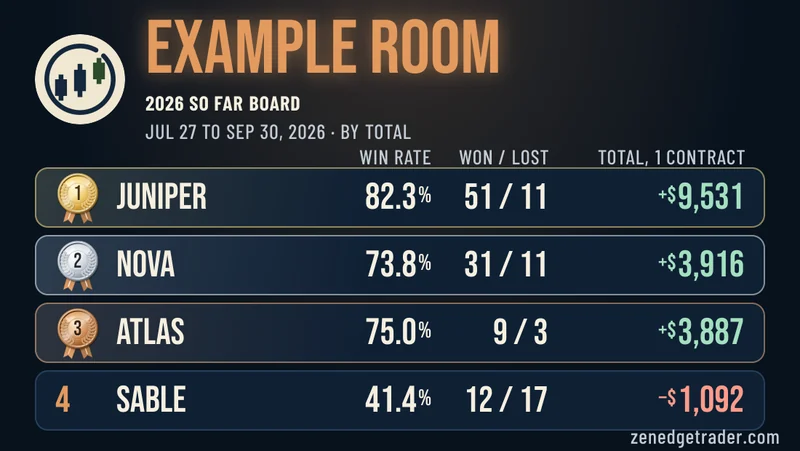
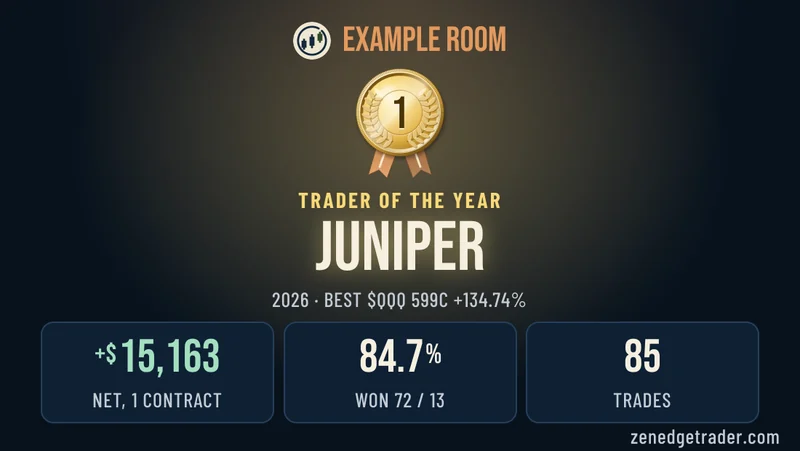
Ask, and the bot posts in your server: the board with gold, silver and bronze on the top three, and a card of its own for the Trader of the Month and the Year, in your colors with your logo.
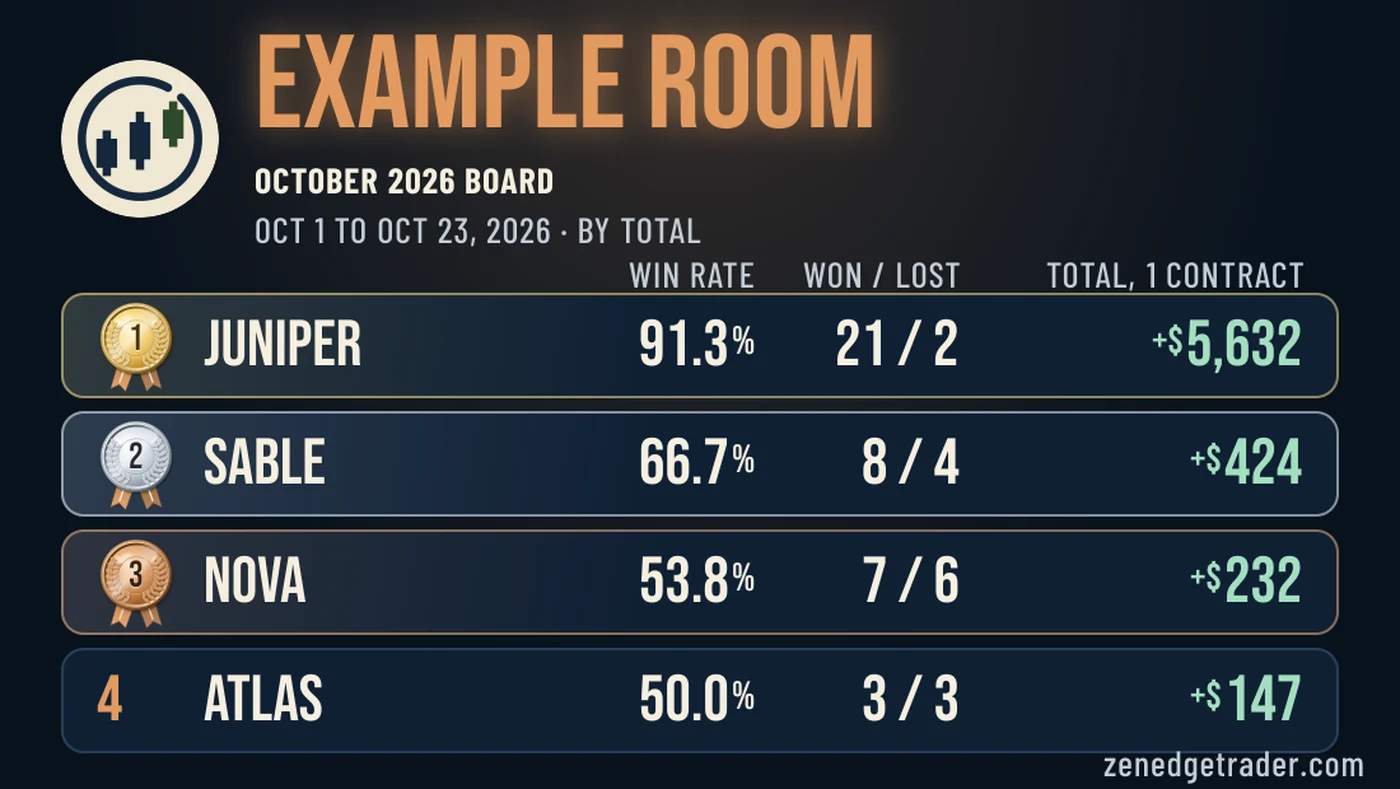
Week, month and yearThe board, gold, silver, bronze
Every month and yearThe winner's card
Example room in ZenEdge's colors, analysts and numbers made up. Yours wear your server's colors and logo.
What posts when
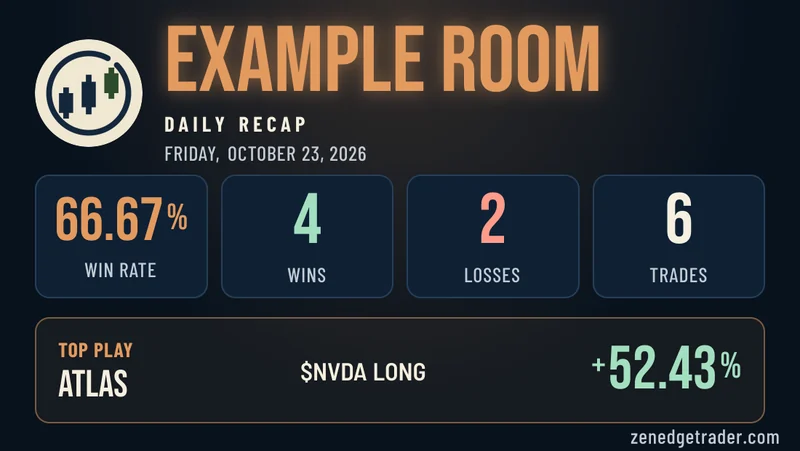
Every trading dayThe day's recap
Every weekThe board
Every monthTrader of the Month
At 3, 6 and 9 monthsThe year so far
Every yearTrader of the Year
A room that posts its own recaps gets each one posted back as a picture. A room whose analysts post alerts gets a recap of each trading day.
On every member's phone
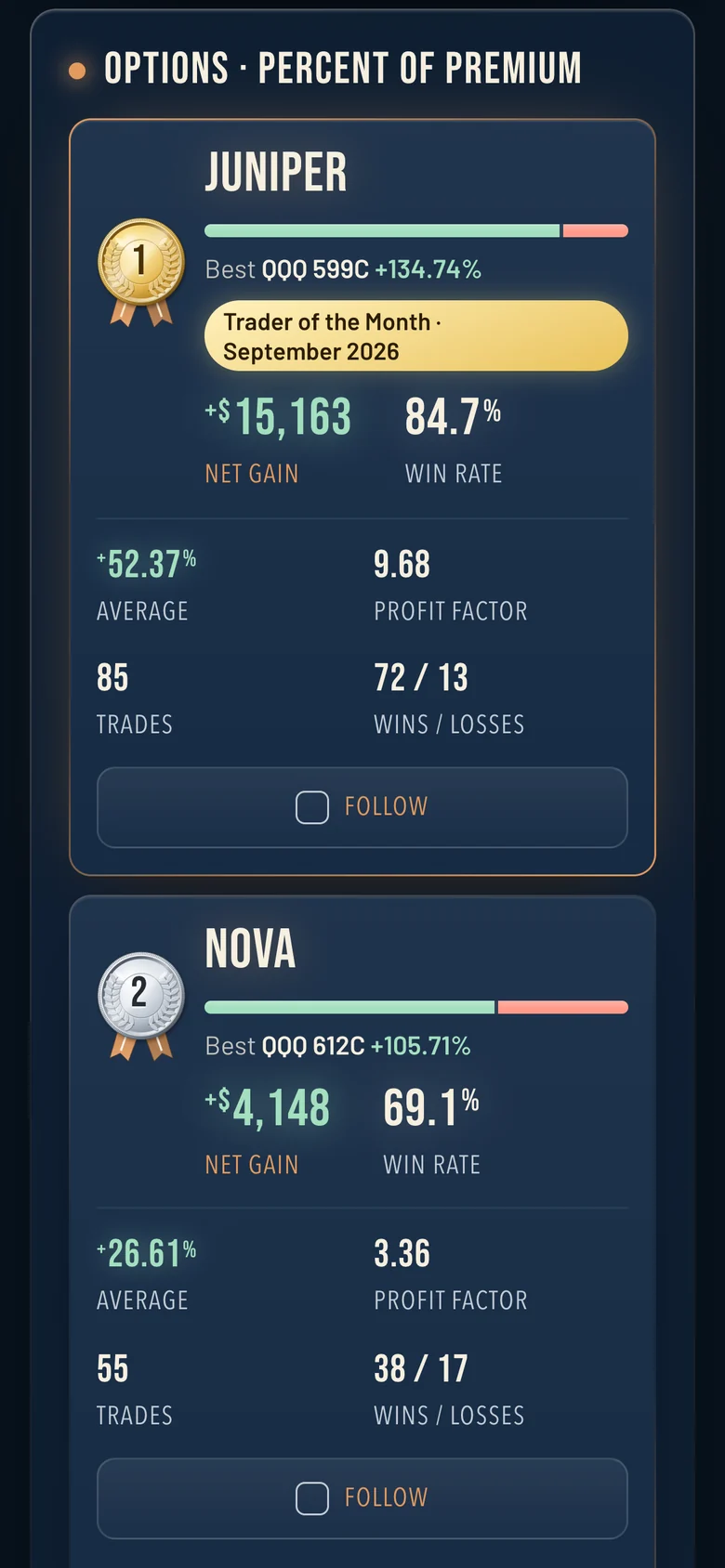
The board


- The whole room
- How many trades the room won, on one bar with each count printed on it, and its running total, over whichever stretch a member picks.
- The ranking
- Every analyst on one board, over the last week, 30 days, 3 months, 6 months, 9 months, this year so far, a year or all time, as far back as the room's recaps go. Every card shows net gain and win rate side by side, ranked by net gain unless a member picks win rate, average, profit factor or most trades. An analyst needs five closed trades in the stretch shown to be ranked.
- Top trader of the week and month
- Named by net gain over the calendar week and the calendar month, and only someone who is up. Early on, last week's and last month's stand in.
- Gold, silver and bronze
- The top three on every board the bot posts wear a medal, so the room sees who led at a glance.
- The winner's card
- After each month's and year's board, a card of its own for the Trader of the Month or the Year, in your colors with your logo. The member page carries the winner's badge and the last winners.
- Title roles
- Make Trader of the Month and Trader of the Year roles in your server, and the bot moves each one to the new winner. Off unless you ask for it.
Every analyst's record
- Total net gain
- First on every record: every trade added up, in dollars at the size each member types in, or the percents added up where a room posts percent only.
- Win rate
- The share of an analyst's closed trades that ended in profit, short trades included.
- Average win and average loss
- What a winning trade made and what a losing one cost, side by side.
- Worst stretch
- The biggest drop from a high in the running total, so nobody meets one by surprise.
- Every trade
- Each closed trade listed, losses included, linked to the post it came from.
- Recent form
- The last 30 and 90 days beside the whole record.
- Reward to risk
- The RR members ask about: the average win set against the average loss, as 2 to 1 or 1 to 1.
- How often they call
- Calls a week and the day of the last one, so a quiet analyst is never mistaken for an active one.
- How far trades went
- How often a trade got to +20%, +30%, +50% and +100%, or +2% to +20% for stocks, at the prices posted.
- How they run a trade
- From live alerts: when they call on each member's own clock, how long they hold, how often they average down, trim or hit a stop, and lotto plays apart.
- Kept apart
- Options, stock, crypto and futures are never added together, so a record in points never mixes with one in percent.
Fit to each member
- What do you trade?
- A filter by ticker, days to expiry and cost, so a 0DTE trader sees 0DTE numbers.
- Their own size
- Contracts or shares per trade, so the dollars match how each member trades.
- Follow
- A member taps Follow on the analysts they want and opens just those records. It is remembered on that member's own device, with no account.
How it gets your trades
If you post recaps
Call Sheet reads the recap channel you already post in. Add the ZenEdge bot to it, and each new recap is on the board within minutes. Every recap is checked against its own totals before it counts.
If your analysts post alerts
Add the ZenEdge bot and let it read your analyst channels, nothing else. It turns each call into a finished trade once the analyst closes it. The board shows closed trades only, so it never gives away a live call.
What stays yours
- 1Your colors and your logo, on your board.
- 2One members link, pinned wherever you choose, a paid members channel included. Members need no account and no sign up.
- 3Members never pay. The plan belongs to the server.
- 4The link runs for as long as the plan does, and stops when it ends.
- 5Nothing is posted in your server unless you ask for it. Ask, and the bot posts a recap each trading day, a board each week and month, the year so far at 3, 6 and 9 months, and the year's board.
- 6Your records stay with your server. They are never shown to anyone in another.
Admission
The plan, by your server's Discord members, and every price is on this page: no quote and no sales call. Paid once a year, at ten months' price. Monthly is there if you would rather. Founding price: the first three servers keep these prices for as long as they stay.
- A1
Under 1,000 Discord members
$1,250a year
or$125a month
- A2
1,000 to 9,999 Discord members
$2,000a year
or$200a month
- A3
10,000 to 49,999 Discord members
$3,500a year
or$350a month
- A4
50,000 Discord members and up
$5,000a year
or$500a month
- Free forSeventrading days
Every plan reads up to 15 analyst channels. Each one past that is $100 to $350 a year, or $10 to $35 a month, by plan.
See every step, from adding the bot to your members' board
Step 1. Add the bot to your server
The button for this is on your own setup page. We send you its link once you have seen your board.
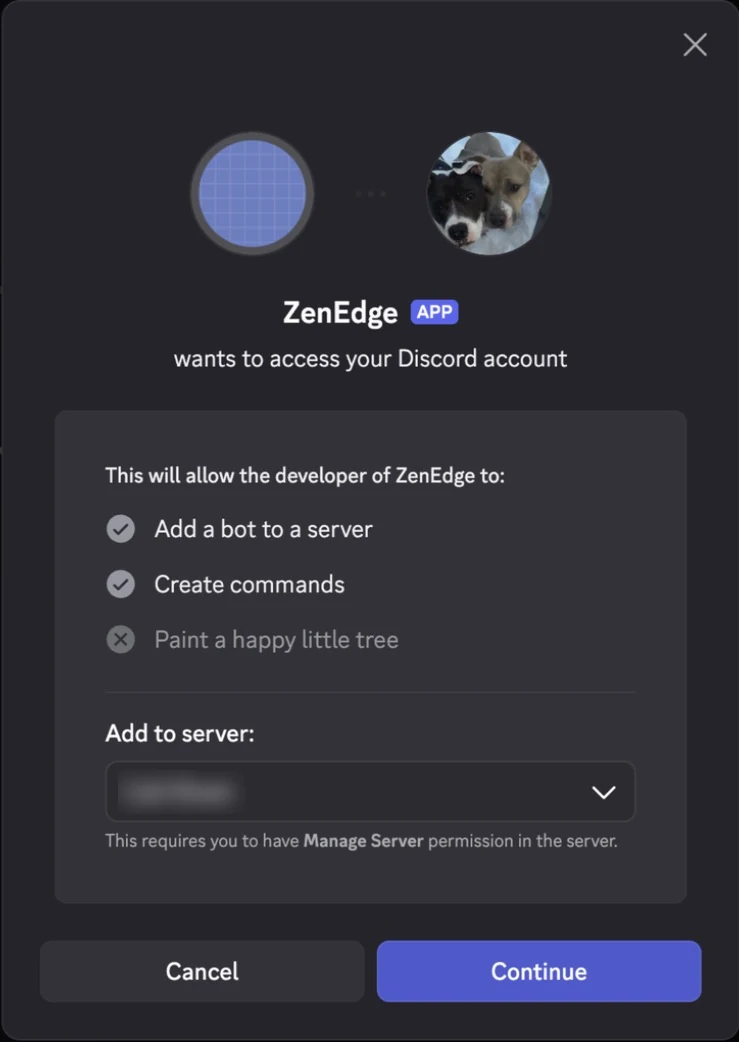
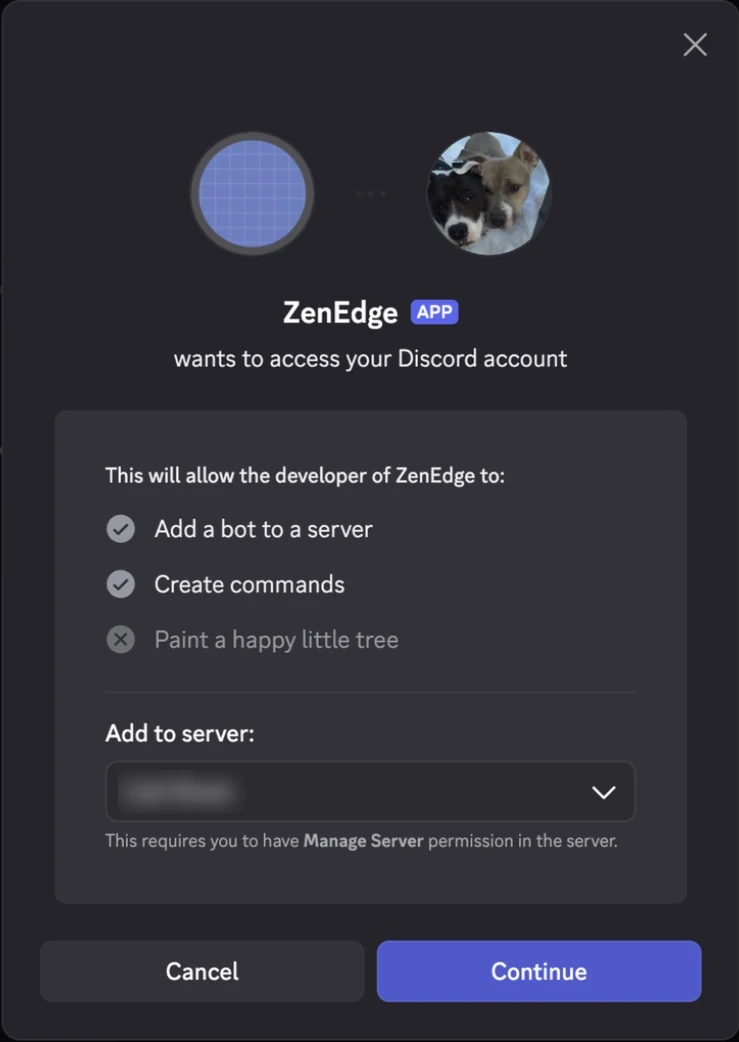
1aDiscord opens this. Under Add to server, pick your server. Press Continue. Your server is not in the list? You need the Manage Server permission in it. 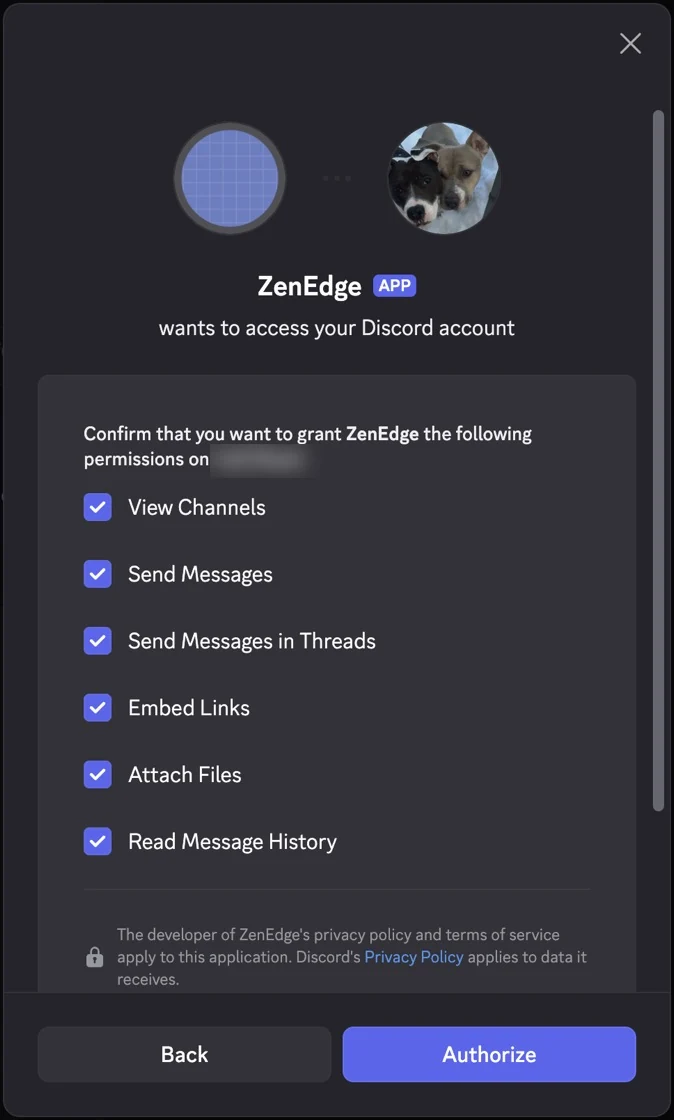
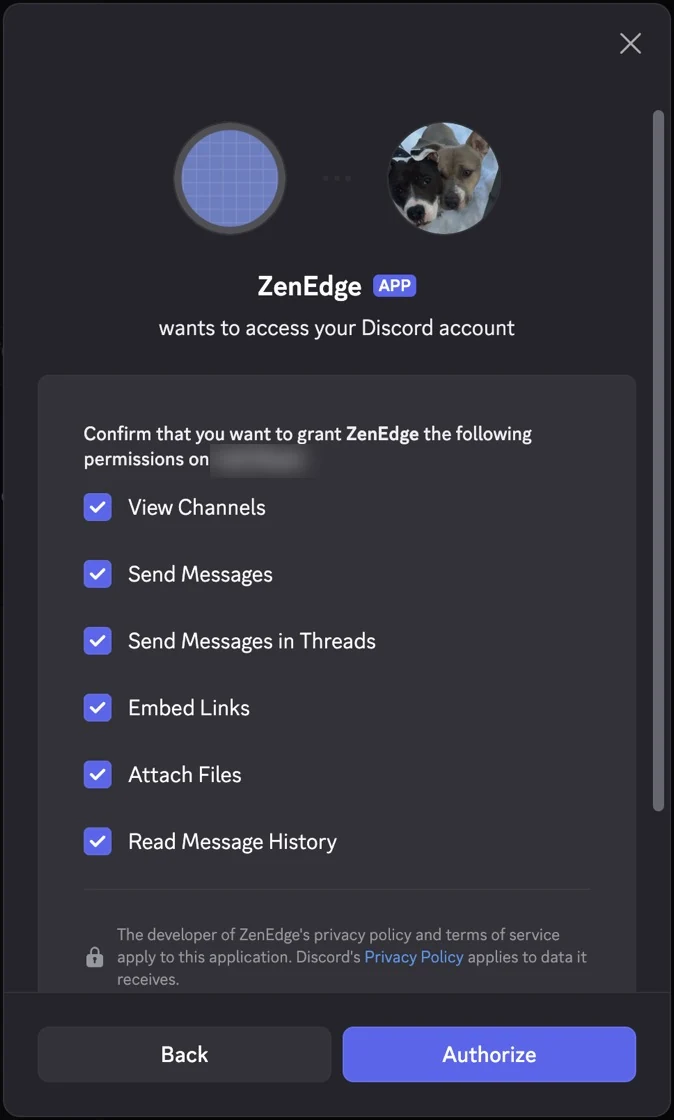
1bLeave every box ticked. Press Authorize. The bot reads only the channels you name, posts only where you ask, and never messages your members. Step 2. Tell us where your trades are posted
Write to gvillacapital@gmail.com with your server's name. Name the channels your recaps or your analysts' alerts go in. The bot reads those channels and nothing else. Want each recap and the week's board posted for your members too? Name that channel as well. We write back once the bot is reading them and your board is ready.
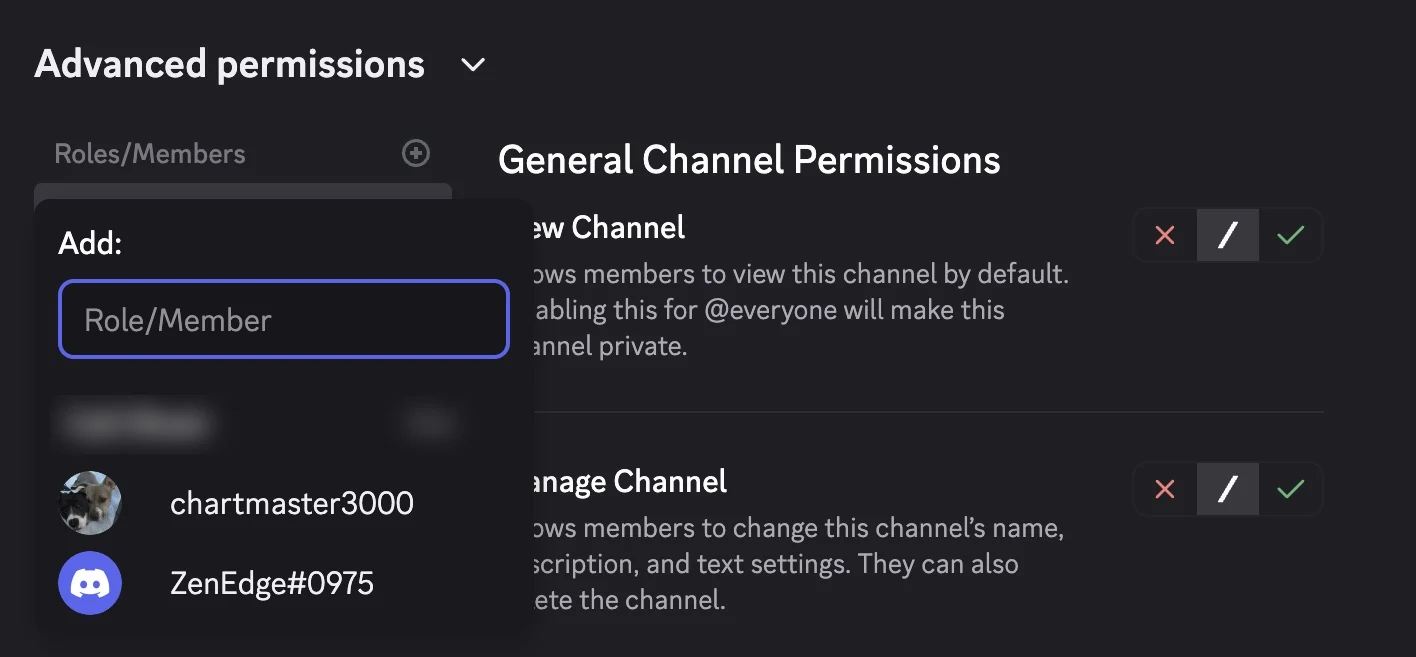
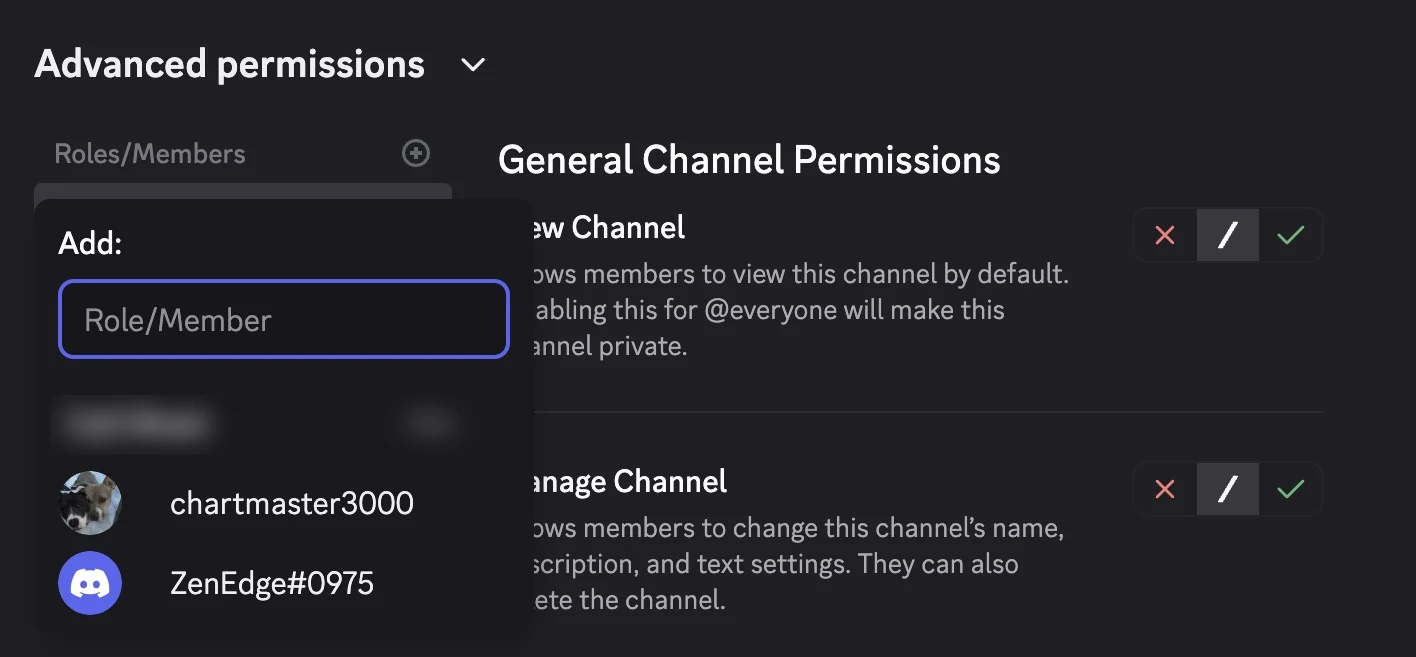
2aIs one of those channels private? Open its settings. Choose Permissions. Press the plus beside Roles/Members. Pick ZenEdge. Skip this, and the bot cannot read that channel. 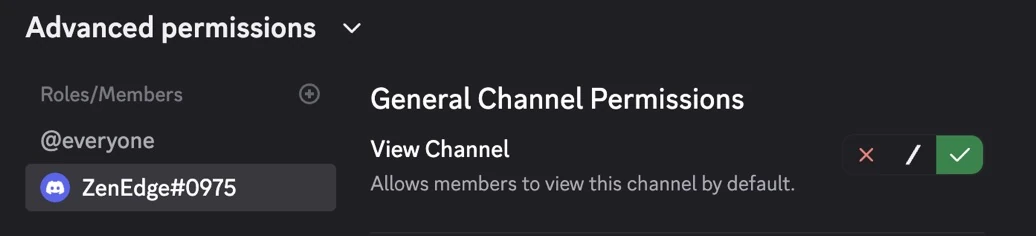
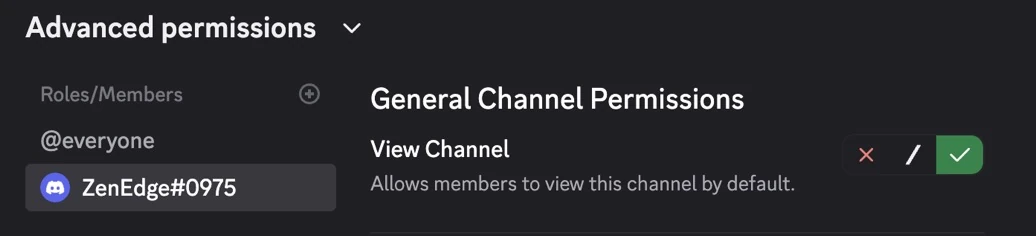
2bPress the green check beside View Channel. Press Save Changes at the bottom. 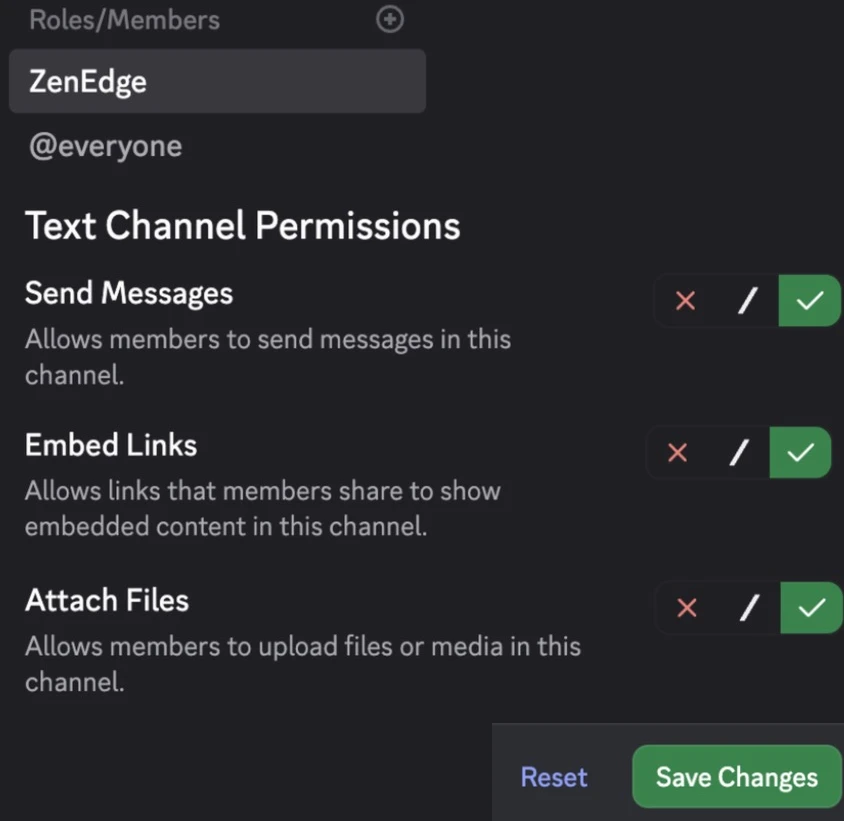
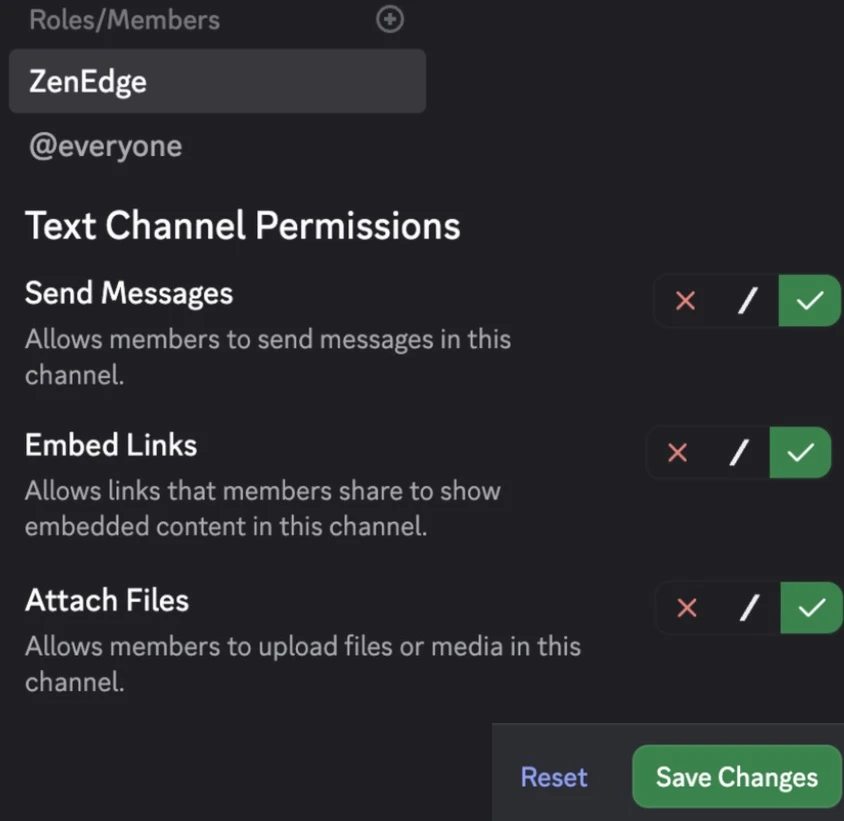
2cDoes the bot post in a channel where members cannot type? Pick ZenEdge there the same way. Press the green check beside Send Messages, Embed Links and Attach Files. Press Save Changes. Step 3. Pin your members link
Your members link is on that same setup page. Post it in a channel your members can see.
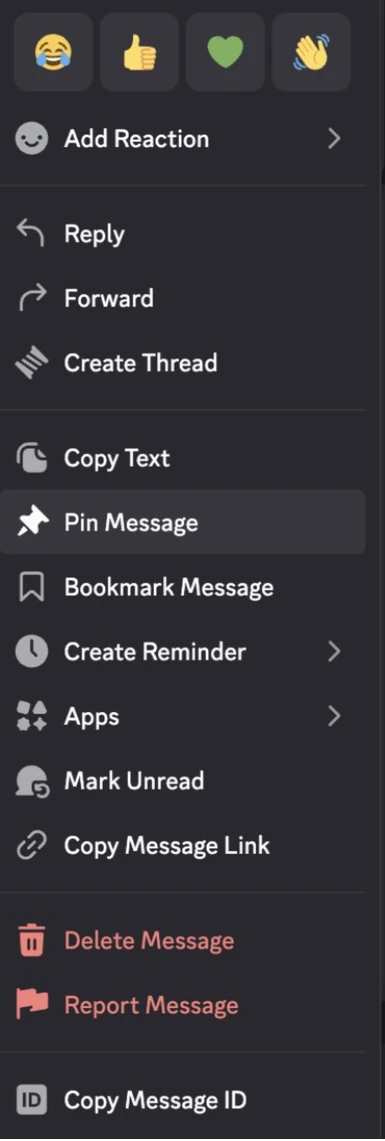
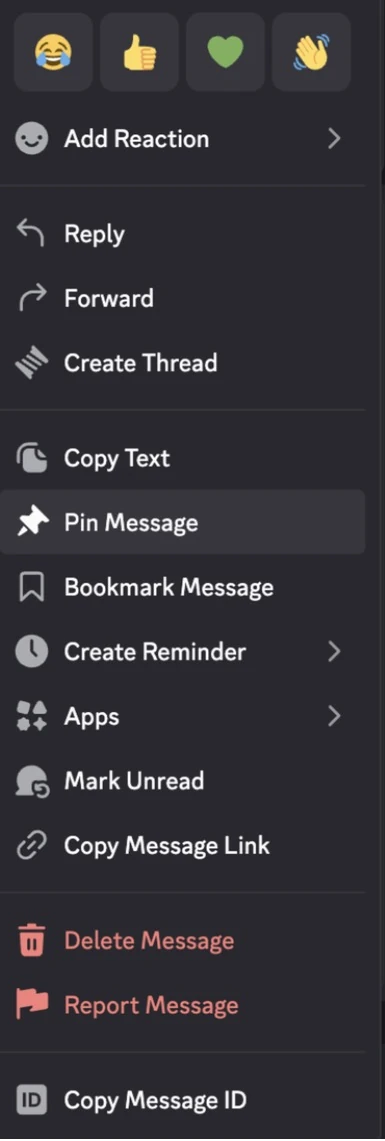
3aRight click that message. On a phone, press and hold it instead. Choose Pin Message. Step 4. Title roles, if you want them
The bot hands Trader of the Month and Trader of the Year to each new winner. Skip this step if you would rather not. Do it on a computer.
Once the steps below are done, write to gvillacapital@gmail.com with both role IDs. Add each analyst's name as your recaps show it, with their user ID. The bot only ever moves these two roles, and only among the analysts you list.
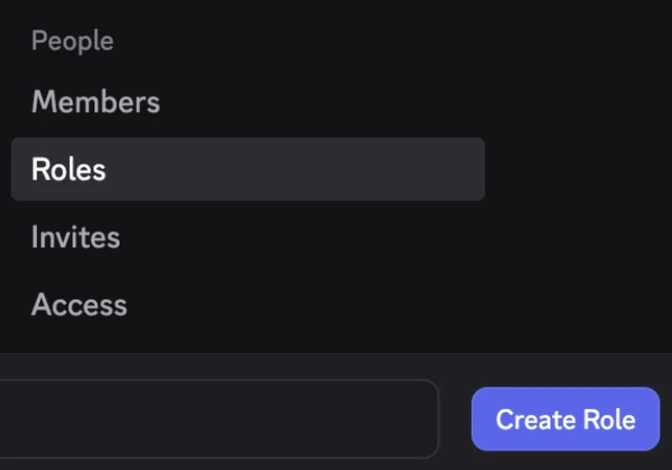
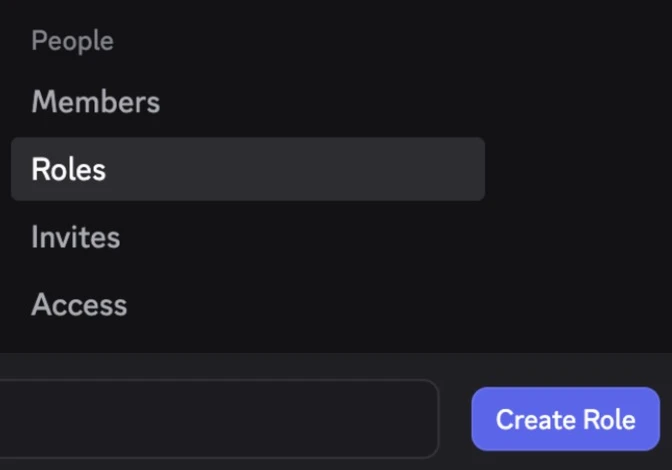
4aIn Server Settings, choose Roles. Press Create Role. 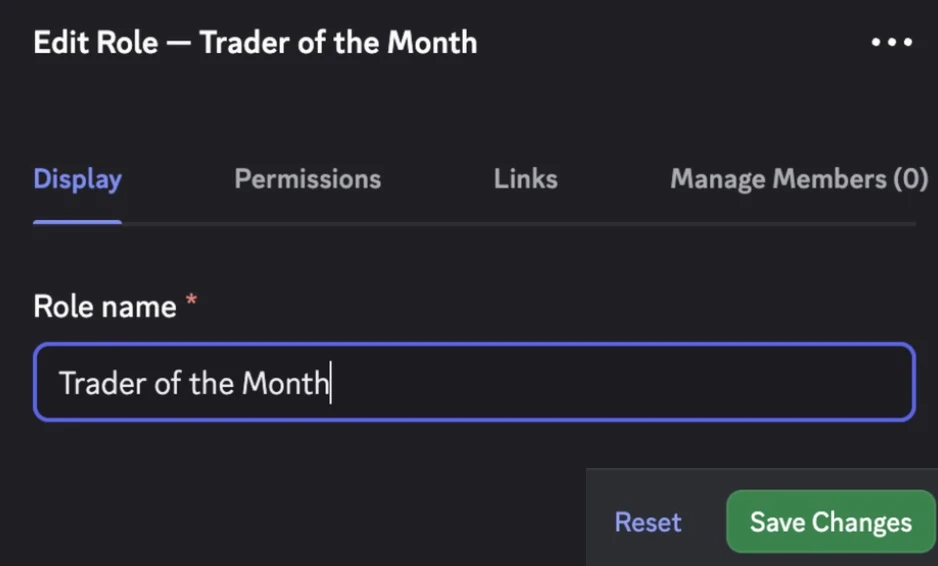
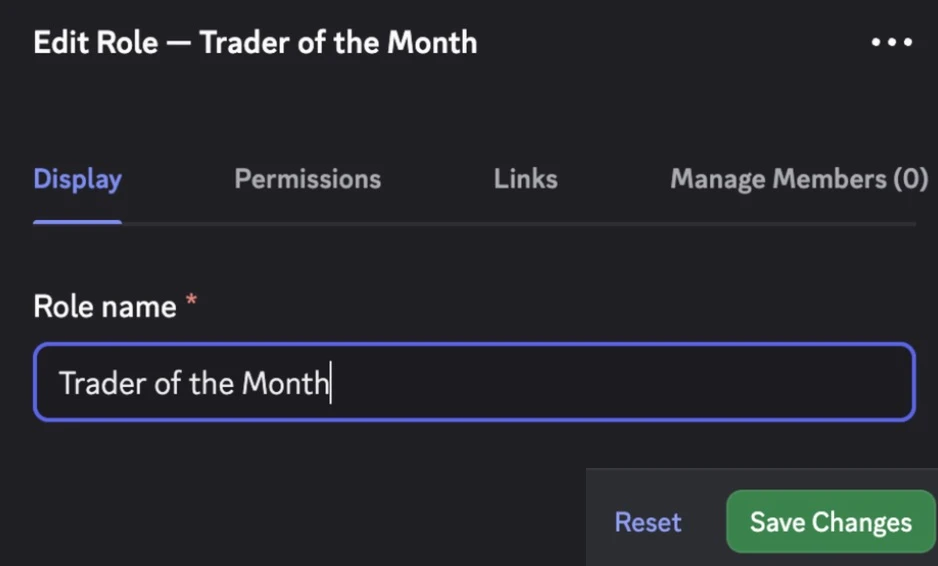
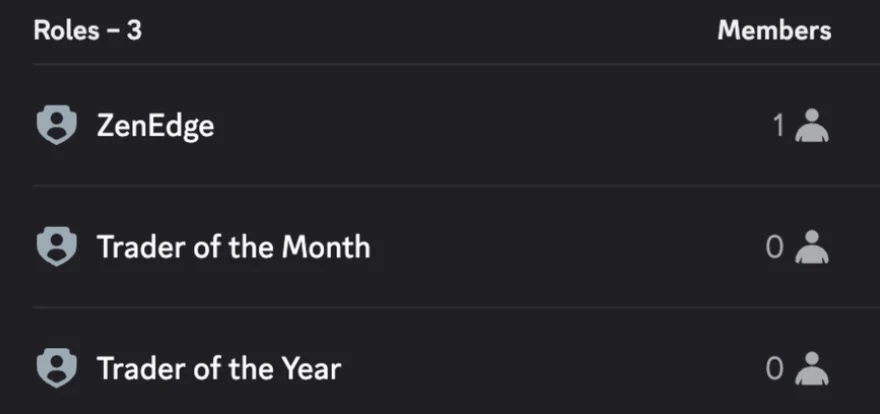
4bType Trader of the Month under Role name. Press Save Changes. Make Trader of the Year the same way. 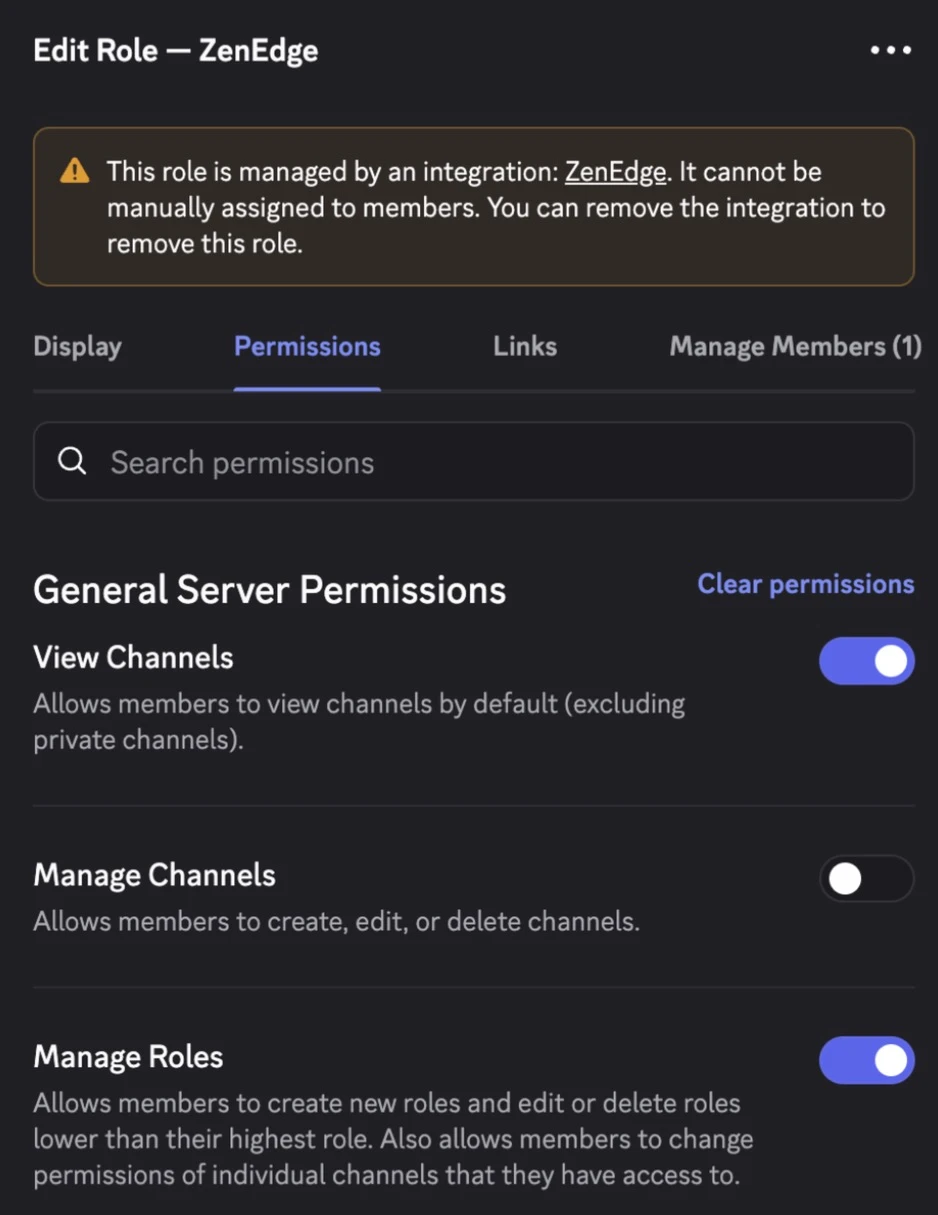
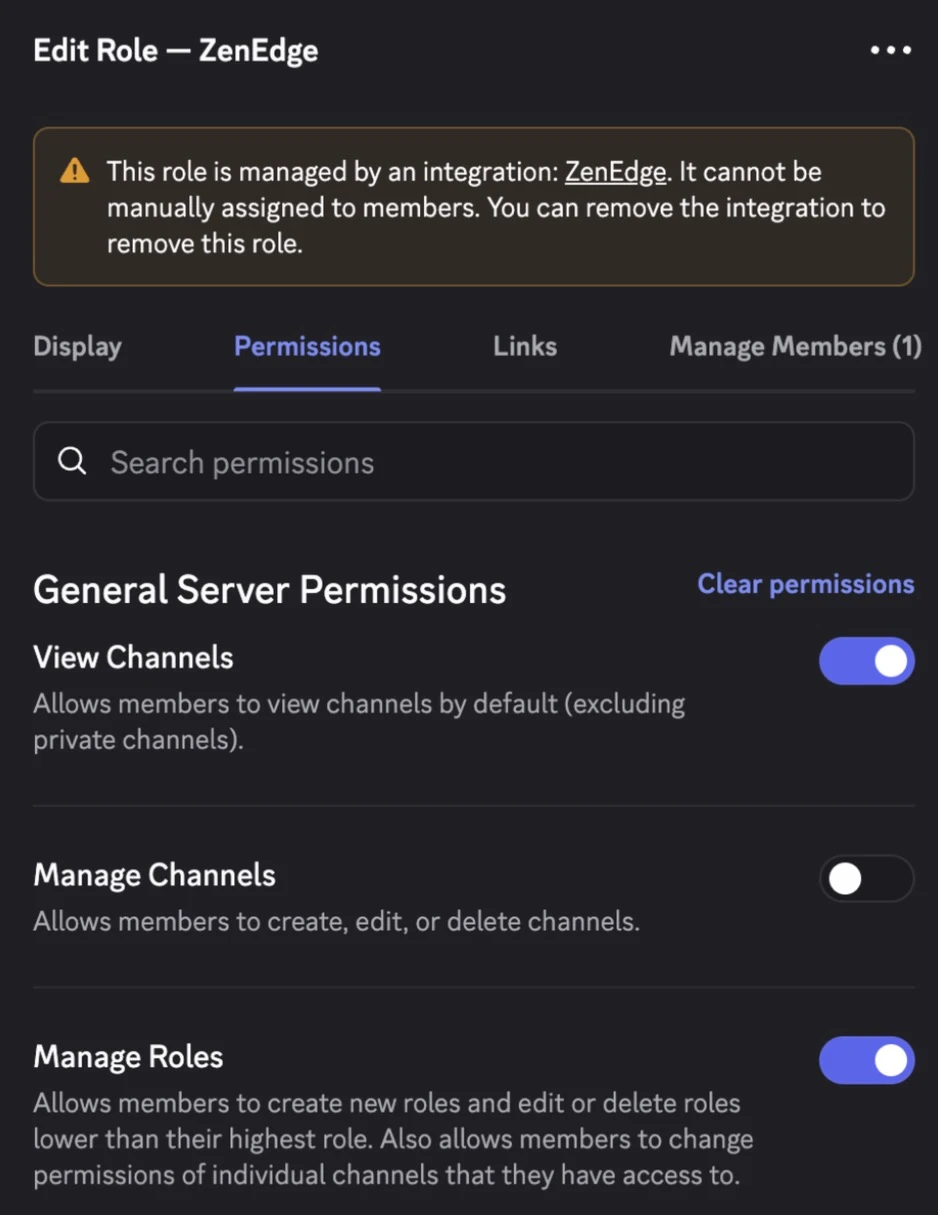
4cPress the pencil beside ZenEdge. Press Permissions. Turn on Manage Roles. Press Save Changes. 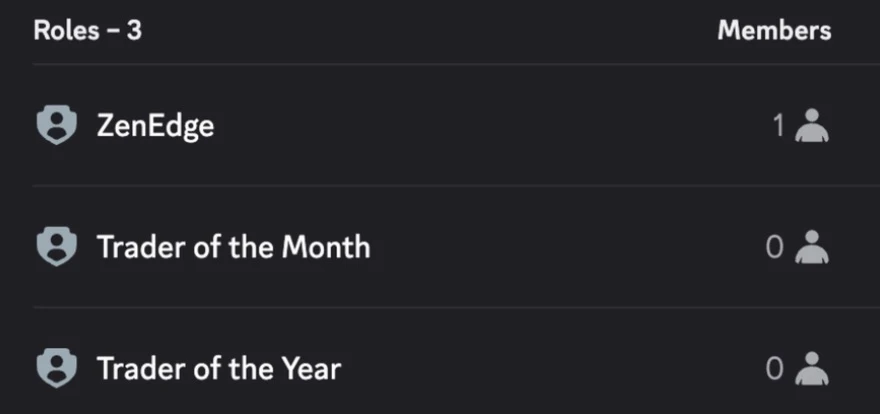
4dZenEdge has to sit above both title roles. If it is lower, drag it up. Below them, the bot cannot hand them out. 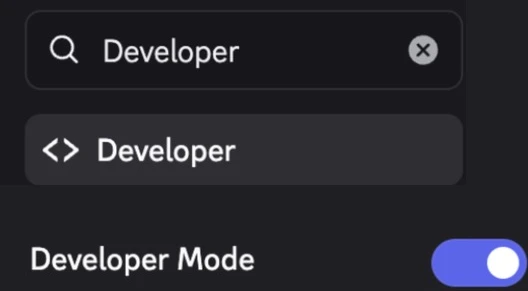
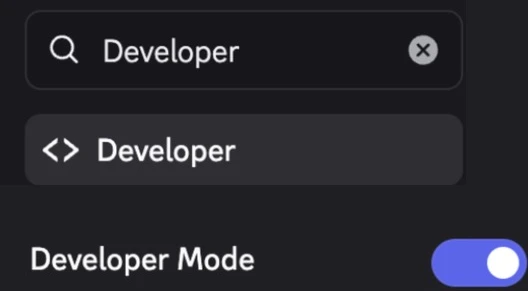
4eTo copy the IDs, press the gear beside your name. Search Developer. Turn on Developer Mode. 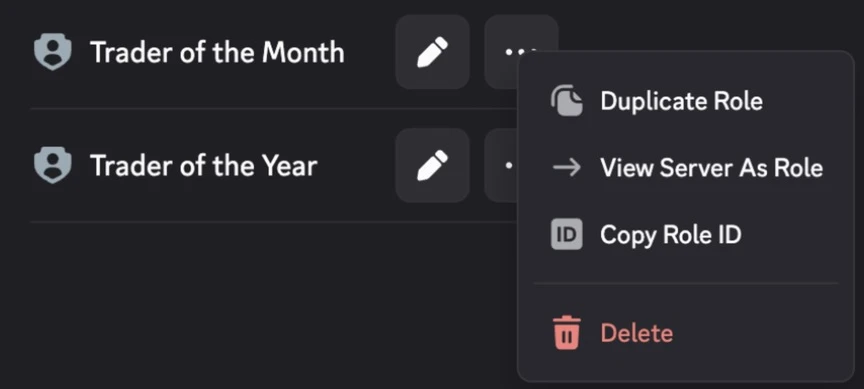
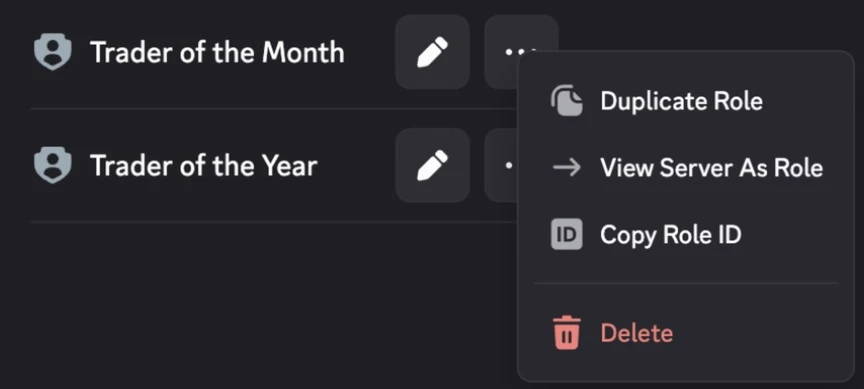
4fBack on Roles, press the three dots beside each title role. Choose Copy Role ID. 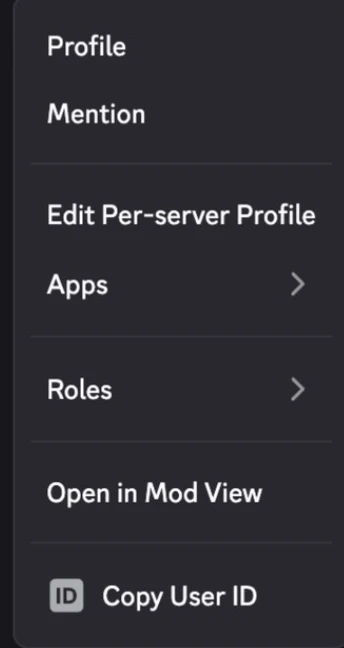
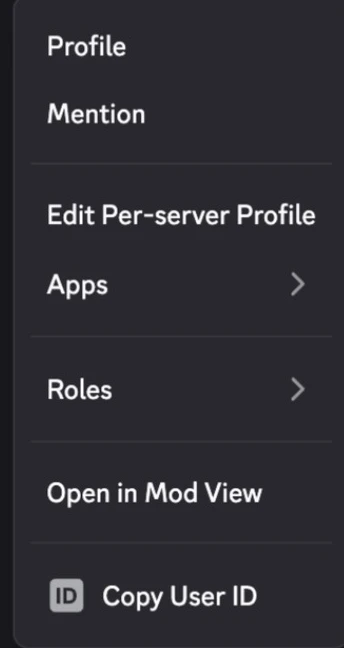
4gRight click each analyst in your member list. Choose Copy User ID. Step 5. Cancel or change your card, any time
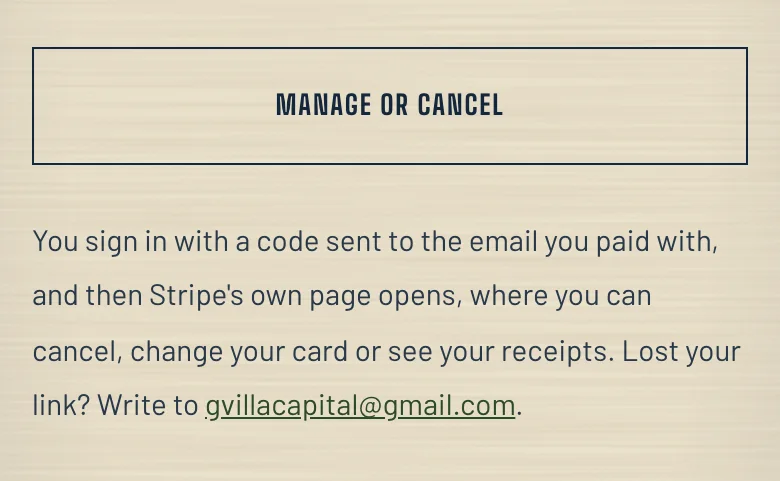
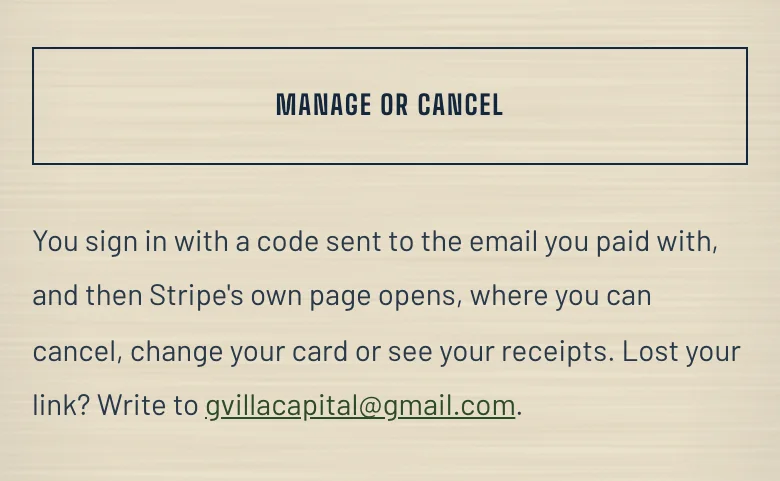
5aOpen the link you paid from. Press MANAGE OR CANCEL. Type the code sent to the email you paid with. Stripe's own page opens. Then your members open their board
The board in these pictures is an example, with numbers made up.
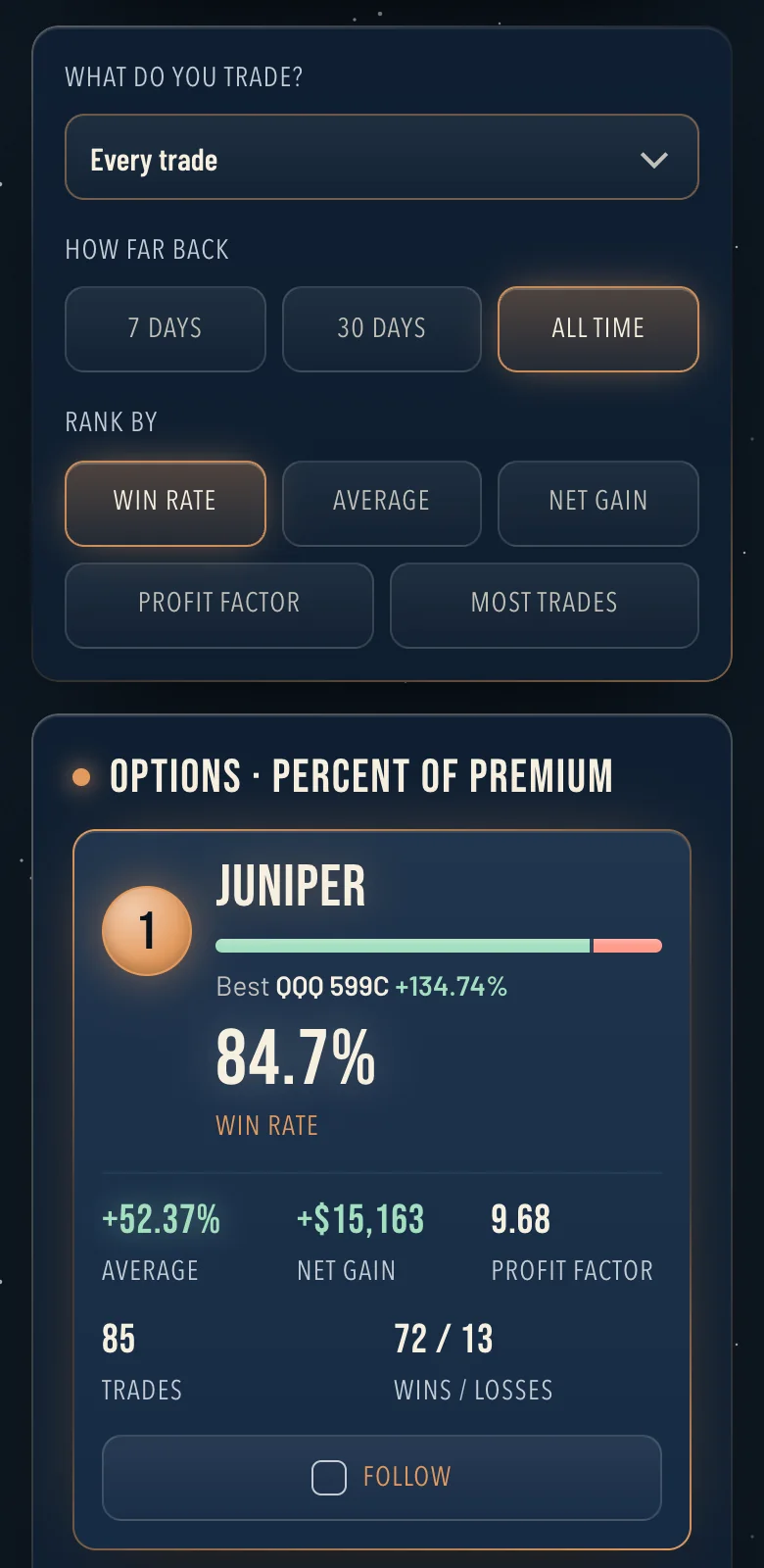
aThey tap the link and the board opens, with no account and no sign up. 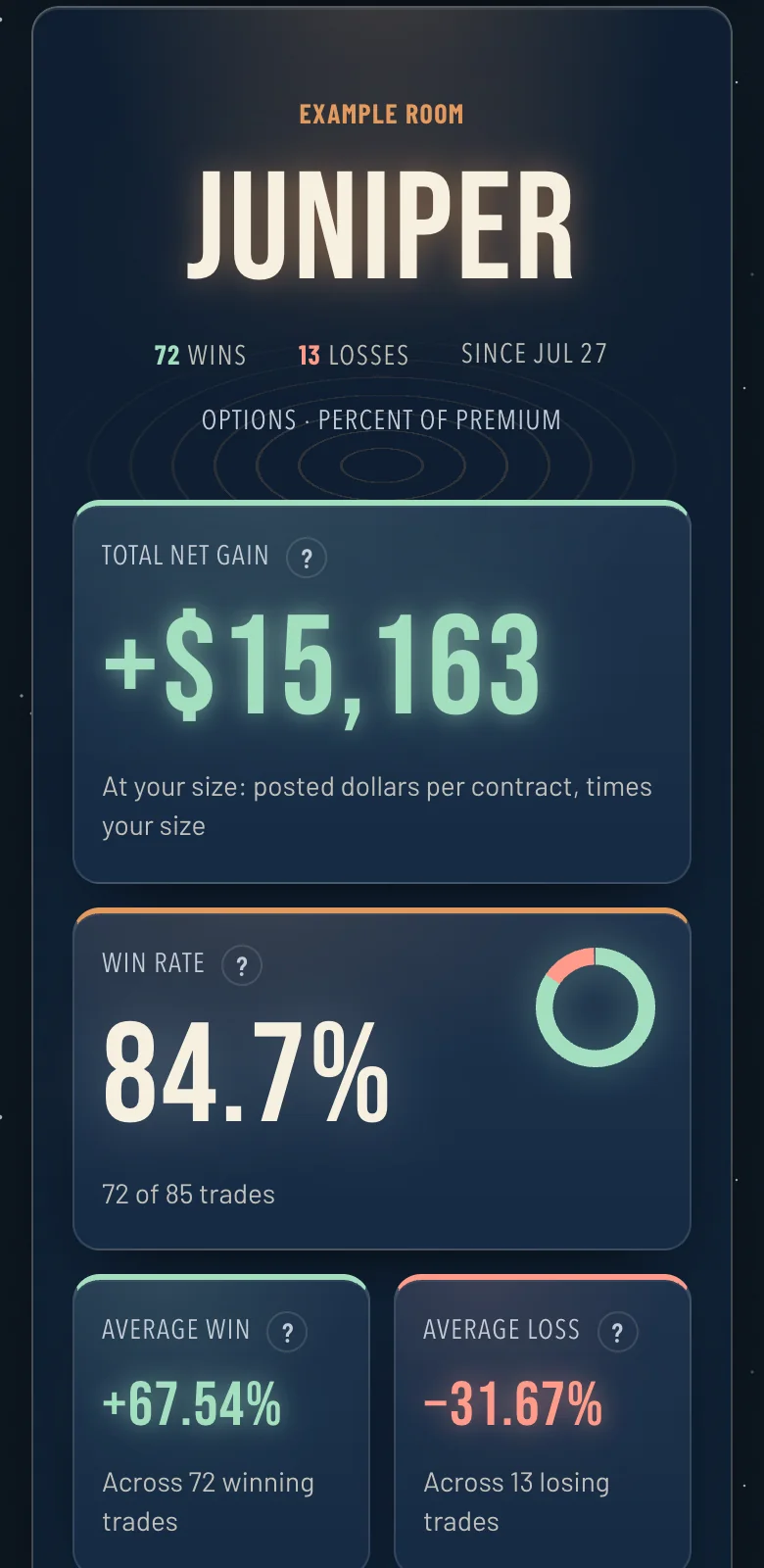
bEach analyst's whole record is one tap away.
Stay Posted
Write a post once and send it to every Discord channel and Telegram chat you choose, right away or at a time you set.
Start with your own board
Write to gvillacapital@gmail.com with your server's name and how many members it has. You see your board first, built from your own trades. Then it runs on your channels free for seven trading days, and it stops on its own after the seventh unless you keep it with the card payment link for your plan. Paying means you agree to the terms.
Every figure on a board comes from the trades that server posts, at its posted prices. They are not trades taken by this site, and real fills differ.